Skip to content
View in the app

A better way to browse. Learn more.

LCPDFR.com

A full-screen app on your home screen with push notifications, badges and more.

To install this app on iOS and iPadOS
  1. Tap the Share icon in Safari
  2. Scroll the menu and tap Add to Home Screen.
  3. Tap Add in the top-right corner.
To install this app on Android
  1. Tap the 3-dot menu (⋮) in the top-right corner of the browser.
  2. Tap Add to Home screen or Install app.
  3. Confirm by tapping Install.

Pezza

Members
  • Joined

  • Last visited

Everything posted by Pezza

  1. Pezza posted a topic in Legacy
    EUP menu keeps crashing when I press F11
  2. Pezza replied to Pezza's topic in Legacy
    I can't, it keeps crashing now. I tried reinstalling.
  3. Pezza replied to Pezza's topic in Legacy
    I have put the directory on the list, re-installed and then restarted and it still flags? Now when I try go on duty the LSPDFR plugin crashes immediately. Is there a fix for this?
  4. Pezza posted a topic in Legacy
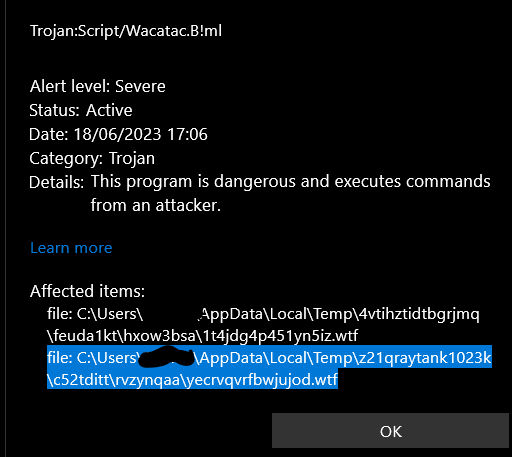
    Is it just me or when you try to open RPH antivirus flags a trojan script? This only just happened today, it was working fine before this.
  5. Try using the plugin 🙂 It is a very easy install. Wait, when you type StartCallout don't forget to select a call and press Tab.
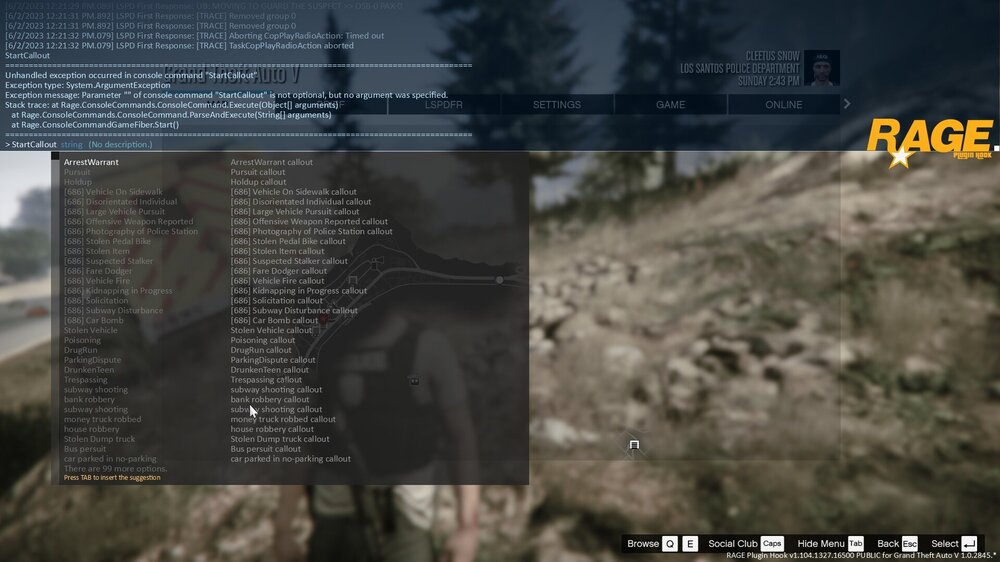
  6. I'd advise using the plugin 'Callout Manager' or typing 'StartCallout (Then select one)' Into the F4 menu in game. Hope this helps.

Account

Navigation

Search

Search

Configure browser push notifications

Chrome (Android)
  1. Tap the lock icon next to the address bar.
  2. Tap Permissions → Notifications.
  3. Adjust your preference.
Chrome (Desktop)
  1. Click the padlock icon in the address bar.
  2. Select Site settings.
  3. Find Notifications and adjust your preference.