
SHERIFF/EMS/FIRE
Members
-
Joined
-
Last visited
Everything posted by SHERIFF/EMS/FIRE
-
http://www.emergency-planet.com/register/
-
Take a look at this laptop from iBUYPOWER. I would definitely recommend a desktop over a laptop though. https://www.ibuypower.com/Store/iBUYPOWER-Chimera-N850HK1-Gaming-Laptop
-
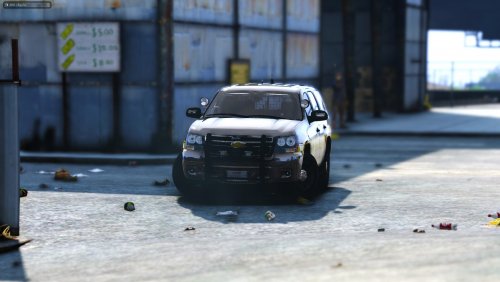
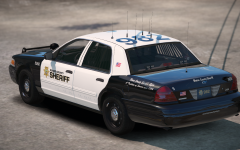 I like the all white
 -
-
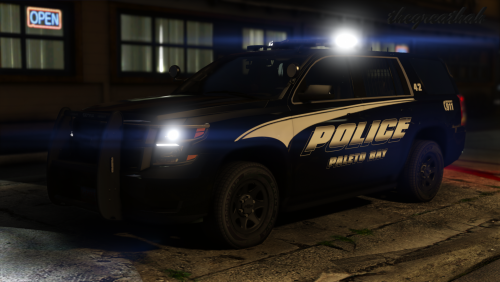
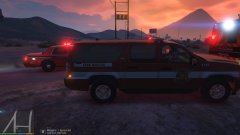 I like this one the most out of the 4 others that almost look exactly the same.
 -
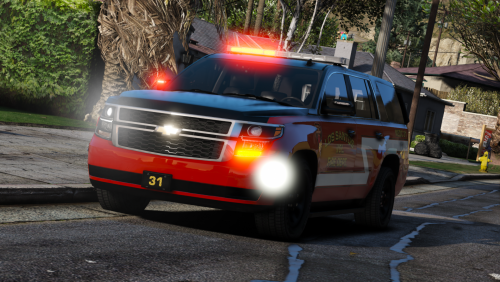 Lightbar shows up black in the game when installing it as FBI2. How do I fix that again?
- 11 comments
- 11 reviews
-
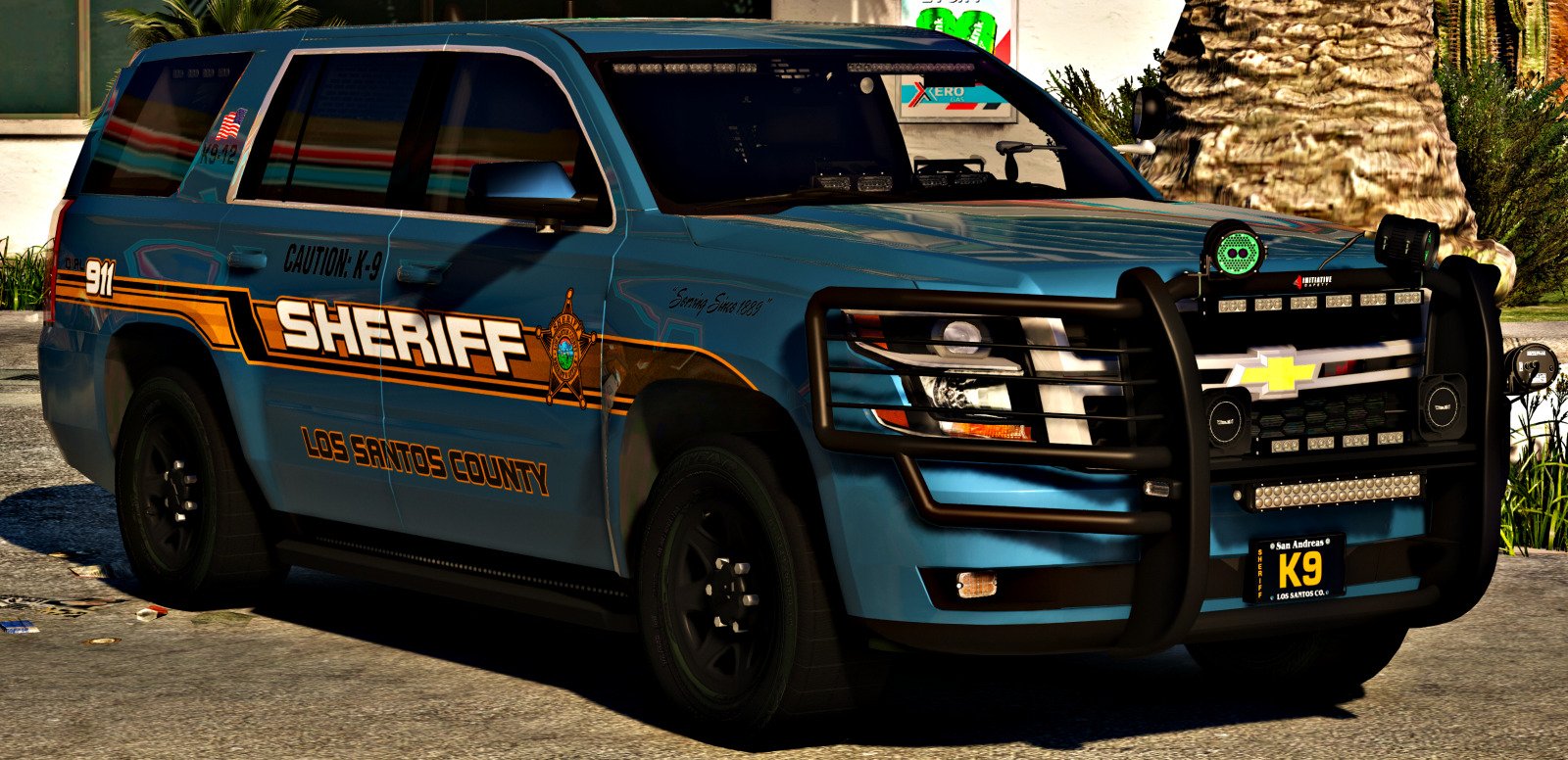
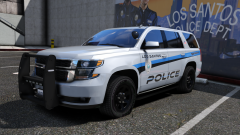 Deliver it to me. The Tahoe...
 -
-
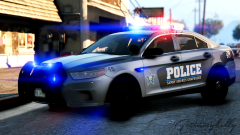 Will this be released?
 -
-
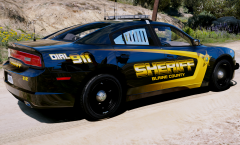 New ENB - Make Visuals Great Again 2.65 + Redux 1.1 textures & Reshade. 4k
 -
I really like this one
-
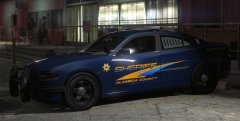 I prefer
 -
-
-
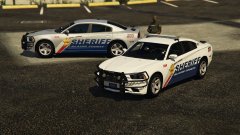 Silver
 -
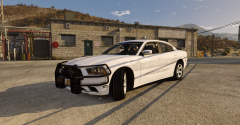 All credit for liveries goes to getinmybelly0627.
 -
-
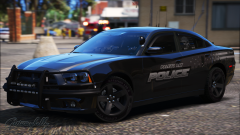 Very nice
 -
Like this?
-
No
-
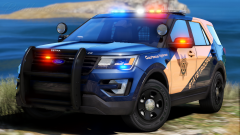 I'll take those settings if you don't want them
 -
-
-
 My KEYBINDINGS section was left untouched. I did change my login name, login password, unit number, and changed fbi2 to the bcso background.
- 1,743 comments
- 172 reviews