


brotherinblue10
Members
-
Joined
-
Last visited
Everything posted by brotherinblue10
-
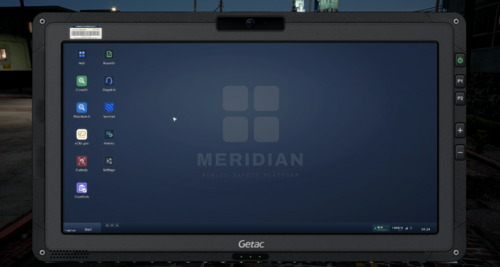 Not that it's not visible, just hard to see for the transparent logos imo... but my glasses are thick thick lol. I pay more for thin lenses, and they're still kind of thick LMAO. I prefer the darker backgrounds anyway, so I don't flashbang myself lol.
 -
My only other suggestion would be to possibly make another set of icons that shows up better on the yellow background
-
You are awesome! I've been struggling with Photoshop, trying to get stuff right. You saved my sanity!!!!! <3
-
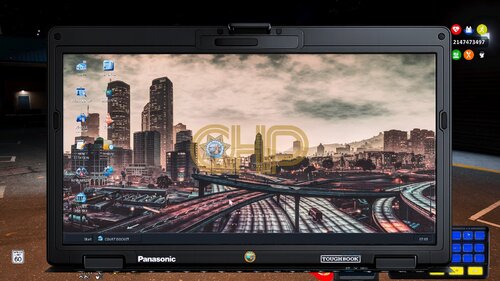 Could you please make an Indiana one. I would be grateful!
 -


