


Jake1812
Members
-
Joined
-
Last visited
Everything posted by Jake1812
-
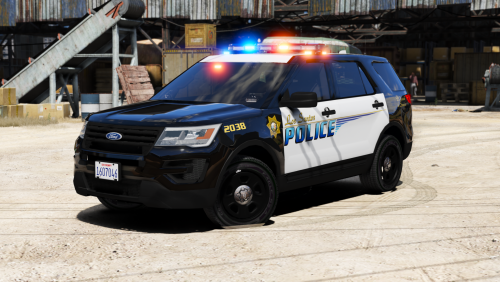 I have got all the cars in apart from one however my ELS isn't working.Does this look right for all of the cars?
- 210 comments
- 59 reviews
-
Ok thanks for your help.anyone know what I should do now just re-install the game?
-
So what do i need to do? I dont have any moded cars Iam just getting this as i go into the police station:An unhandled exception occured within the LCPDFR.Please see logfile for more details (Object reference not set to an instance of an object.)
-
This was not needed
-
graphics card:Redeon HD6570 Ram:4gb So i should re-install the game?
-
Still geting this:An unhandled exception occured within the LCPDFR.Please see logfile for more details (Object reference not set to an instance of an object.) When i re-installed it
-
Gta works fine and the lcpdfr used to run fine but now only the game works
-
It worked before it just stopped working So what do I need to do?
-
I get it when iam in the police station
-
I get this now when in game: An unhandled exception occured within the LCPDFR.Please see logfile for more details (Object reference not set to an instance of an object.(
-
Do i just put the update files into the gta file and replace them?
-
No
-
I run it as Administrator anyway
-
Ill try now Still dont work
-
As soon as i start the game up
-
I have lcpdfr
-
I try start up the game and this comes up? And how to fix it?
