


Gsxrdannyy
Members
-
Joined
-
Last visited
Everything posted by Gsxrdannyy
-
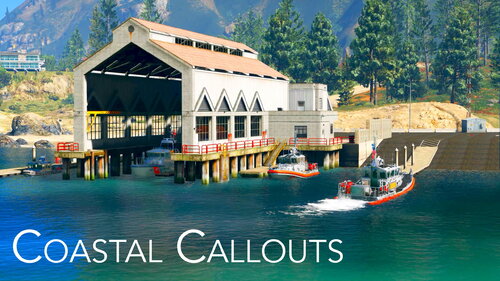 Hello, when starting up lspdfr I get a little pop up once Coastal Callouts loads that says dependencies missing: Police Tape. But I have police tape installed. And it's loaded before callouts in lml
- 497 comments
- 33 reviews
-
My game is doing the exact same thing. I saw a thread that said to disable Game Blip Hiding in lspdfr.ini file. I tried that but no luck. Have you been able to figure it out?
-
Hello everyone, so I'm trying to come back to play lspdfr. I have a fresh install of GTA V and installed ONLY lspdfr (newest version) so far, but my game is constantly crashing on loading screen. Game loads just fine if I don't try to run it with Ragehook. But when I try hooking it, it crashes a few seconds into the loading screen. I've tried a couple things. I've tried putting my game in DX10, borderless window, tried forcing DX10 through Ragehook. I've tried starting up the game both straight from Ragehook and also by running the game then alt-tabbing out and starting Ragehook. Nothing works. Is it something I'm doing wrong? Here are my logs and thanks in advance. Edit: I noticed that on my logs it shows that I have some commands listed twice in the commandline.txt file, but I looked in the file and it doesn't show any duplicates nor are there any duplicate commandline.txt files.
