mattpux
Members
-
Joined
-
Last visited
Everything posted by mattpux
-
-
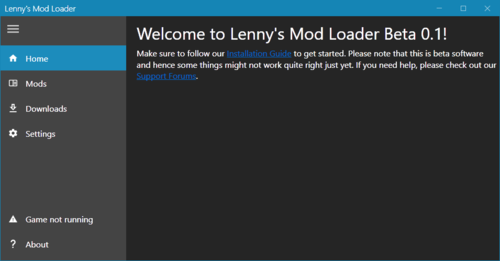
 Can someone please help. There is no folder with mp_ or eup. I installed with lml and cannot find any of the folders or files mentioned.
- 554 comments
- 45 reviews
-
-
I have posted somewhere else and I was told there was an update for GTA V within the last couple of days, since then people have started getting errors with LSPDFR. As for the mods, my game worked fine with LSPDFR 4 days ago, however I then installed a mod which crashed my game, so I downloaded the game from steam again as I was stupid and didn't have a backup copy, so it was a clean install of LSPDFR and now it is crashing my game on the loading screen.
-
Apparently the game has been patched within the last couple of days, is this why LSPDFR is no longer working as it needs to be patched?
-
One of my mods didn't work, so I re-downloaded GTA V (through Steam) for a clean install and LSPDFR was the first mod I installed. So if there was an update for the game, I do not know.
-
I had LSPDFR working a few days ago not it is crashing during the loading screen. RagePluginHook.log
-