

WhosChris
Members
-
Joined
-
Last visited
Everything posted by WhosChris
-
 Probably the issue
 -
-
One will be provided later today .
-
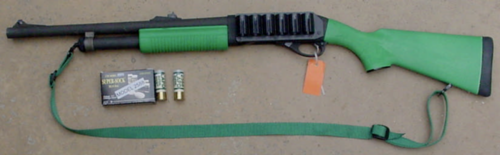
Replaces the unused sound files in PTL_RUBBER, meaning you can have a normal pump shotgun audio hash, as well as a beanbag audio hash. Adds a new audio hash for your weapons - AUDIO_ITEM_RUBBER. Installation instructions, as well as instructions on how to change audio hashes in the readme, please read it. Special thanks to itsjack on @Lapd Code 3's discord Recommended to use this beanbag shotgun that I worked on: beanbag.mp4
-
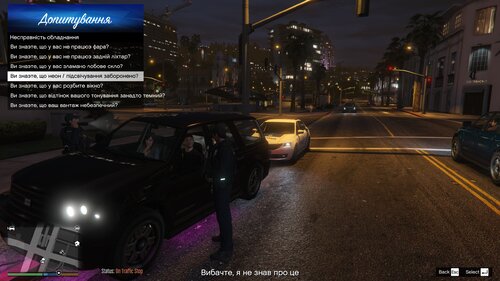 It's all good man just telling you, you can fix this by deleting the file here then reuploading it to the Visual and Data section (one the options you can select then uploading a file)
 -
This shouldn't be under scripts and plugins.. should be under Visual and Data
-
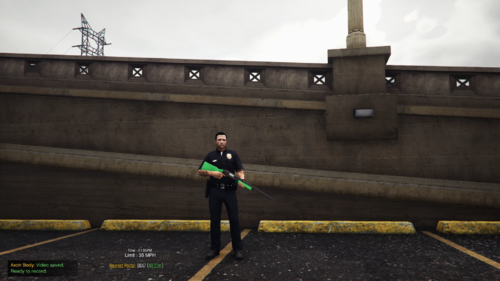 Correct however we worked with what we had
 -
Glad to hear that
-
-
-
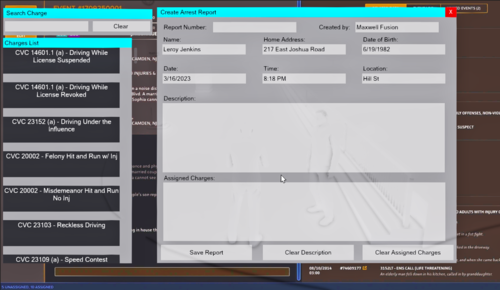 Glad they look good, if you have any suggestions let me know, I sadly don't have a link for the background however I do recommend.
- 2 comments
- 1 review
-
Absolutely love it! Should keep it as a selectable option.
-
Plenty of citations to choose from. California Charges & Citations. Disclaimer: I disclaim all liability for anything that occurs in your game. Do not message or contact me claiming that I messed up your game. Before installing, everyone must read how to install so you can ensure correct installation. Installation Directions: 1. Make sure you download Install Police Menu first. 2. Once you have successfully downloaded and installed Police Menu, I suggest watching videos by Geoffrey Gamer or Criminal Justice on how to do so. The game must be played with that mod first, and then you can quit thereafter. You must take this action because you won't have a Police Menu Folder till you run the game once. 3. Then you need to proceed to opening your GTAV Main Directory>Plugins Folder>LSPDFR Folder Inside of Plugins Folder>Police Menu Folder>Internal. After you double click on Internal you will see the charges and citations items. 4. I recommend you download WinRAR to open this file with. If you already have it then, open this mod up with WinRAR while also having your Internal folder open as well. 5. Please read the text document first. Installation directions are listed in there as well. Once you have done this then you can proceed to literally just select the Charges and Citations from your WinRAR then drag and drop them into your Internal folder where you see the charges and citations listed. Drop them into an empty space. It will then prompt you to replace the files and accept that and you're done. It's all in your game. Appreciation: Thank you all again for downloading this mod. Please use the comment section for any suggestions you will like me to add or if I missed anything. I'm pretty sure I have everything you could ask for on there. I'm very familiar with the California law so I added nearly everything you could think of inside this mod. God bless everyone. Hope you enjoy! See ya, Whos_Chris
- 2 comments
- 1 review
-
-

- 2
-
-
-
-
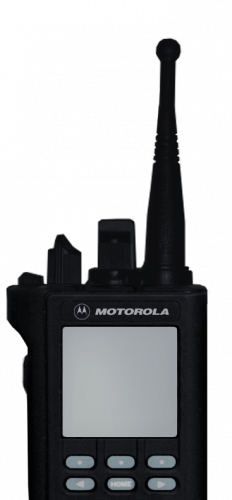 Seeing as this was made in like 2018 and Grammar police wasn't a thing at the time, I would suggest it's for Smart Radio.
- 2 comments
- 1 review
-
 Makes the game realistic and a must have mod.
 -

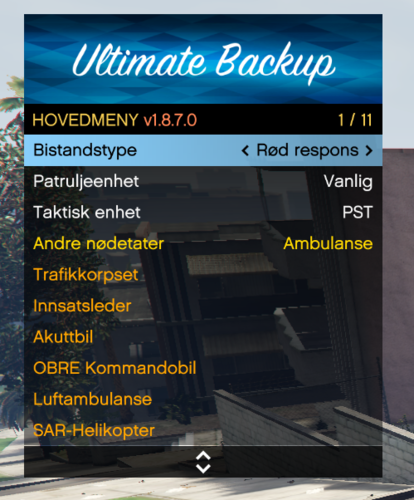

.thumb.png.a543d6b5e34e685bee5f17c2e0671637.png)