



valcop
-
Joined
-
Last visited
Everything posted by valcop
-
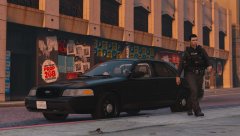
From the album: Undercover in Vinewood!
-
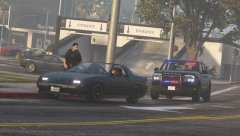
From the album: Undercover in Vinewood!
-
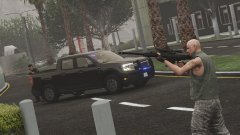
From the album: Undercover in Vinewood!
-
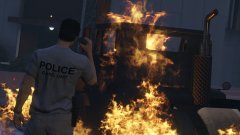
From the album: Los Santos Police Gang Unit
-
Car from @Cj24.
-
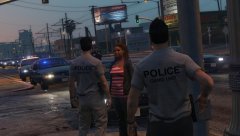
From the album: Los Santos Police Gang Unit
-
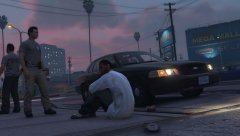
From the album: Los Santos Police Gang Unit
-
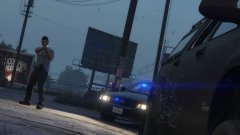
From the album: Los Santos Police Gang Unit
-
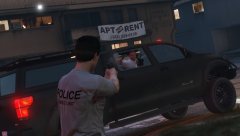
From the album: Los Santos Police Gang Unit
-
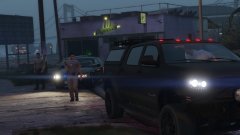
From the album: Los Santos Police Gang Unit
-
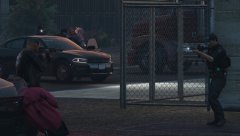
From the album: Los Santos Police Gang Unit
-
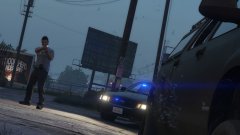
From the album: Los Santos Police Gang Unit
-
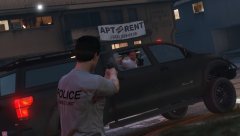
From the album: Los Santos Police Gang Unit
-
-
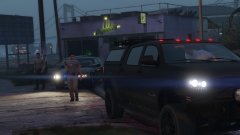
From the album: Los Santos Police Gang Unit
-
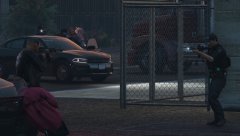
From the album: Los Santos Police Gang Unit
-
.thumb.jpg.a2ff3269a8c568bf2cbff223045f271c.jpg) Very nice car and light setup! Although it isn't ELS, it works great with the native light system and probably DLS. Also appreciate you giving an addon link! Lighting setup gives some DOJ vibes which is pretty cool, too. I appreciate the working ram bar too, I've only seen a couple people utilize working ram bars, such as @kle0. 👍 Also: the plate in the second image isn't normally like that, I just hit something It can also do this:
Very nice car and light setup! Although it isn't ELS, it works great with the native light system and probably DLS. Also appreciate you giving an addon link! Lighting setup gives some DOJ vibes which is pretty cool, too. I appreciate the working ram bar too, I've only seen a couple people utilize working ram bars, such as @kle0. 👍 Also: the plate in the second image isn't normally like that, I just hit something It can also do this:- 5 comments
- 1 review
-
.thumb.jpg.7291af5d7f1dd3511119cc23a3ad2a42.jpg) Wow, this is a great vehicle! The lighting is minimal which I like, and the vehicle quality is really good! Plus working ram bars!? 😍
Wow, this is a great vehicle! The lighting is minimal which I like, and the vehicle quality is really good! Plus working ram bars!? 😍- 9 comments
- 2 reviews
-
-
-
-
-
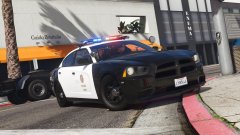
From the album: Los Santos Metro Police
-
Car credits go to @KLE0.
-
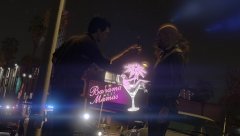
From the album: Los Santos Metro Police

.thumb.jpg.a2ff3269a8c568bf2cbff223045f271c.jpg)
.thumb.jpg.7291af5d7f1dd3511119cc23a3ad2a42.jpg)


