
Riding With Antonio
Members
-
Joined
-
Last visited
Everything posted by Riding With Antonio
-
-
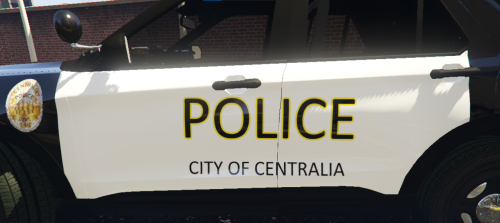 If You Liked It You Can Also Follow Me On YouTube At Riding With Antonio Thank You For Reading Or Downloading Have A GREAT DAY
 -
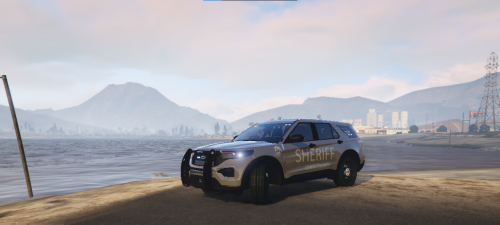 Just want to say that frost 88 did good on this car. You can also follow me on YouTube at Riding With Antonio. Thank you for reading or downloading have a GREAT DAY.
 -
You could go in to tranier.asi and look for butons to change the keymind or just press scroll lock and use the turn single
-
how do you change it I can't find anything that says walk style or to change it
-
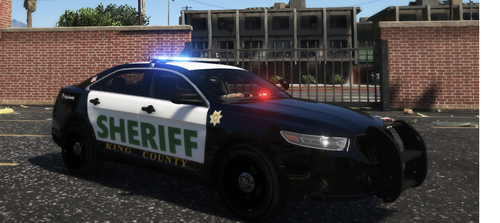 Can you please try to make a Lewis County car please
 -
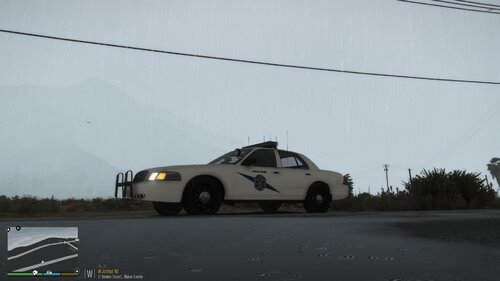 I love the CVPI I live in Washington so I really like the cars because not many people make WSP cars and the mini pack doesn't have the right lights for stage 2 but yours does thanks for the cars
- 22 comments
- 3 reviews
-
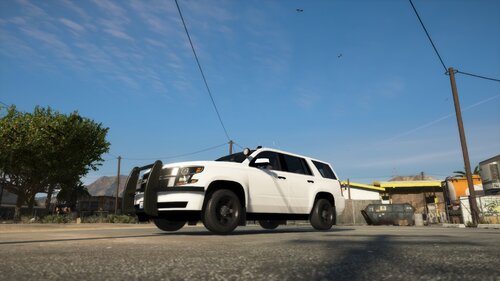 This is a great car and I use it for commercial vehicle enforcement because Washington state patrol has explorers like this so but it is a great car good work on it
 -
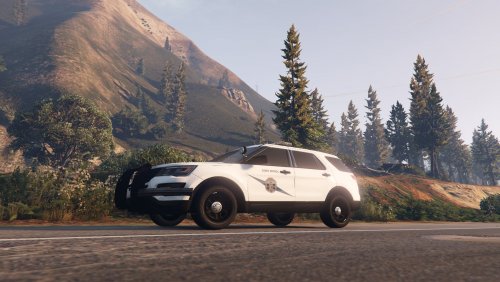 I don't know if you fixed it yet but you have to open your simple native trainer and go to vehicle options then go to vehicle mod menu and change the window tint to stock and it will fix it.
- 9 comments
- 1 review
-
-