kevin23r
Members
-
Joined
-
Last visited
Everything posted by kevin23r
-
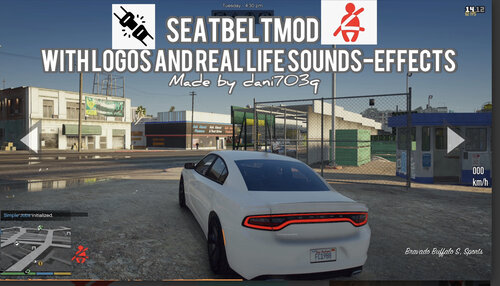 So what's the name can I search?
 -
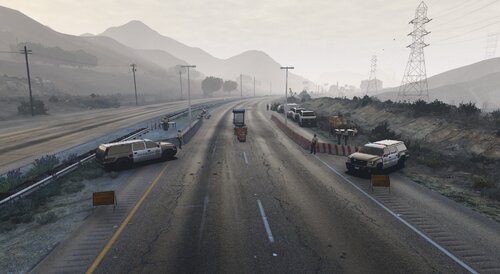 The checkpoint is cool, but I'm wondering how to know the hash number of the mods and change it? I want to change the vehicle, because the ordinary one is made to LSPD police by me.
- 4 comments
- 1 review
-
Hi, excuse me! I want to figure out how can I add more liverys to the car that the responding unit will show up? Can I just add the , to seperate the livery number?
-
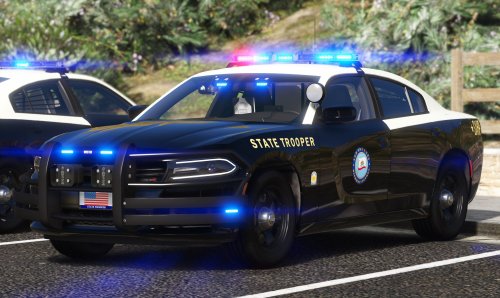 I found that!! Just need to change the second part the author said,"Second, I change fCollisionDamageMult, fWeaponDamageMult, and fEngineDamageMult to 0.000000. " And maybe the collisiondamage is the core.
- 40 comments
- 4 reviews
-
-

- 1
-
-
-
-
-
-
-