alienleeroy4430
Members
-
Joined
-
Last visited
Everything posted by alienleeroy4430
-
-
When on traffic stop or have someone stopped, I go to the trunk to do the gun ser. check or the drug test kit it's not on the context menu. Also won't open my trunk as it usually does. Any ideas would be appreciated. Thanks.
-
-
Ok thanks. And yes, only with police bikes.
-
I think so. I believe they spawn and sit. For example, on the bridge by base i had one pulled over and by the time the investigation was through there were 40+ cars jammed up. Big mess lol And no, they're not empty.
-
During patrol random police bikes stop in middle of road and block traffic. Never cars, just the bikes? Makes big traffic jam on highways. Then will take off 30-60 sec. later.
-
-
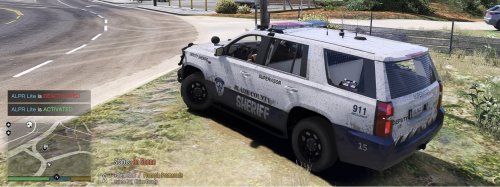 Just informing so people don't put useless crap in their game. Maybe you should do a little more research before you waist time on something that is already available. Not trying to make anyone "you" mad just a waste.
 -
This is also available in the "ini" files.......
-
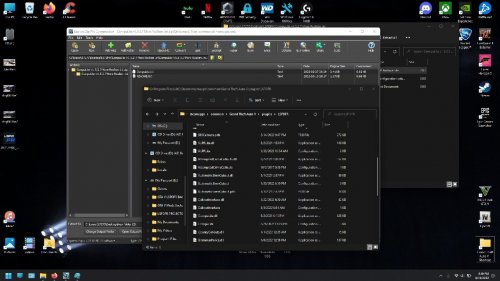 You can change all of this in the settings. "ini" so........
 -
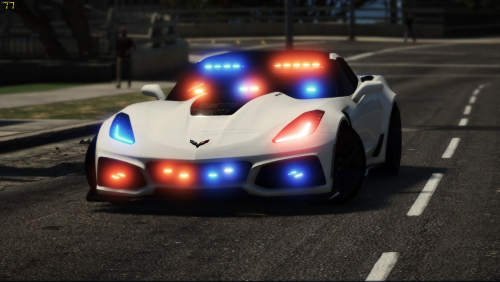 Is there a way to fix the in car veiw? In car the windshield is very dark tinted and at night its a def no go. ***nvmnd fixed in meta
- 69 comments
- 6 reviews