


tankdestroyer2134
Members
-
Joined
-
Last visited
Everything posted by tankdestroyer2134
-
.thumb.jpg.68046a4b42381bd4f48080c95d5bcb9a.jpg) Small little program that runs fast, checking the entire game directory for keybinds for any plugin or script, even includes functions to see what a key would be listed as (such as the apostrophe key being "Oem7" and the Alt key being "LMenu"). Absolutely love this, thanks so much for making this and I really hope to see it become a lot more popular and see what future updates have in store!
Small little program that runs fast, checking the entire game directory for keybinds for any plugin or script, even includes functions to see what a key would be listed as (such as the apostrophe key being "Oem7" and the Alt key being "LMenu"). Absolutely love this, thanks so much for making this and I really hope to see it become a lot more popular and see what future updates have in store!- 25 comments
- 10 reviews
-
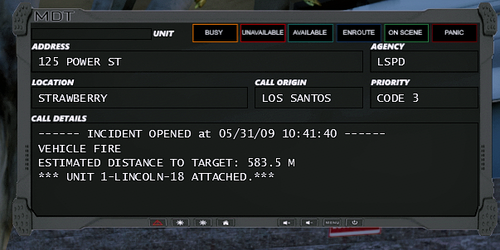 It's because this was made for an older version of Callout Interface. The new version was reworked to include new features, like ALPR and a list of currently active callouts.
- 6 comments
- 1 review
-
 Howdy! I love the concept of this mod, and I can't wait to see it develop further. However, it seems that for me, the plugin crashes whenever an NPC takes damage from a non-firearm source; a few AI peds died to a vehicle exploding on a patrol of mine (in true LSPDFR fashion, I have absolutely no idea how or why it exploded) and the moment they did, I had the plugin crash notification pop up after about a second or two of lag. Same thing happened a couple days later, when I hit an AI ped by accident with my patrol unit. Just now, I did have it seem to crash twice, seemingly out of nowhere. Knowing I have AmbientAICallouts installed, I imagine it's possible that one of my fellow officers hit someone while responding to a call and that triggered the crash.
- 633 comments
- 59 reviews
.thumb.jpg.68046a4b42381bd4f48080c95d5bcb9a.jpg)
