McAwesome6934
Members
-
Joined
-
Last visited
Everything posted by McAwesome6934
-
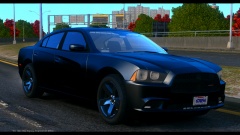 Yes, just yes.
 -
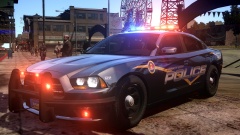 Damn that looks amazing!
 -
-
But.. you are Tay Tay.. how would this work?
-
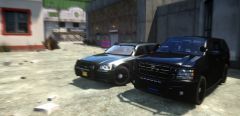 Suppressing Crime in style.. me likey :D
 -
Haha thanks for recommending me! :D ps... it's Pun not ' punt ' :p
-
Bye NicolaiB. :P Thanks for the awesome models you have released over the past years! Also the laughs you provided me through Strike/Raptors youtube videos!
-
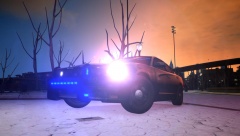
From the album: McAwesome Pics!
-
-
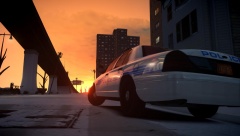
From the album: McAwesome Pics!
Model by Cj24 skin by MasterTrooper -
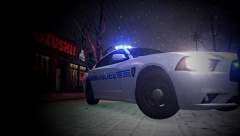
From the album: McAwesome Pics!
Model by Cj24 skin by MasterTrooper -
-
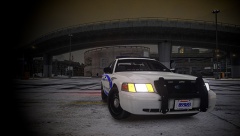
From the album: McAwesome Pics!
Release soon.. very soon. -
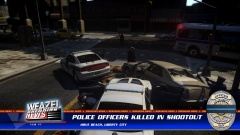 There is a dead bloody gory body lying there. I am not joking.
 -
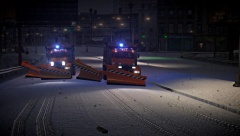
From the album: McAwesome Pics!
Model is a WIP by playstationmanrocks, release is planned, should be available for download in the next few hours. Additional Pics - http://imgur.com/a/PRNUI -
A warning for explicit content would have been nice.
-
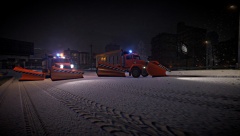 Thanks. <3
 -
From the album: McAwesome Pics!
Model is a WIP by playstationmanrocks, release is planned, however no release date has been determined. Additional Pics - -
I think it could use a few more lights in front, but that's neither here nor there. Would be a lot better if your Valor was dual color. 3/5 from me, always room for improvement.
- 6 comments
- 2 reviews
-
Holy Crap these are awesome! I cannot wait to get in game, and I also cannot wait for updates. Great job!
- 12 comments
- 6 reviews
-
-

- 1
-
-
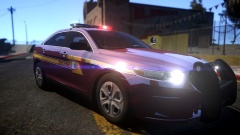 What do you mean..? This is based off a real life agency..
 -
I use .95, Braveheart, Policehelper, modded cars (w/ELS v8), spotlight, and an ENB. And my game is fairly stable. I can last anywhere from 20 mins - 1 hr. Using .95 I have found that forcing duty is not only a lot less time consuming, but also offers additional stability.
-
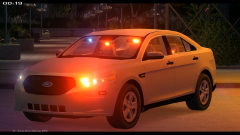 Love the surface mounted lights... such sexx.
 -
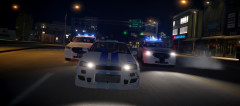 Reminds me of a few of aaron (IronicRainbow)'s pics. Looks nice though.
 -
I like it!