


OfcSandra
Members
-
Joined
-
Last visited
Everything posted by OfcSandra
-
I seen some vehicle textures that include the vehicles they are for, but they dont specify how to install the texture into the vehicle. Can someone send me a video or a text tutorial on how I can do that?
-
The gun drawing and unholster works fine, but the taser doesnt draw with an animation or unholster. I edited the xml and set the stunguns drawing to "true" but it still doesnt do it! If anyone has a working xml with taser and nightstick drawing, please send it to me!
-
 The gun drawing and unholster works fine, but the taser doesnt draw with an animation or unholster. I edited the xml and set the stunguns drawing to "true" but it still doesnt do it! If anyone has a working xml with taser and nightstick drawing, please send it to me!
- 561 comments
- 97 reviews
-
Hello everyone! I am on the latest version of LSPDR. I have searched the website for a bit but was unable to find a plugin that had court cases and worked for the latest version of LSPDFR I am using LSPDFR Computer+, and had issue with CompuLite. does anyone know of a plugin that works on the latest ver?
-
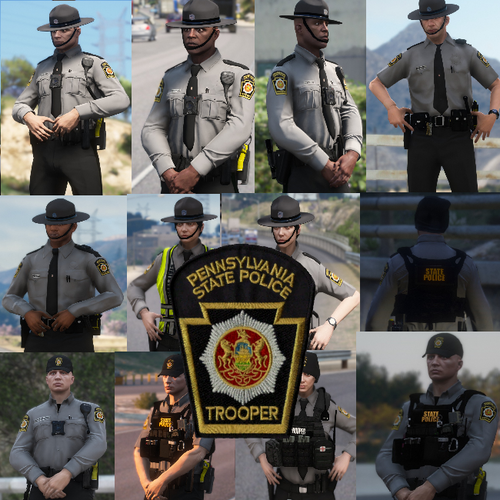 The Uniforms look pretty cool, 2 things though. 1: PSP Does not have bodycamers / I have not seen PSP Troopers wearing bodycameras in my Troop 2: The taser is usually more twords the center of the torso rather than completely on the left. Yes I actually live in Pennsylvania!
- 26 comments
- 2 reviews
