Angel AI
Members
-
Joined
-
Last visited
Everything posted by Angel AI
-
 Yes, I am currently testing the EUP menu to see if I can get the taser and gun holster work together, also working on Gun holster noises. Im going to work on these tonight.
 -
Ooo! Thanks :))
-
Yeah :))
-
I'll get an video out soon.
-
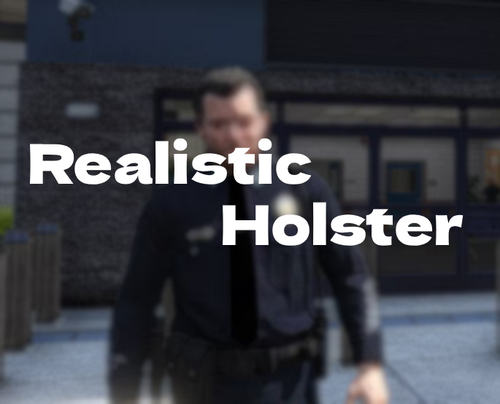
Realistic HolsterRealistic Holster is an immersive LSPDFR plugin designed to enhance your patrol experience by adding realistic weapon holstering mechanics. Feel like a true police officer as your firearm and taser behavior matches real-life expectations. Features: Automatic holster switching: When your gun or taser is drawn, your holster switches to an empty version. When the weapon is returned to the holster, it switches back to a holster with the firearm. An animation when equipping a firearm. Full integration with EUP Law & Order. Customization: Being able to create your own presets AI Holsters: Nearby AI officers spawned by Ultimate Backup or Policing Redefined will have their holster components swap automatically when they draw or reholster. Optional holster sounds play when nearby AI officers draw or reholster within a configurable radius. Blacklisted Weapons: Stop specific weapons from triggering any holster swaps, animations or sounds. Useful for prop weapons or lidar guns that share a pistol hash. 3 blacklist slots, configurable in the menu. Preset Codes – Export & Import: Save your full holster setup to a shareable PresetCode.txt file. Import a preset code from another player to instantly apply their full holster setup. Menu options allow: Turning holster sounds on/off Disabling gun or taser holster individually Adding custom/addon weapons Creating your own custom presets (for custom EUP) Toggling AI holsters and sounds Managing blacklisted weapons Exporting and importing preset codes Requirements: LSPDFR (latest version) EUP Law & Order RageNativeUI Installation Place in: Grand Theft Auto V/Plugins/LSPDFR (Important: Do not place it anywhere else, or it will not work.) Optional configuration: Edit the .ini file only if you want to change the menu key. Custom Holsters: All standard EUP tasers and holsters are included (cop holster, leg holster, green taser, etc.). For custom holsters, you need EUP models with two versions: one with the weapon/taser and one without. If you don't use custom holsters, no additional setup is required. Animations: Intimidation animation is K (Can be changed within the menu) The animation will not play if a weapon is equipped The animation will stop if a weapon is pulled Draw animation plays when equipping a firearm. Works while the player is running Can be toggled in the Settings menu Addon/Custom Weapons: The plugin automatically detects the weapon hash, you just need to set it in the menu. Menu Open the menu using the default F2 key. Showcase / Guide: Showcase/Guide: Showcase/Guide Holster Preview: Holster Preview @Lapd Code 3: YouTube Video Future Plugins (Angel Callouts): I am working on a new callout pack called "Angel Callouts". These callouts will have: Hopefully 20 callouts AI Text to speech voices for suspects/callers All calls have different outcomes (peds will say/do different things if you redo the call) Multiple locations across the whole map I'll give more details soon. I have 6 callouts already done. If you want to become a tester contact me at aaron.txt on Discord. Angel Callouts Trailer: SupportFor any issues or questions, contact aaron.txt on Discord. Feedback is always appreciated!
-