


Rick007110
Members
-
Joined
-
Last visited
Everything posted by Rick007110
-
.thumb.jpg.68046a4b42381bd4f48080c95d5bcb9a.jpg) Omg this is incredibly usefull!!! Now I don't have to go through every single mod/plugin to look what key is assigned, I can simply press every key on my keyboard to check which control is assigned to it THANKS!
Omg this is incredibly usefull!!! Now I don't have to go through every single mod/plugin to look what key is assigned, I can simply press every key on my keyboard to check which control is assigned to it THANKS!- 25 comments
- 10 reviews
-
 This plugin is awesome! I really love it, but unfortunately sometimes when I open the Spotlight Editor it opens but doesn't show anything other than the background and it completly freezes my game (as in I can't press any buttons because the editor is opened)
- 477 comments
- 73 reviews
-
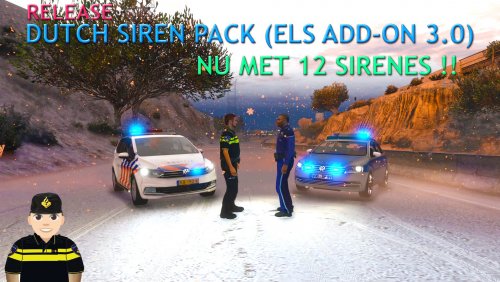 Ik heb gedaan wat de readme zegt maar gta force closed omdat er iets niet goed aan is. Hier is mijn ELS.log ================================================== LUXART SYSTEMS PROCESS LOG (V-ASI) ================================================== MOD ELS.asi NAM Emergency Lighting System V VER [ 1.05 ] -------------------------------------------------- <AHOOK> Attempting to initialize AdvancedHookV by LMS. (OK) AdvancedHookV.dll file found and successfully initialized. <FILEG> Collecting information from ELS.ini. (OK) Main configuration data successfully collected. <VCONT> Attempting to open VCF container at: [ .//ELS//pack_default ]. (OK) VCF container found, scanning for files. <FILEV> Found file: [ POLICE.xml ]. <FILEV> Verifying vehicle model name [ POLICE ]. (OK) Is valid vehicle model, assigned VMID [ 0 ]. Parsing file. *A crash before all clear indicates faulty VCF.* VCF Description: (null) VCF Author: (null) (OK) Collected data from: 'ADMIN'.
- 5 comments
- 1 review
.thumb.jpg.68046a4b42381bd4f48080c95d5bcb9a.jpg)
