


pade24
Members
-
Joined
-
Last visited
Everything posted by pade24
-
I've been looking to see if thats the issue but i dont get a green box or anything when i go to open.iv
-
yeah its the same issue
-
Thank you for responding but i tried that several times. same issue
-
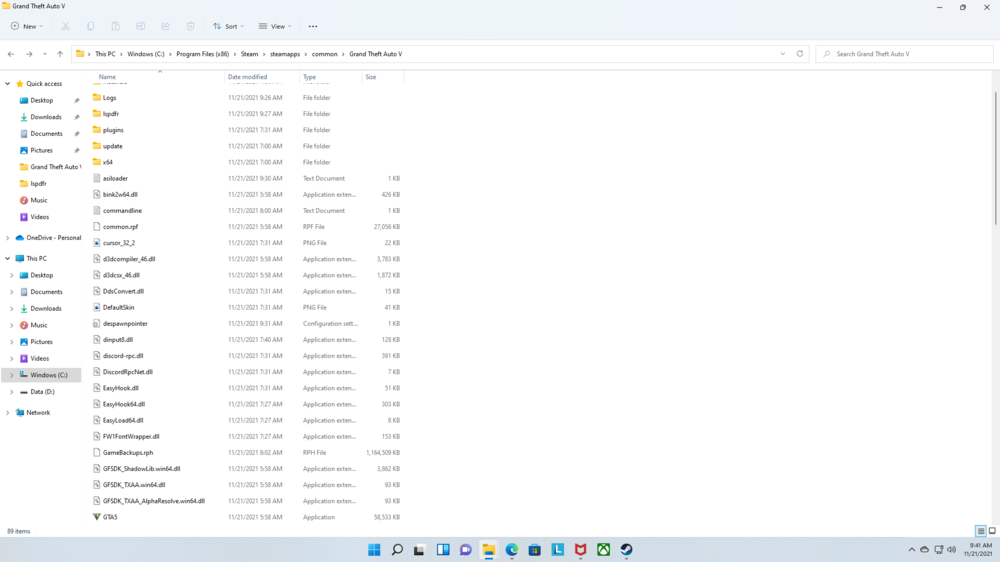
Please Help. I've uninstalled gta twice and redownloaded but I cant fic the issue. I always get stuck on the infinite load screen with or without mods folder active. I've tried everything I could find and still no fix. everything is completely up to date but it still wont load. I've been trying to fix this for over a week.
.thumb.png.561f205599660116d4f9aa872a6c9ffb.png)
.thumb.png.4d088ae9a80bd7787809997ff7e788f0.png)
.thumb.png.b87f2c0355cd137d96d5859d78cc4bef.png)
-
i tried that and still same issue
-
Gta just infinite loading screen with or without rage. I never had mods on gta before this and I've already tried uninstalling and re-installing not only lspdfr but also Gta as well. I tried loading without plugins and its the same result. it says loading with rage at the bottom and the splash screen says populating game world but it goes no further. When i try without rage it says loading story mode at the bottom but never loads. please help. I havent even gotten to play yet lol
-
Try going to the nvidia experience app and turn off game overlay. That worked for me. also make sure to turn off your anti-virus
-
I have the same issue. Gta just infinite loading screen with or without rage. I never had mods on gta before this and I've already tried uninstalling and re-installing not only lspdfr but also Gta as well. please help. I havent even gotten to play yet lol

.png.020ea56be9e1a249452487df7479b4a8.png)
.png.3334a6951e612e50091b23d3f328df87.png)
.png.a9104630aa4cf3d66dee27b53891926c.png)