


hlsavior
Members
-
Joined
-
Last visited
Everything posted by hlsavior
-
I almost threwup when I saw this: Its a goddamn police car in Comic Sans. If anyone is aware of the legacy that comic sans has you would know that this had to have been done on purpose. If you don't have knowledge on comic sans please visit this: http://www.loudbang.co.uk/blog/comic-sans-and-graphic-designers/ and here's a vsuace video on it:
-
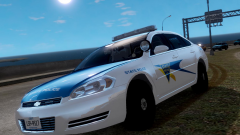
From the album: SCNG Releases
To be released tomorrow (July 26) -
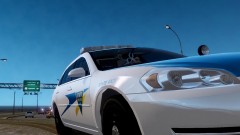
From the album: SCNG Releases
To be released tomorrow (July 26) -
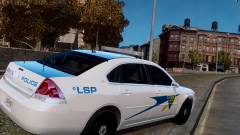
From the album: SCNG Releases
To be released tomorrow (July 26) -
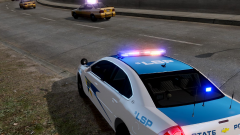
From the album: SCNG Releases
To be released tomorrow (July 26) -
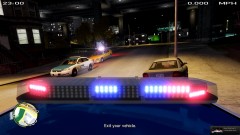
From the album: SCNG Releases
-
I used the DSF Model and swapped out the grill on that and put it on BxBuggs and it fit fine, where'd you take it form?
- 16 comments
- 13 reviews
-
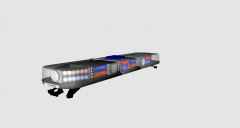 Nothing is from sketchup, I tried finding something but no luck. So yea like you said all the lighting parts is me, and all the exterior, like I said the glass, the mounts, and base are all from separate parts.
 -
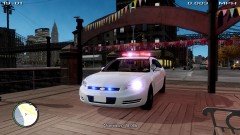 Probably all three, most likely to not be created is the Tahoe.
 -
Don't worry plenty of vehicles will be released. And if it's the lightbar you like, eventually it'll be unlocked to everyone but for now I want to press out a couple of vehicles with it, to get some criticism about it.
-
Also the textures.
-
Everything except the glass, base, and mounts are scratch made.
-
From the album: SCNG DESIGNS W.I.P
Coming soon to a downloads section near YOU...... (with a proper skin of course) Spoiler I see you noticed the spoiler tags good job. -
Control Panel > Hardware and Sound > Sound > Right click on speakers/whatever you use as an output > Configure > Choose: Stereo > Next > Check: Front left and right > Next > Finish. Took me 4 seconds to google. Pretty muchh he same dealio.
-
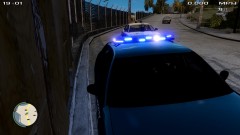 Almost done. (This is extremely painstaking and horrifying but I'm managing).
 -
Okay
-
This entire post is about 6 MB worth of data in images.
-
From the album: SCNG DESIGNS W.I.P
So in an effort to not spam the gallery into oblivion, the rest of the pics are right here: -
From the album: SCNG DESIGNS W.I.P
Sorry to be posting so many pics of this, anyway I finished it completely now! Please leave your opinions, this is my first semi-scratch made model. -
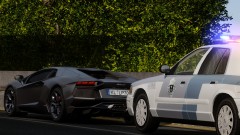 Aventadors are so common in the streets of Liberty City.
 -
Anyone notice the red and blue are on switch sides? Like if you're facing the car, typically the red lights are on the right. Nothing to be mad about though still great lighting, just looks a bit awkward to me.
- 10 comments
- 16 reviews
-
-
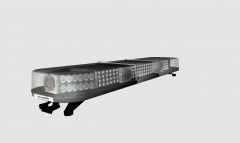
From the album: SCNG DESIGNS W.I.P
Due to my lack of being able to do anything in 3dsMax I wasn't able to change the shape of glass. But that's probably it's final model, and what it would look like without any ELS, so please leave opinions ans recommendations. -
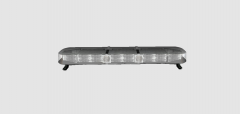 Thanks those pictures are actually extremely helpful.
 -
Thanks for info.


