
MoneybagsHastings
Members
-
Joined
-
Last visited
Everything posted by MoneybagsHastings
-
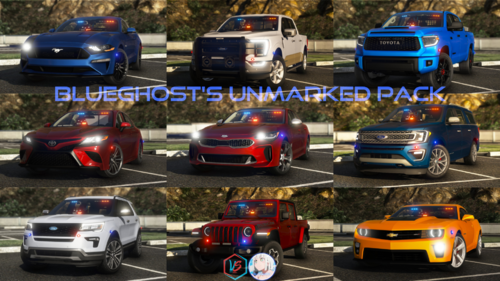 Hey man I fixed this!!!!!!!! Yesterday I figured this out. There was a new Gameconfig update like you said on December 23rd that slipped under my radar! Everything works perfect now!
- 482 comments
- 78 reviews
-
Hey man, before the Cayo Pierco patchday I followed all your instructions and this mod was working great, love the cars. Well I went to update after the patch and get everything set back up, now it's crashing. I've narrowed down the issue to that when I put the commandline in the .xml file, the game crashes on the loading screen for some reason. When I take out that commandline, it launches fine, but of course I can't spawn any of the cars without that commandline, even though the data is in the update.rpf. Has anyone else encountered this issue? Do you know of a fix or is it something you can look into? Respectfully, Aaron Self
- 482 comments
- 78 reviews
-
I'm rolling bro this is actually the only fix that's worked for me haha
-
Hi bud, I know I'm super super late, but I was having this same issue. On the rare, rare chance you're having this problem still, launch the game via Steam, or Rockstar Launcher, whatever you use, just don't use RAGE Plugin Hook. Launch the game as normal. When you go to your gallery, your LSPD:FR screenshots should be there with the "Upload to Social Club" prompt. Cheers!