


thinblueline
Members
-
Joined
-
Last visited
Everything posted by thinblueline
-
-
-
-
-
I really like this model and was so glad to see someone was working on it. It has been one of my go to cars for a little while, but I do have some criticism about it. In the actual version, the Ions on the pushbar and the rear package lights are not split flashing and alternate between left (blue) and right (red). If you did this because that's what you wanted that's cool, but I'm referring to 100% accuracy with the model. I do however love the configuration of the traffic advisor. It is by far the best representation of the random pattern used so often by NYSP. Thanks for your work!
- 17 comments
- 4 reviews
-
 Wow, very nice Erin! I have one of these on my unmarked vehicle and they're very stealthy haha. Looks just like the real deal, great job!
 -
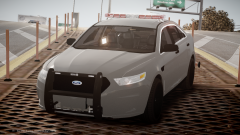 Wow, this looks fantastic so far. I'm really glad to see someone working on one. Can't wait to see it finished and released.
 -
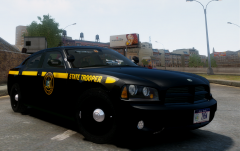 Yeah that's what I was thinking too. It's more definitive from the back, but the grill and the stripes on the hood are totally different. Pretty nice for an older Troop H car look. Looks pretty spot on.
 -
Wow, absolutely beautiful. What year Charger is it?
-
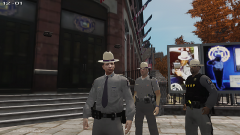 Woah dude, that looks awesome!!!!! Any chance of sharing them with another NYSP enthusiast?
 -
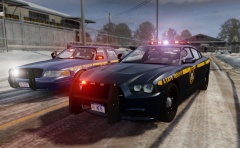 Oh wow, I didn't know ENCON was getting new cars, I bet they look pretty awesome slicktopped. It's about time they replaced those old Durangos. Yeah now that looks really cool, I've only seen one of them in my area. That would make a very nice addition to the pack... But I think you're right, we should have the regular marked units first and foremost. But the slicktop FPI should be close behind them.
 -
Not so many of the ghost vehicles. There's a couple in service in Buffalo, NYC, Capitol District, and the test vehicles at HQ. I really like the design of it with the ghost graphics. You really cant tell it's a cop car until your right on top of it. Now there are quite a few of the Utilities, especially for K-9 officers. Each K-9 handler with an aging vehicle has their option of the Tahoe and Utility and from what I hear, many are opting with the Utility. I also saw a couple used for the road in troop A and K.
-
CJ you are the NYSP man!!! You blew my mind again with the front of the charger now. I'd love to see the Ford Police Interceptor and Utility. A slicktop version of the FPI is widely in service and "ghost" slicktop versions of both the FPI and utility are also out there and are really sexy. A high quality Caprice would be amazing as well. If you'd like more info about the ghost versions, please PM me.
-
 Ok, fair enough. Bummer.... I guess I'll have to be patient for CJs pack
 -
Any specific reason? Is it because its not NMSP?!?? Jk... The damn things a beaut, be a shame to not see it
-
Please release the Taurus bud! I'm dying for that cause it will complete all my slots
-
Yes it's a sad day here in Troop G as we are mourning the tragic loss of one of our sisters in arms. As this is somewhat of a PRO law enforcement site, please be respectful to the others in a time of grief. You never know who is reading this stuff on here and how close they are to the incident...
-
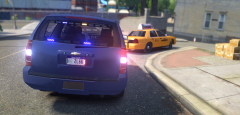 Mhmm mhmm mhmm, dats freakn sweet bro! You are on one hell of a roll with NYSP. Lovin it!
 -
![[WIP/REL] NYSP Slicktop CVPI](//s3-gallery.int-cdn.lcpdfrusercontent.com/gallery/album_2838/sml_gallery_120090_2838_990589.png) Yup, you are correct for the units with lightbars. I have though seen a few odd configurations with strobes in the taillights but they are the minority on the road.
Yup, you are correct for the units with lightbars. I have though seen a few odd configurations with strobes in the taillights but they are the minority on the road. -
I don't know if its included, but CVPI slicktops have strobes in the front turn signals and rear taillights in addition to the wig wags in the head light.
-
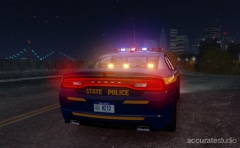 Holy shit! This is GORGEOUS!!!!!!
 -
![[WIP/REL] NYSP Slicktop CVPI](//s3-gallery.int-cdn.lcpdfrusercontent.com/gallery/album_2838/sml_gallery_120090_2838_2080680.png) Very nice again bud! Still considering a FPI slicktop too? :D
Very nice again bud! Still considering a FPI slicktop too? :D -
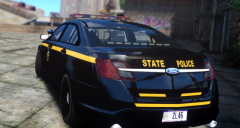 ANOTHER epic model by Ironic Rainbow! Very nice!
 -
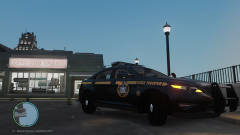 I was referring to the lightbar but yeah there's several things. The new cars (FPI, Charger, and Caprice) do only say "Trooper". I noticed now from the other pic up in his gallery that there was no TA on the rear deck. Also they are using the ProGard Setina push bumper with only two grill lights, not the full bar.
 -
Nice! Just looks like your lightbar could use some NYSP standard issue colored glass for 100% accuracy

![[WIP/REL] NYSP Slicktop CVPI](http://s3-gallery.int-cdn.lcpdfrusercontent.com/gallery/album_2838/sml_gallery_120090_2838_990589.png)
![[WIP/REL] NYSP Slicktop CVPI](http://s3-gallery.int-cdn.lcpdfrusercontent.com/gallery/album_2838/sml_gallery_120090_2838_2080680.png)
