


Rep
Members
-
Joined
-
Last visited
Everything posted by Rep
-

From the album: WIPs
-
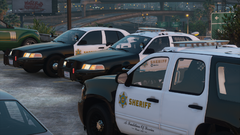
From the album: WIPs
-
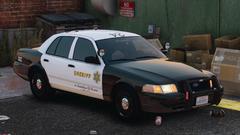
From the album: WIPs
-
-
-
.png.ff82dc0e7023f8ae1f0ce244bb61dff9.png) Yeah, they have plenty of them in their fleet.
Yeah, they have plenty of them in their fleet. -
I made it a while ago.
-
-
-
-
-
-
.png.2f64980e803e594e81efeacc2d41aa23.png) Little project I'm working on.
Little project I'm working on. -
.png.82b9a7333dd9b3d244946ee6e9690fad.png)
From the album: Screenies
-
-
-
-
-
-
-
-
 Hm, that's quite strange to me. I've never really been around the slicktop Taurus's since they're so incredibly hard to find, however all of them I've seen so far have the white flashers. For reference:
 -
-
-



.png.ff82dc0e7023f8ae1f0ce244bb61dff9.png)
.png.5ddd65e58ca427713b3fb534ef7fa68d.png)

.png.d5c8dafc1bf1835eaa520ae504477742.png)
.png.b9aa6ad8730d511801f1e14477a410dc.png)
.png.17521279dfb9c6df29ee0d0b850ead52.png)
.png.2f64980e803e594e81efeacc2d41aa23.png)
.png.82b9a7333dd9b3d244946ee6e9690fad.png)

.png.d67d024d8726ecadbf6e04a086a5a82d.png)
.png.eba33c33e4c3e395915ae92825a50ece.png)

.png.2f9b0afb97d5d1f9fbf3983d8a4ec931.png)
.png.22546c600b2861d4f0861884f95130a4.png)
.png.59b7bf3a4c03904a9260a1a369485d88.png)