Rooze
Members
-
Joined
-
Last visited
Everything posted by Rooze
-
Sadly not working for me
-
Little bit confused mind dropping a example?
-
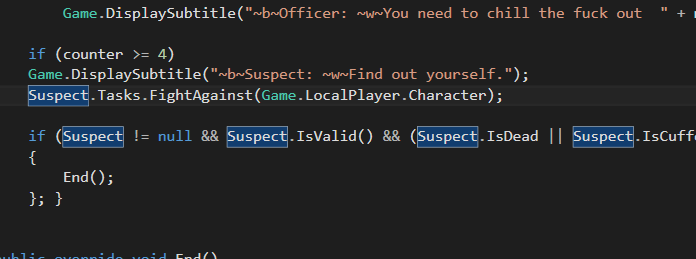
Hey! I'm new to coding and need some help on this one. I coded it for the bed to shoot me after the dialogue but it doesn't seem to work? Any ideas? Here's my code.
-
Basically it spams my one that goes like No further speech and doesn't let me talk to them.
-
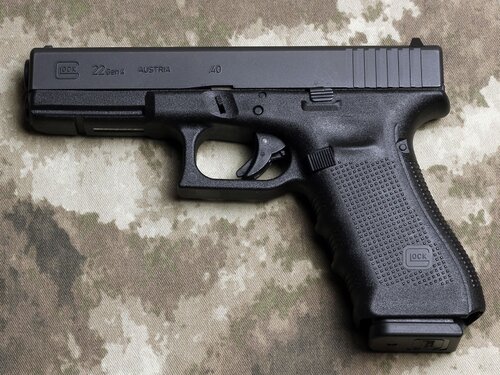 DO NOT REUPLOAD WITHOUT MY PERMISSION I think it's obvious now I don't like default GTA V gun sounds. Today i'm releasing the Glock 22 .40 cal audio file. I took this from a YouTuber who go's by the name of hickok45. All gun sound credit's go to him. All I have done is recorded that in high quality transferred it into a software trimmed it and put it in files. Go check him out. Please actually read the READ ME and not just skip past it. Because if you mess it up don't come crying to me. Other than that enjoy the sound! HERE IS THE ORIGINAL GLOCK 22 SOUND:
- 14 comments
- 2 reviews
-
-

- 1
-
-
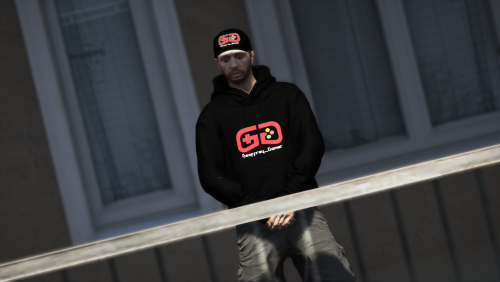 DO NOT REUPLOAD WITHOUT MY PERMISSION This is a fan EUP pack for a great LSPDFR YouTuber who goes by the name Geoffrey_Gamer. This is his real life merch put into the game of Grand Theft Auto V. Check out Geoffrey_Gamer here! https://www.youtube.com/channel/UCQm1yi_b-f3Cfpq7sG8V-Iw
- 1 comment
- 1 review
-
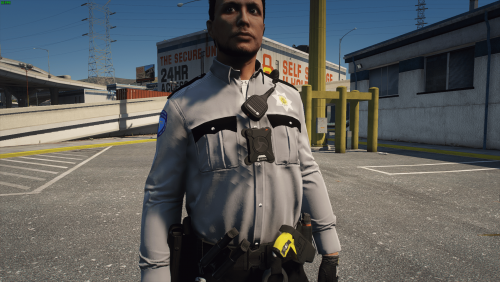 Are there any peds?
 -