DaveKC
Members
-
Joined
-
Last visited
Everything posted by DaveKC
-
SHV has been updated now
-
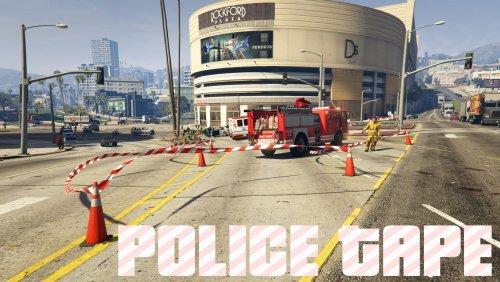 Ok, at least I know nothing has changed on your end. I'll see what I can come up with on my end just in case someone else has this issue. Thanks. Well, I feel like an idiot. It was in the policetape.ini file the option "AutoExitAfterFirstTape = false" I had it set to true. Sorry for wasting your time.
- 299 comments
- 25 reviews
-
-

- 1
-
-
Didn't it be use to be able to continue placing barriers after the two that you sat down with tape on it? I would like the ability to continue placing barriers without having to keep going into the barrier placement menu because I have already sat two (with tape) down if I do one without tape then it automatically goes back to the placement screen. At least a checkbox that will allow non-stop barriers while still holding aim and middle mouse button for tapeless barriers. After every barrier it closes even while still holding aim.
- 299 comments
- 25 reviews
-
I am having issues using the continuous tape mode, I have it enabled but it will not keep the barrier I select, it goes back to the press (keys) to go back to placing tape. and goes back to the beginning of the barrier selections.
- 299 comments
- 25 reviews
-
-
-
 Just a small thing. The version in the DLL properties still shows 0.0.1.4 It would be helpful to have version numbers on the downloads themselves too.