




C2CJDirector
Members
-
Joined
-
Last visited
Everything posted by C2CJDirector
-
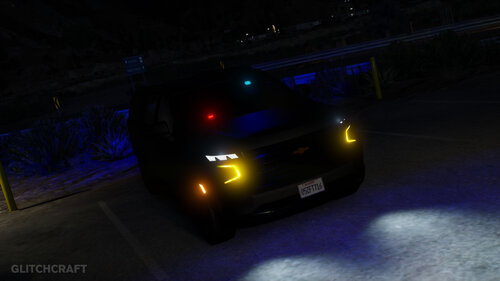 I saw it has a template in it i tried to use the template and it doesn't show up on car. Is it able to have one
 -
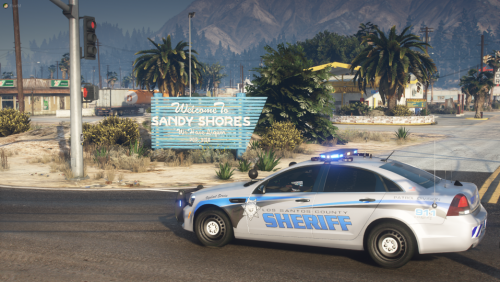 Am I missing something here like where the handling, vehcilesmeta, etc location since they was not included in the download.
- 6 comments
- 1 review
-
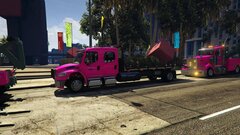 Yes, I agree with you. It has Towing and Recovery under the doors but dont stand out very well. I was going to put the girl that runs it's esx_phone in game number on it. But was rushing when I made it. Thanks for the ideas tho.
 -
Coast 2 Coast Justice opened Indiana Life RP and here are some of the vehicles from our community, Indianapolis Police Department, Indiana State Police, Marion County Sheriff Department
-
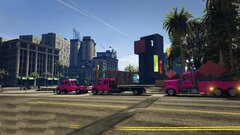 c2cj1575771980ry5h
-
c2cj1575771980reps
-
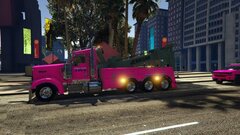 c2cj1575771980cftf
-
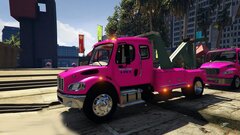 c2cj1575771980sqg3
-
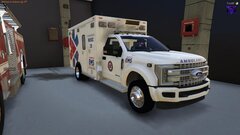 c2cj1576114835g7w9
-
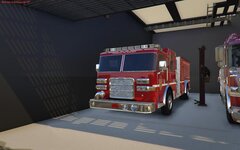 c2cj1576114812i1zn
-
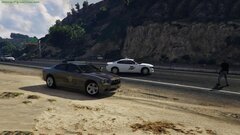 c2cj1575771521ucpn
-
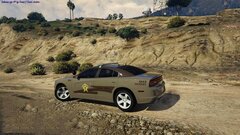 c2cj1575771521i5t1
-
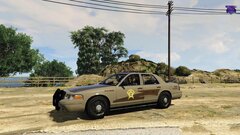 c2cj15757715213lqi
-
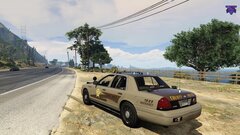 c2cj1575771521xmsj
-
.jpg.0a2b0ad06e87ff46c75543a5fad06879.jpg) c2cj1575771521ucpn (1)
c2cj1575771521ucpn (1)
-
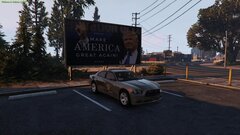 c2cj1576114698knmq
-
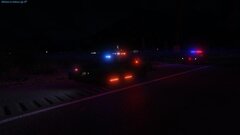 c2cj1576114768bkls
-
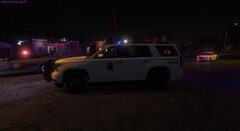 c2cj1576114955zmrk
-
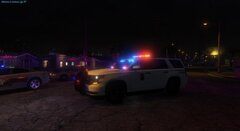 c2cj1576114979th3v
-
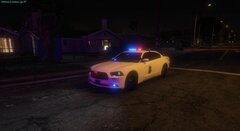 c2cj1576114935emeb
-
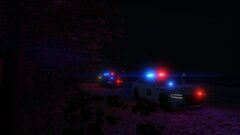 c2cj15757717465tex
-
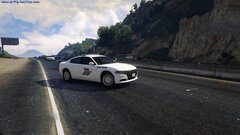 c2cj1575771811lzdw
-
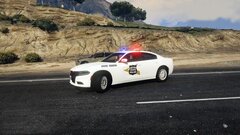 c2cj1575771852facc
-
 c2cj1574473537nqc3
-
-
-
-
-
-
-
-
-
-
-
-
-
-
-
-
-
-
-
-
-
-


.jpg.0a2b0ad06e87ff46c75543a5fad06879.jpg)

