AntoniAM87
Members
-
Joined
-
Last visited
Everything posted by AntoniAM87
-
-
-
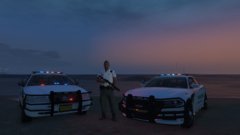 Grand Theft Auto V 04_04_2020 22_28_42.png
-
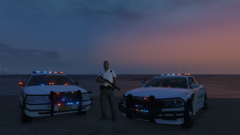 Grand Theft Auto V 04_04_2020 22_28_41.png
-
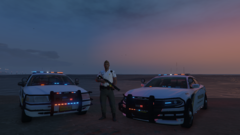 Grand Theft Auto V 04_04_2020 22_28_36.png
-
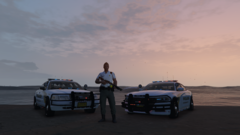 Grand Theft Auto V 04_04_2020 22_27_02.png
-
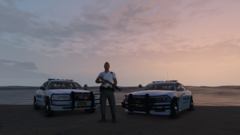 Grand Theft Auto V 04_04_2020 22_27_01.png
-
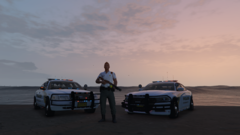 Grand Theft Auto V 04_04_2020 22_26_58.png
-
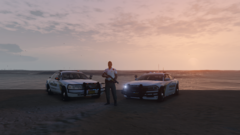 Grand Theft Auto V 04_04_2020 22_26_15.png
-
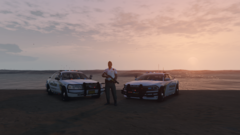 Grand Theft Auto V 04_04_2020 22_26_12.png
-
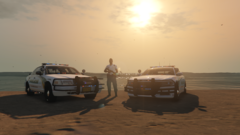 Grand Theft Auto V 04_04_2020 22_22_44.png
-
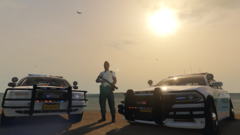 Grand Theft Auto V 04_04_2020 22_21_39.png
-
-
From the album: Dodge Vespucci Beach
-
From the album: Dodge Vespucci Beach
-
From the album: Dodge Vespucci Beach
-
From the album: Dodge Vespucci Beach
-
From the album: Dodge Vespucci Beach
-
From the album: Dodge Vespucci Beach
-
From the album: Dodge Vespucci Beach
-
From the album: Dodge Vespucci Beach
-
From the album: Dodge Vespucci Beach
-
From the album: Dodge Vespucci Beach
-
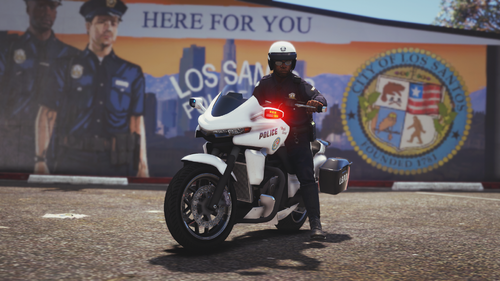 I reinstall correctly, vehicle still not visible or functional. I find it not very honest, and transparent, to delete my grade and rating.🤔
- 14 comments
- 3 reviews
-
 Good mods, add some new things and spices to the interventions. On the other hand, very regularly, when we ask for police reinforcements. They never come. Maybe a bug ?!
- 635 comments
- 53 reviews
-
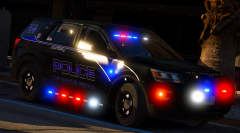 I love ! 😍 very good, for dogs, my great passion
 -
![Mega Pack WIP [2016 FPIS Taraus]](//s3-gallery.int-cdn.lcpdfrusercontent.com/monthly_2018_09/small.6.png.4116b7e5d918e67d9c11de4c5e5bd8ab.png) 😍 Excellent !
😍 Excellent ! -
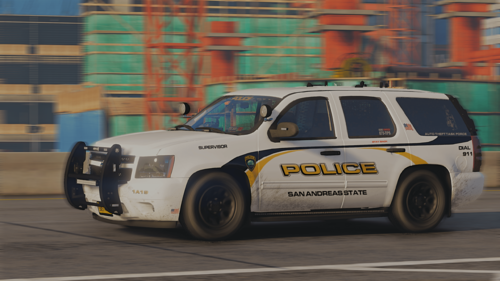 I love with the lights and beacons everywhere. It would be nice to do the same for the sheriffs Thank you very much for your response and your time and help🤩
- 260 comments
- 37 reviews
-
-

- 1
-
-
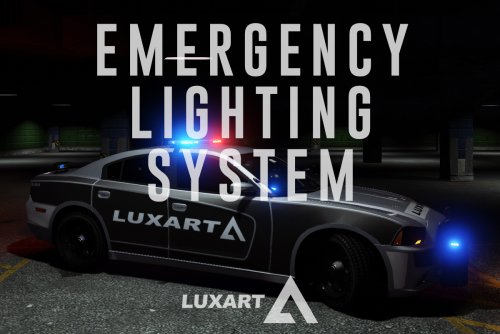 Installation correctly. Does not work. The "ctrl + P" does nothing. Unable to use. Very random.
- 2,655 comments
- 234 reviews
-
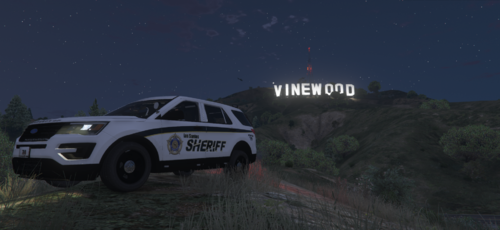 Hello I don't understand how to install the files? There is only png, is this normal? Beautiful image in any case
 -
-
I have the mods file, I install again. As described in the "read me" file I still have the same problem.
- 14 comments
- 3 reviews
-
I do not use a "mods" folder precisely to avoid problems. I am new, and begin with LSPDFR, but inform me a lot, and watch a lot of tutorials. The update, of GTA V, is done automatically, as soon as I enter the code in the folder, that you indicate, that must be put. The code is automatically deleted, after the forced update of GTA V
- 14 comments
- 3 reviews
-
Does not work. Too bad, I send mail for help and report the problem, no response.
- 14 comments
- 3 reviews
-

![Mega Pack WIP [2016 FPIS Taraus]](http://s3-gallery.int-cdn.lcpdfrusercontent.com/monthly_2018_09/small.6.png.4116b7e5d918e67d9c11de4c5e5bd8ab.png)