


ArriveAlive
Members
-
Joined
-
Last visited
Everything posted by ArriveAlive
-
Changed it and it did not crash - it started me out 'on-duty' but none of my plugins work like backup or ALPR.. etc. GTA V log RagePluginHook.log
-
GTA V log RagePluginHook.log RPH log RagePluginHook_17072020_165129.log
-
Crashed again as soon as I put "forcedduty." What is going on, I never had this issue until I did a clean install few days ago 😭
-
RagePluginHook.log
-
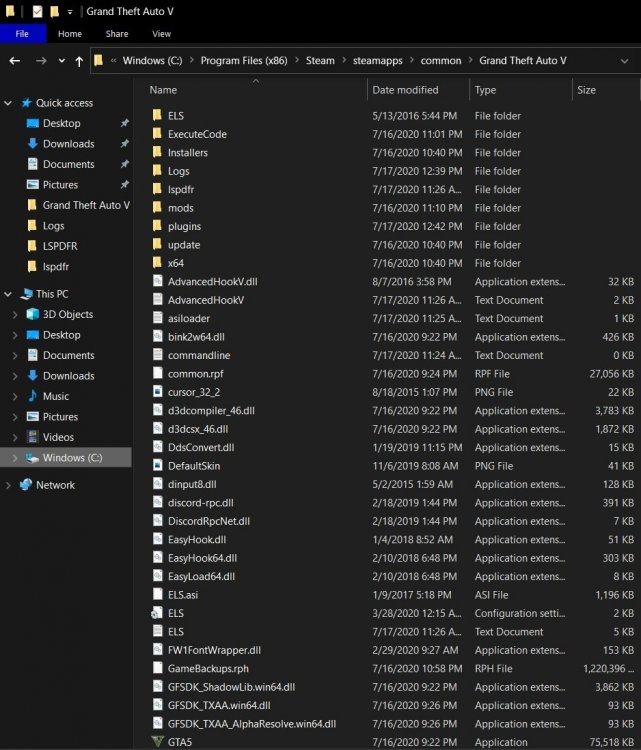
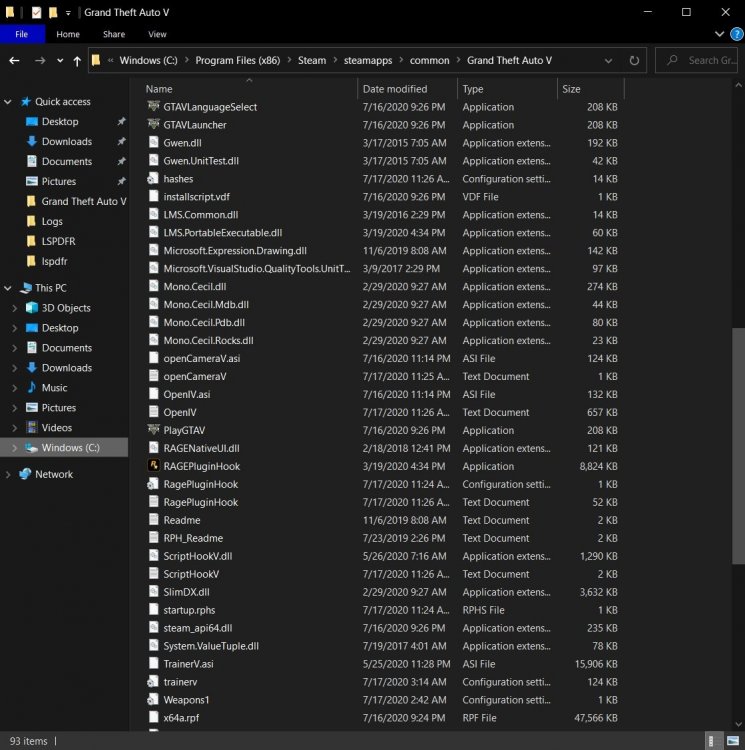
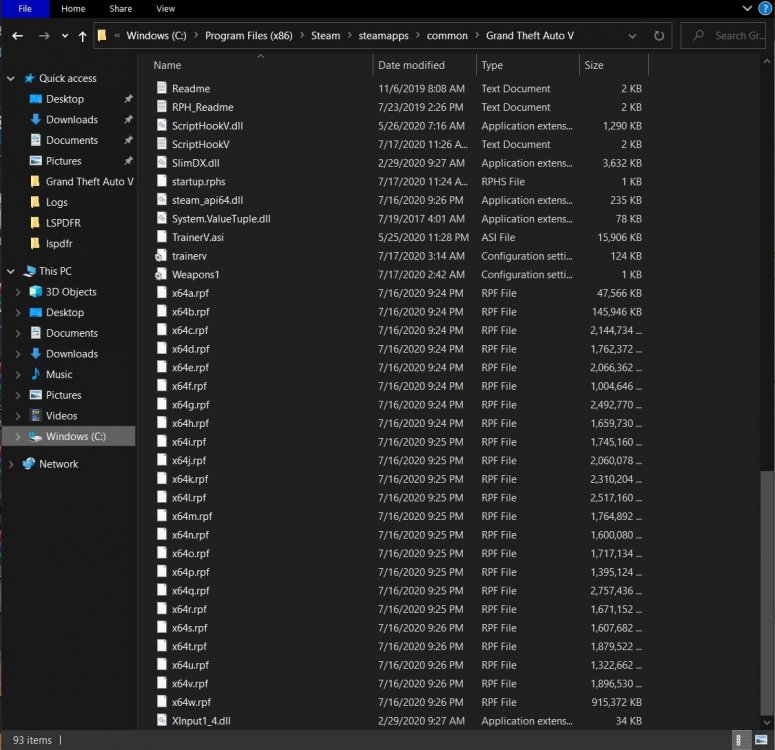
Sorry, not sure where the ones in the GTA V folder are
-
This was the log after putting 60,000 RagePluginHook_17072020_150840.log Log after 40,000 RagePluginHook_17072020_152241.log
-
I put 60,000, and tried 40,000, and it crashes to desktop right away now 😞
-
No crash without RPH and when I do go RPH I can spawn my cars that I had uploaded as DLC via openIV. I can walk around but as soon as I go to a station and go on duty or write "forceduty" it crashes straight to desktop. EDIT: So I started the game without any plugins loaded at startup, then hit F4 and typed "reloadallplugins" and then wrote "forcedduty" and it actually worked. Really weird. Have to try without doing that now. So i started with "load all plugins on startup" and then did forceduty and it crashed again but works fine if I don't load plugins at startup and then do "reloadallplugins" and "forceduty."
-
Ok so I had downloaded EUP and the game kept crashing (I followed a youtube video), so I clean installed everything. No EUP and no Albo's mods installed. Just ELS, radiance, all of Bejoljo's mods and Jedahdiah's new pack. Now it's crashing to desktop without even me going to the station or entering forceduty. I have attached the log with this. Please help 😢 RagePluginHook_17072020_034054.log
-
Ahhh, makes sense. Thank you, sir!
-
Thank you! that helped! But, I did not have this issue with Albo's mods before this clean install. I deleted all three that i installed and then tried one by one and still crashed to desktop when going on duty. Does this mean I can't use his mods at all?
-
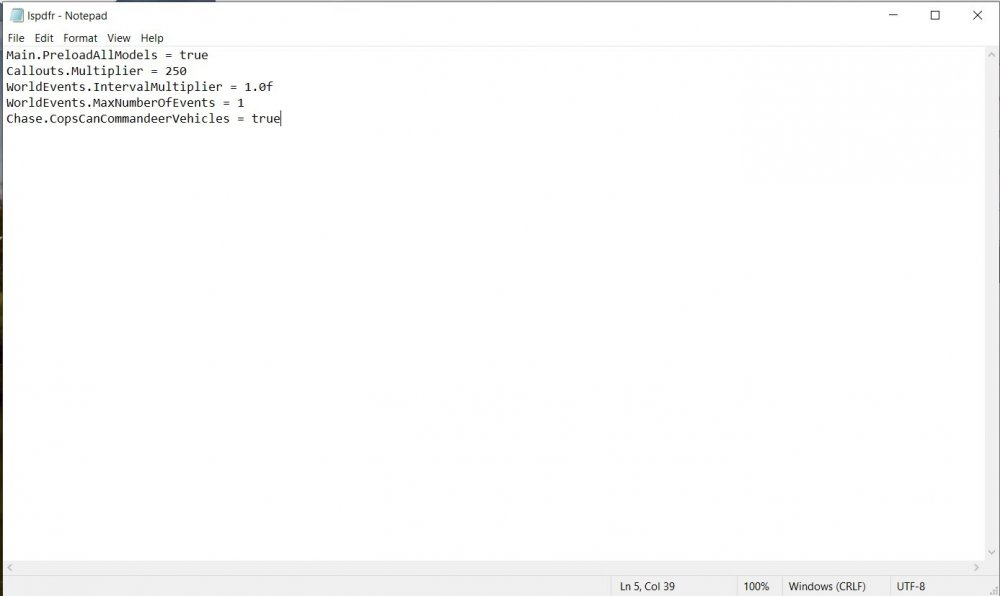
Did a new install and 1) my game crashes and exits to desktop either right after the loading screen or 2) it'll load and when I either go on duty through the police dept or force-duty. I appreciate any advice. I have attached a screenshot of my lspdfr ini and below it is my RPH log. RagePluginHook_14072020_203626.log
-
For some reason, and I tried looking this up on the site (and googled) and could not find the answer, I cannot go through ammunition store when I get the "suspicious ammunition purchase." I was able to do it until I copied someone's LSPDFR settings file and after that I could not go through. I have to always use trainer now and hit "go through doors" to go inside the ammunition shop. I also have 'open all interiors' (not sure if that matters). Anyone know what may be wrong?
-
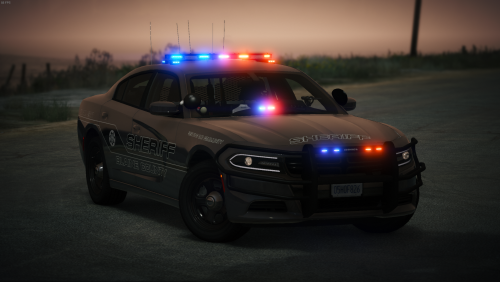 Hands down the best Tahoe ever!! (i'm sure the other vehicles are as great but I only used the Tahoe) 😄
- 127 comments
- 24 reviews
-
-
-
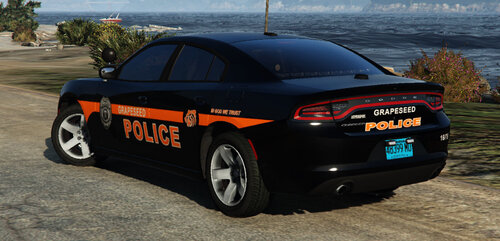 This vehicle looks awesome (I just installed) but the red and blue light ELS file is all blue lights. I tried both files in ELS and they're both all blue on the vehicle.
- 13 comments
- 4 reviews
-
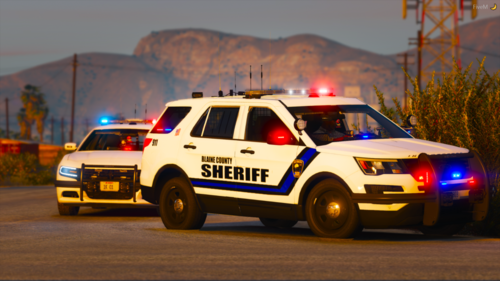 These look awesome. Can you make this as a replacement or add-on?




