


Thundershirt
Members
-
Joined
-
Last visited
Everything posted by Thundershirt
-
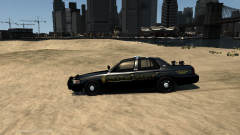
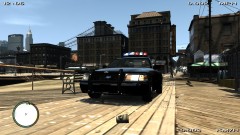
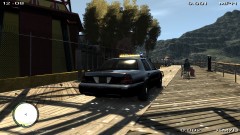
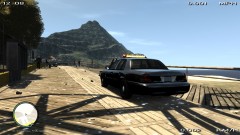
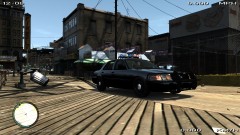
From the album: Liberty County Sheriff CVPI
-
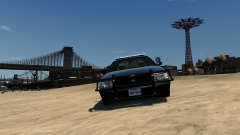
From the album: Liberty County Sheriff CVPI
-
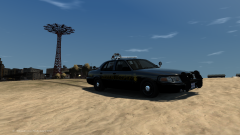
From the album: Liberty County Sheriff CVPI
-
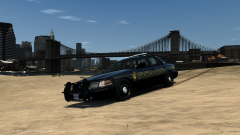
From the album: Liberty County Sheriff CVPI
-
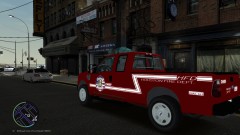 When will this be released? It looks amazing!
 -
-
-
-
-
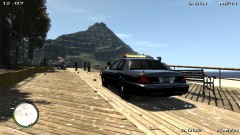 Yeah my plan was to use the '09 wheels but if anyone has the '06 ones and wouldn't mind letting me use them, that would be greatly appreciated. Thanks for input sKuare :)
 -
From the album: Lassen County Sheriff WIP [UPDATE]
Real life picture: http://farm5.staticflickr.com/4134/4807346296_0cc11fc702.jpg Before Update: I have added a siren in the grill behind the ford emblem, two antenna's on the trunk, an antenna on the roof, a computer, police console, spotlight on the driver side, gps in the front window, and wig wags in the headlights and reverse lights. I am now working on changing the wheels then it may be done. Please let me know what you guys think of the model and I can give it to some of you to beta test if you would like, just pm me about it. Thank you! -
I'm in the process of making my local county's Sheriff vehicle. My friend is working on the skins for me. I will give proper credits when I release it. Skin maker: http://www.lcpdfr.com/user/7150-pilot94/
-
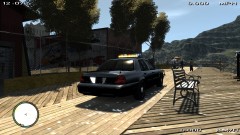
From the album: Lassen County Sheriff WIP [UPDATE]
Real life picture: http://farm5.staticflickr.com/4134/4807346296_0cc11fc702.jpg Before Update: I have added a siren in the grill behind the ford emblem, two antenna's on the trunk, an antenna on the roof, a computer, police console, spotlight on the driver side, gps in the front window, and wig wags in the headlights and reverse lights. I am now working on changing the wheels then it may be done. Please let me know what you guys think of the model and I can give it to some of you to beta test if you would like, just pm me about it. Thank you! -
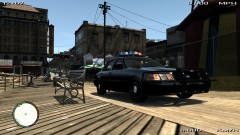
From the album: Lassen County Sheriff WIP [UPDATE]
Real life picture: http://farm5.staticflickr.com/4134/4807346296_0cc11fc702.jpg Before Update: I have added a siren in the grill behind the ford emblem, two antenna's on the trunk, an antenna on the roof, a computer, police console, spotlight on the driver side, gps in the front window, and wig wags in the headlights and reverse lights. I am now working on changing the wheels then it may be done. Please let me know what you guys think of the model and I can give it to some of you to beta test if you would like, just pm me about it. Thank you! -
From the album: Lassen County Sheriff WIP [UPDATE]
Real life picture: http://farm5.staticflickr.com/4134/4807346296_0cc11fc702.jpg Before Update: I have added a siren in the grill behind the ford emblem, two antenna's on the trunk, an antenna on the roof, a computer, police console, spotlight on the driver side, gps in the front window, and wig wags in the headlights and reverse lights. I am now working on changing the wheels then it may be done. Please let me know what you guys think of the model and I can give it to some of you to beta test if you would like, just pm me about it. Thank you! -
 Here is a link to a real life picture: '>
 -
 Here is a link to a real life picture: '>
 -
 Here is a link to a real life picture: '>
 -
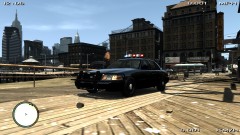 Here is a link to a real life picture: '>
 -
I'm in the process of making my local county's Sheriff vehicle. My friend is working on the skins for me. I will give proper credits when I release it. Skin maker: http://www.lcpdfr.com/user/7150-pilot94/
-
I'm in the process of making my local county's Sheriff vehicle. My friend is working on the skins for me. I will give proper credits when I release it. Skin maker: http://www.lcpdfr.com/user/7150-pilot94/
-
I'm in the process of making my local county's Sheriff vehicle. My friend is working on the skins for me. I will give proper credits when I release it. Skin maker: http://www.lcpdfr.com/user/7150-pilot94/
-
I'm in the process of making my local county's Sheriff vehicle. My friend is working on the skins for me. I will give proper credits when I release it. Skin maker: http://www.lcpdfr.com/user/7150-pilot94/
-
From the album: Lassen County Sheriff CVPI WIP
-
I'm in the process of making my local county's Sheriff vehicle. My friend is working on the skins for me. I will give proper credits when I release it. Skin maker: http://www.lcpdfr.com/user/7150-pilot94/


