


Bossnix
Members
-
Joined
-
Last visited
Everything posted by Bossnix
-
-
-
-
-
-
-
-
-
-
-
-
-
-
-
-
-
No we didn't close. Some people are just immature and take things too seriously.
- 8 comments
- 1 review
-
-

- 2
-
-
Thank you!
-
Yeah I don't use the / key to change sirens or whatever that does. Anyways I looked through the ini and found this at the bottom: ShowQuickActionMenu=LeftThumb Would I change it to: ShowQuickActionMenu=RightThumb to make the key for the action menu the right stick?
-
While using my controller, my siren key is the left stick button. However, the left stick button brings up the action menu. When I try to change that control in the GTAIV game itself, it won't let me, it just says what control is which. If I were to map the menu key in the lcpdfr.ini to say the left stick, it would cause more problems because the left sticks allows you to choose buttons throughout the menu. Is there a way to change the siren key in the game itself or is there a key I could change the action menu to? Any help would be great b/c reaching up to my mouse to turn on the siren and change the tone while trying to drive with my controller is pretty hard. Thanks
-
Look in the lcpdfr.ini
-
Try turning Overwolf off. It does that to me sometimes.
-
I got around $700 and a new pair of Sperry's and a lot of candy. Pretty good, now just have to go shopping.
-
The guy running in handcuffs was hilarious but thank you guys for the video!
-
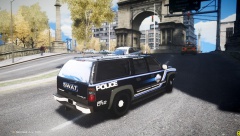 Oh. My. What about ELS?

