tobaroo91
Members
-
Joined
-
Last visited
Everything posted by tobaroo91
-
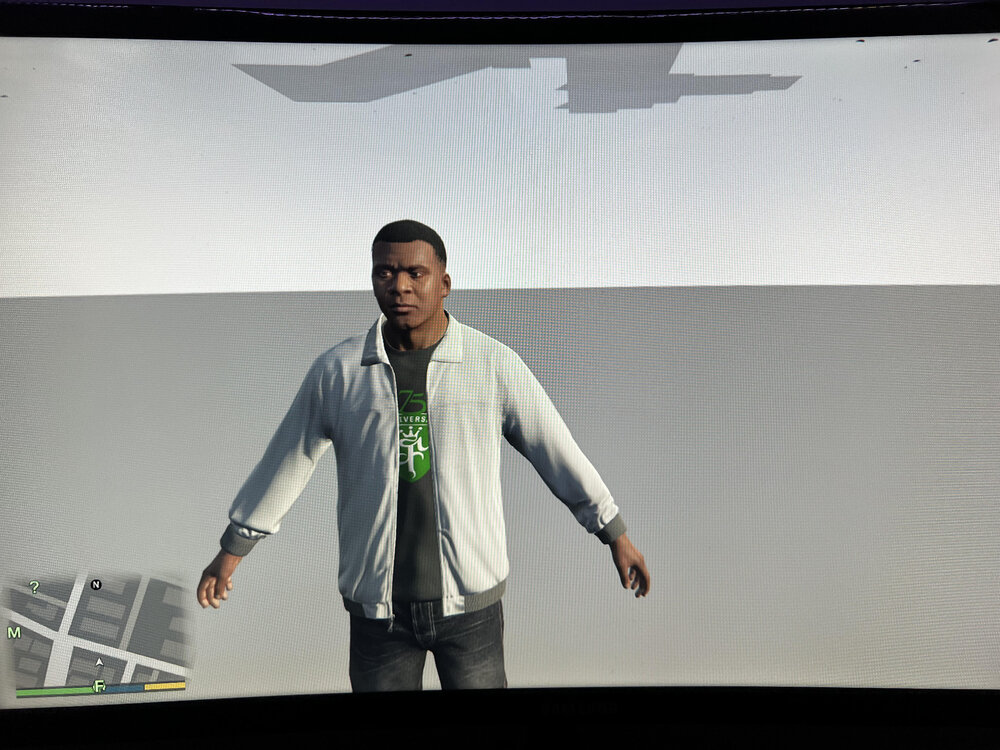
When I start gta with lspdfr from rage it always crashes and when I start it without LSPDFR this is what I see and cant do anything. Any thoughts? Im out of ideas RagePluginHook.log I've tried doing the _mods idea and reinstalling lspdfr and neither have worked
-
-
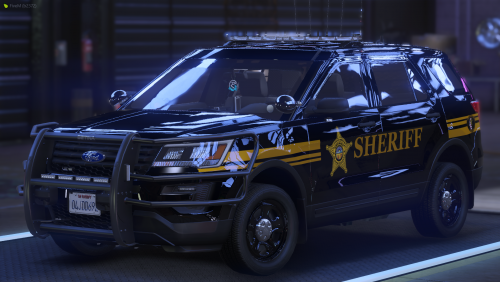 Can you post the packs that were used? Went through ripple's content and cant find them.
 -
RagePluginHook.log When I go on duty a pop up says that the vehicles for coastal callouts are not installed properly even though i downloaded them using modmanager from the original page.
-
-
Where do you put the vehicle.meta files?
-
I had it on day20 so I will switch to 23. I’m not running els right now until I get use to the game more. I was confused where the vehicle.meta files go so didn’t include them.
-
So I have been having some problems when trying to install and run vehicles. I follow the tutorials step by step with all up to date file yet when I am in the game I can’t find the vehicles. The one time I got the vehicle into the game the lights did not work. When I try to name the new vehicle as police1 the vehicles are all glitched out. Any thoughts?

.thumb.png.2ab768efcbe65de23a7d11999ca83cb8.png)