
ApertureMountain
Members
-
Joined
-
Last visited
Everything posted by ApertureMountain
-
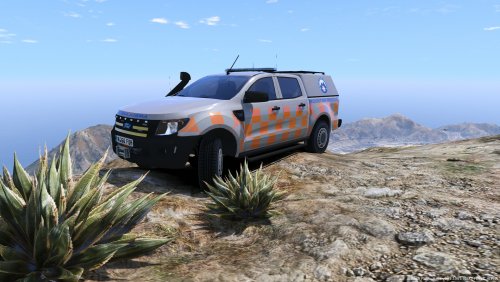 Thanks for posting this - slight spelling mistake on the title of the mod, but love it - thank you!
 -
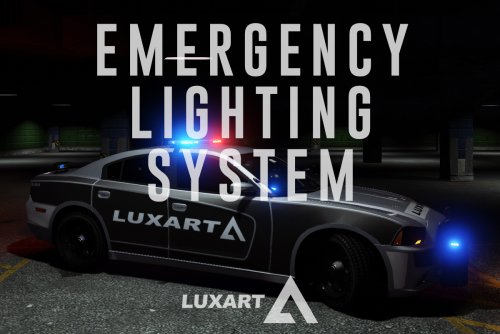 Hey guys, I had issues with ELS and ended up reinstalling GTA, this did fix my issue. Clearly there is some hidden file/code that affects ELS in the latest version and in some cases requires a complete reinstall, I recommend doing this!
- 2,699 comments
- 240 reviews
-
-

- 1
-
-
 My issue was I hadn't copied in the RageNativeUI as I thought this was included in RHP (which it isn't). Make sure that file is in also.
- 637 comments
- 75 reviews
-
Amazing, works perfectly, thank you Rich!!
-
I have my GTA (and by extension LSPDFR/RHP) installed on a different drive (E for me). It is still internal but it works.. so if you're having issues it could be because it is external? Can you post a screenshot of the error you get (ideally the whole screen so we can see if the installer window gives anything alway that could help)
-
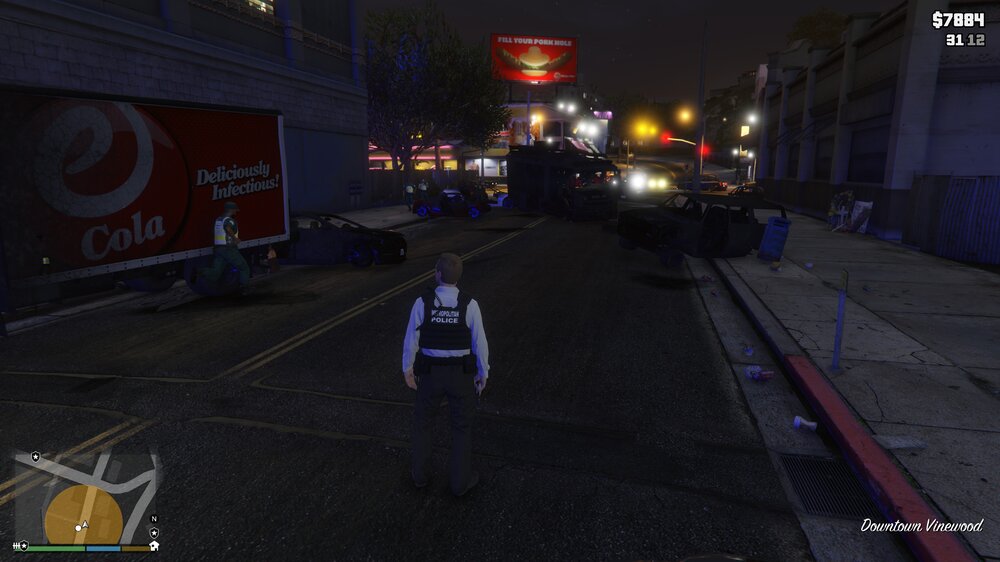
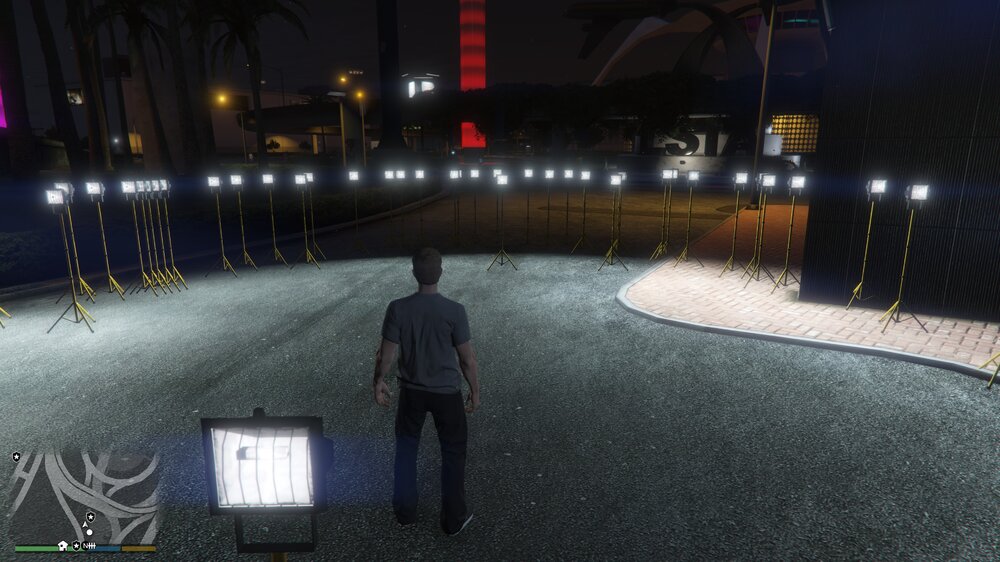
Hi guys! I may be missing something, but I find at night-time when you have a major incident (you know, like when you accidently hit "/" on your keyboard and blow up 7 cars) that the scene is REALLY hard to see. You have a number of agencies responding and it would be great if there was a mod that allowed me to place scene lights to help illuminate the area for the teams, as well as for myself to assess. Again, I may be missing this feature in a mod that I've just clearly not searched well for (my Google-fu has declined in recent years). Look forward to your suggestions! Dan