


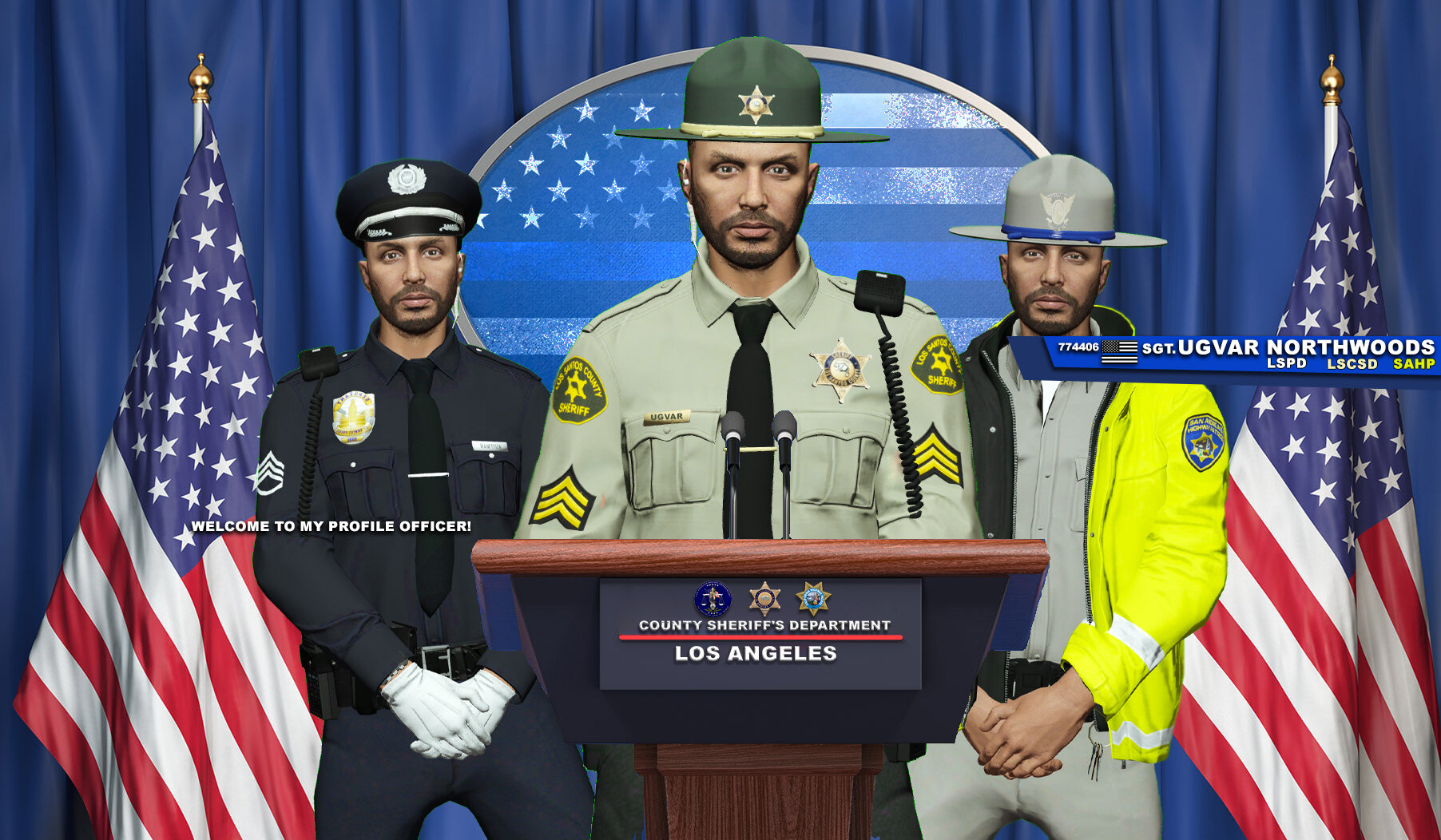

Ugvar
Members
-
Joined
-
Last visited
Everything posted by Ugvar
-
-
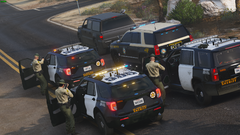 Скриншот Grand Theft Auto V 2025.02.04 — 11.17.49.01
-
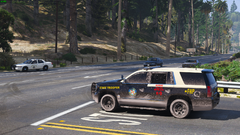 Скриншот Grand Theft Auto V 2025.02.04 — 11.29.35.78
-
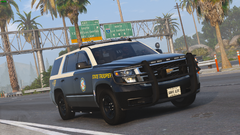 Скриншот Grand Theft Auto V 2025.02.04 — 11.01.58.04
-
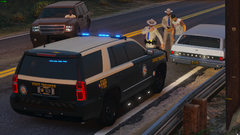 Скриншот Grand Theft Auto V 2025.02.04 — 10.55.35.61
-
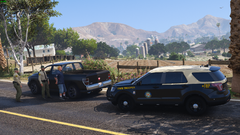 Скриншот Grand Theft Auto V 2025.02.04 — 09.53.27.72
-
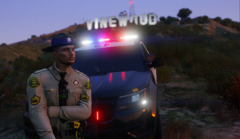
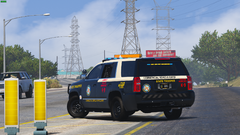 4-L-44 en route to the robbery callout, CODE 3
-
 PhoneWallpapers
-
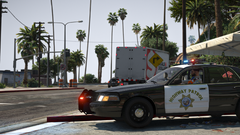 2k4
2k4
-
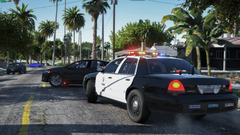 2k3
2k3
-
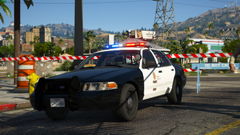 2k2
2k2
-
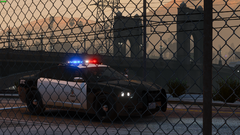 ddglapd
-
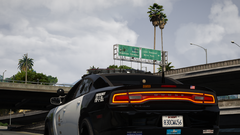 Wallpapers
-
-
From the album: LSPDFR
© UGVAR
-
From the album: LSPDFR
© UGVAR
-
-
-
From the album: LSPDFR
© UGVAR
-
-
-
.png.5ff26dcfe548c4374f8e380e8e200aa2.png) 🫡
🫡 -
.png.9aca04029aa653dff3b7233cf7d8ca04.png) ✨️
✨️ -
-
.jpg.046a0bd9eaaa24bac05a477929aa48e3.jpg) 😍
😍 -
-
 RagePluginHook.log I don't know, but after receiving the call, I accepted it and GTA 5 crashed. I tried to take this callout a second time and after acceptance, there was another departure at the entrance. 🙂 P.S. This time I slept almost solidly, called the callout and it didn't crash.. But I think these logs will help you with fixes... I don't know exactly why the theft is happening.. without the ability to simply register ReloadAllPlugins P.S.S. And 3 logs where the callout has already loaded normally without failures. I called him twice without any problems. RagePluginHook3finish.log RagePluginHook2round.log
- 158 comments
- 8 reviews
-
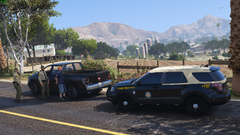
From the album: GTA V | SAHP PATROL
© UGVAR
-
-
Скриншот Grand Theft Auto V 2025.02.04 — 09.53.27.72
-
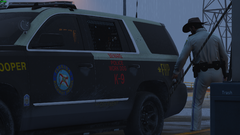 Grand Theft Auto V Screenshot 2025.02.01 - 23.51.34.49
-
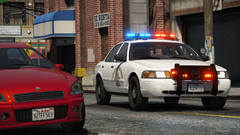 Grand Theft Auto V Screenshot 2025.02.02 - 18.41.15.55
-
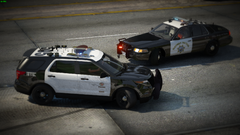 Grand Theft Auto V Screenshot 2025.02.02 - 22.31.53.92
-
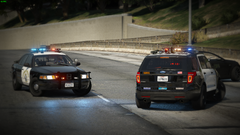 Grand Theft Auto V Screenshot 2025.02.02 - 22.31.12.28
-
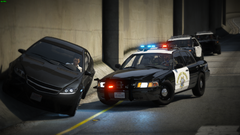 Grand Theft Auto V Screenshot 2025.02.02 - 22.33.28.44
-
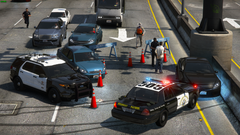 On Scene
-
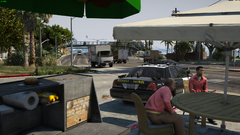 Grand Theft Auto V Screenshot 2025.02.02 - 22.42.20.95
-
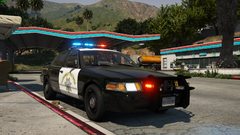 Grand Theft Auto V Screenshot 2025.02.02 - 22.44.13.97
-
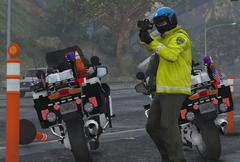 sahp10
-
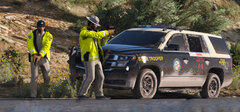 sahp9
sahp9
-
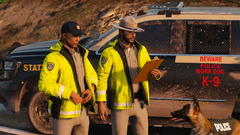 sahp8
sahp8
-
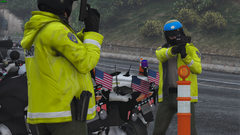 sahp76
-
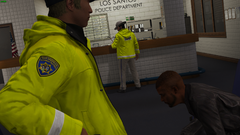 sahp5
sahp5
-
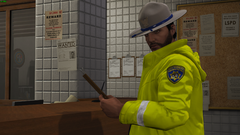 sahp4
sahp4
-
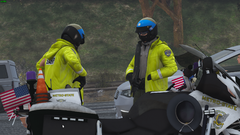 sahp3
sahp3
-
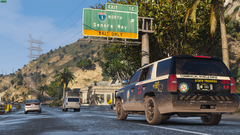 sahp2
sahp2
-
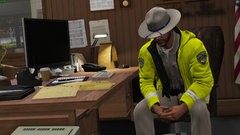 sahp1
sahp1
-
-
I'd rather use this site because my performance is falling in XSCANNER... I don't know why, BUT I don't use it anymore. https://www.broadcastify.com/listen/feed/20296 I think it's the best thing to do, as productivity drops because of this fashion. Plus, I fixed the problems with departures. It was because of the LSPDFR Enhanced... Or rather, because I used a VPN. VPN did not give me the opportunity to join the service
-
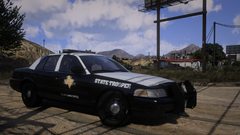 Excellent livery🖤💙🤍
 -
 Does anyone have a job in 2025?
 -
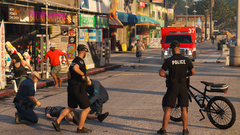
From the album: Bicycle Patrol Unit
© UGVAR
-
-
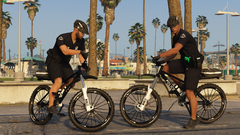
From the album: Bicycle Patrol Unit
© UGVAR
-
-
From the album: GTA V | SAHP PATROL
© UGVAR
-
From the album: GTA V | SAHP PATROL
© UGVAR





.png.5ff26dcfe548c4374f8e380e8e200aa2.png)
.png.9aca04029aa653dff3b7233cf7d8ca04.png)

.jpg.046a0bd9eaaa24bac05a477929aa48e3.jpg)


.png.b87385f2a340249c259fef7d3b580d0d.png)
.png.7207d83ffb0a9297283252d568a91719.png)
.png.bb09ceb90bf17404b6750619f74a2947.png)
