


ImmortalAustralian
-
Joined
-
Last visited
Everything posted by ImmortalAustralian
-

From the album: LSPDFR 22: Non-Lore Friendly
© Reuse and reposting of these is allowed and it would be appreciated that you credit me as the original author of the image.
-
From the album: LSPDFR 22: Non-Lore Friendly
© Reuse and reposting of these is allowed and it would be appreciated that you credit me as the original author of the image.
-

From the album: LSPDFR 22: Non-Lore Friendly
© Reuse and reposting of these is allowed and it would be appreciated that you credit me as the original author of the image.
-
From the album: LSPDFR 22: Non-Lore Friendly
© Reuse and reposting of these is allowed and it would be appreciated that you credit me as the original author of the image.
-
From the album: LSPDFR 22: Non-Lore Friendly
© Reuse and reposting of these is allowed and it would be appreciated that you credit me as the original author of the image.
-
From the album: LSPDFR 22: Non-Lore Friendly
© Reuse and reposting of these is allowed and it would be appreciated that you credit me as the original author of the image.
-
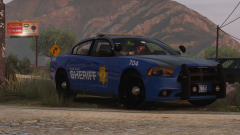
From the album: LSPDFR 22: Non-Lore Friendly
© Reuse and reposting of these is allowed and it would be appreciated that you credit me as the original author of the image.
-
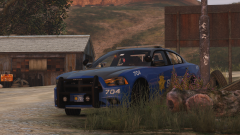
From the album: LSPDFR 22: Non-Lore Friendly
© Reuse and reposting of these is allowed and it would be appreciated that you credit me as the original author of the image.
-

From the album: LSPDFR 22: Non-Lore Friendly
© Reuse and reposting of these is allowed and it would be appreciated that you credit me as the original author of the image.
-

From the album: LSPDFR 22: Non-Lore Friendly
© Reuse and reposting of these is allowed and it would be appreciated that you credit me as the original author of the image.
-

From the album: LSPDFR 22: Non-Lore Friendly
© Reuse and reposting of these is allowed and it would be appreciated that you credit me as the original author of the image.
-

From the album: LSPDFR 22: Non-Lore Friendly
© Reuse and reposting of these is allowed and it would be appreciated that you credit me as the original author of the image.
-

From the album: LSPDFR 22: Non-Lore Friendly
© Reuse and reposting of these is allowed and it would be appreciated that you credit me as the original author of the image.
-
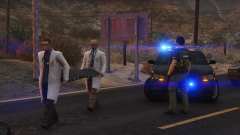
From the album: LSPDFR 22: Non-Lore Friendly
© Reuse and reposting of these is allowed and it would be appreciated that you credit me as the original author of the image.
-

From the album: LSPDFR 22: Non-Lore Friendly
© Reuse and reposting of these is allowed and it would be appreciated that you credit me as the original author of the image.
-
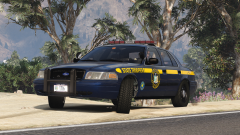
From the album: LSPDFR 22: Non-Lore Friendly
© Reuse and reposting of these is allowed and it would be appreciated that you credit me as the original author of the image.
-

From the album: LSPDFR 22: Non-Lore Friendly
© Reuse and reposting of these is allowed and it would be appreciated that you credit me as the original author of the image.
-
I am using ASI Support temporarily with Simple Trainer so I can do a few things I usually do with ST, yes.
-
I've noticed that since the new update backup you call is now actually basically glued to the ground and cannot move. They are attempting to drive forwards but jolt very slightly then let off the accelerator. They repeat this in a cycle until they either automatically give up or because I have Ultimate Backup installed, they'll turn into a buddy I can manually dismiss. On rare occasion they will free themselves and move but I've only had 3 units out of around 100+ backup units I've tried calling do it. For additional information, I have tested it with both the built-in LSPDFR backup menu and the backup menu that Ultimate Backup has and the issue is present using both menus. I also cannot actually ram them either, as I said, they're basically glued to the floor and are immovable.
-
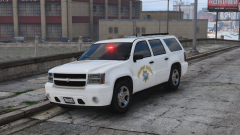
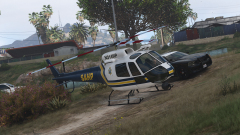
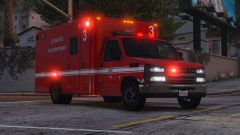
I have started on an adventure in LSPDFR to have a lore friendly game, and this gallery will house all screenshots of my lore friendly adventures. I have non-lore friendly stuff also in game so expect a separate gallery for those images.
-
 GTA5_xqyPrSov18.png
-
 GTA5_k2DRJewJEq.png
-
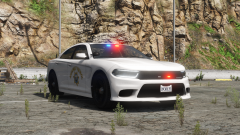 GTA5_AIfazfFUNM.png
-
 GTA5_5S0OCnUF4E.png
-
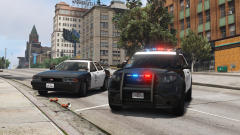 GTA5_5xKpxjiLyw.png
-
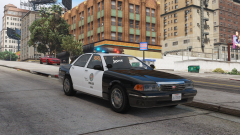 GTA5_7w8NkoC8mL.png
-
 GTA5_PP4m9jqbLU.png
-
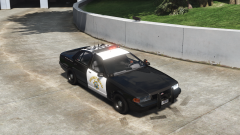 GTA5_VBO9wXXBlC.png
-
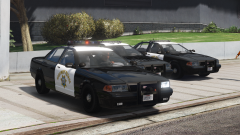 GTA5_wMYy4vzHAr.png
-
 GTA5_48a0BO6vev.png
-
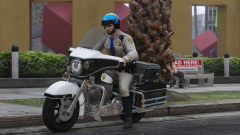 GTA5_G2ODFP1f6T.png
-
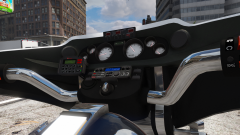 GTA5_PVv5pHQ8IF.png
-
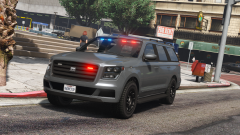 GTA5_nVWQ8vSEQG.png
-
 GTA5_DqpMWJCJC0.png
-
 GTA5_BIOjeEhH6H.png
-
 GTA5_CcxqFksAfr.png
-
 GTA5_1zV2EcqcxT.png
-
 GTA5_0mqZG1KRec.png
-
 GTA5_LAm4iuXeUw.png
-
 GTA5_PdA4pukOGL.png
-
-
From the album: LSPDFR 22: Lore Friendly
© Reuse and reposting of these is allowed and it would be appreciated that you credit me as the original author of the image.
-
From the album: LSPDFR 22: Lore Friendly
© Reuse and reposting of these is allowed and it would be appreciated that you credit me as the original author of the image.
-
From the album: LSPDFR 22: Lore Friendly
© Reuse and reposting of these is allowed and it would be appreciated that you credit me as the original author of the image.
-
From the album: LSPDFR 22: Lore Friendly
© Reuse and reposting of these is allowed and it would be appreciated that you credit me as the original author of the image.
-
From the album: LSPDFR 22: Lore Friendly
© Reuse and reposting of these is allowed and it would be appreciated that you credit me as the original author of the image.

