


FBGjunkie
Members
-
Joined
-
Last visited
Everything posted by FBGjunkie
-
-
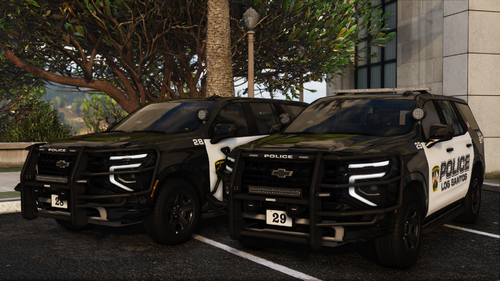
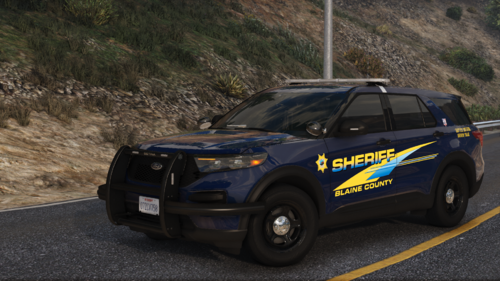 Who's models did you use for these vehicles? Trying to find some good LSPD liveries. Awesome pack
 -
.thumb.png.7bdf0066d86afe565fac5e2684baa3e8.png) Cannot get ELS to work on any of the vehicles, it just shows a solid color under the car for all lighting stages, you can see my other els cars work fine. I have tried the ELS files you uploaded in the comments as well to no success
Cannot get ELS to work on any of the vehicles, it just shows a solid color under the car for all lighting stages, you can see my other els cars work fine. I have tried the ELS files you uploaded in the comments as well to no success -
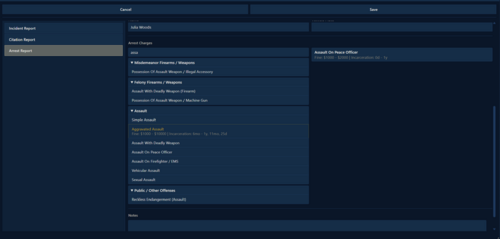 "Person not found" every single time I run a Ped... Even if I use the register owners name that the ALPR picks up I get no hits?
- 392 comments
- 9 reviews
-
-
-
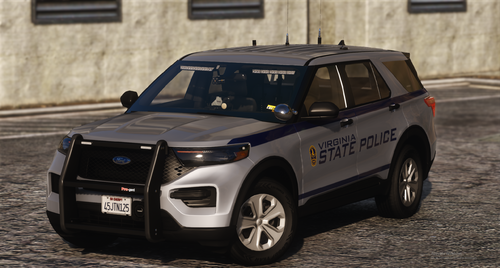 Having the same issue with the lights when I'm code 3 on siren number 2 or when toggling cruise lights. No graphics mod installed
 -
Launch GTA first and once it starts launching click on rage hook and start it.
-
-
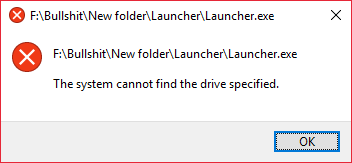
Its Internal but no longer exists since it has now been merged with my (C:) Drive all the files that were on the F: Drive are now located in the (C:) Drive. Someone on FTM's Discord told me to use Registry Editor to set it to the right path but i cant figure it out, it all looks foreign to me not much of a computer guy lol.
-
Can anyone help me with this problem. I had two hard drives one being my (C:) and the other being F: and i had to combine them because i needed more gigs on my C:, the issue im having is when i launch my GTA V (which is installed in my G:) it says F:\Bullshit\New folder\Launcher\Launcher.exe The System cannot find the drive specified. I dont understand why since all my steam games are saved under my G: Drive
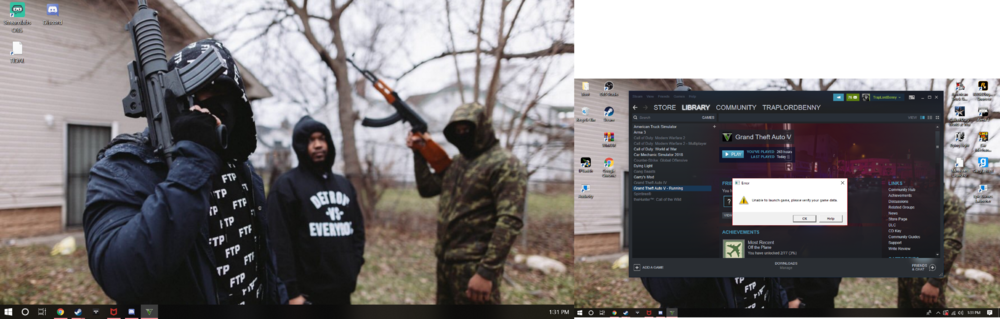

.thumb.png.7bdf0066d86afe565fac5e2684baa3e8.png)
.thumb.png.656f907bc2febc81911b0b821cb502c8.png)




