



Ritchie Stone
Members
-
Joined
-
Last visited
Everything posted by Ritchie Stone
-
Will you guy's be adding more uniforms for vanilla LSPDFR? Like a trooper hat and jackets for each department?
-
 How did you make this?
 -
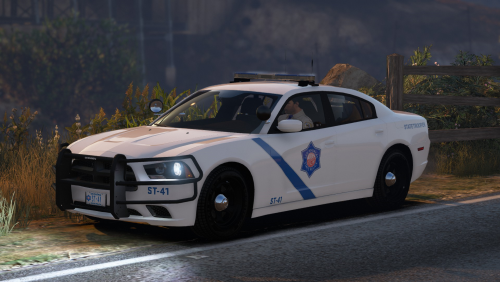 Freaking love this pack! Future suggestion is to add APR scanners and speed radar! Great work @Jedahdiah!
- 19 comments
- 16 reviews
-
It was actual another mod that was meant to help EUP that made the game keep crashing. I found it because I followed tutorials like FirstThirtyMinutes which was unreliable since it's out of date. LESSON: EUP is a great add-on if you use all of the makers scripts and don't use any out mods with it. Happy policing!
-
 What I mean is, how do you take these kinds of pictures from a different angle?
 -
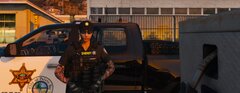 How do you take photo's like that?!
 -
-
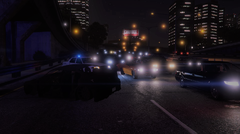
From the album: Ritchie's Journey
-
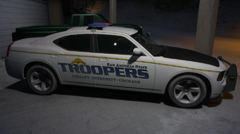
From the album: Ritchie's Journey
-
PROBLEM SOLVED: It was "EUP" and "EUP Menu" Everything else works fine. It's sad to see that EUP hasn't really been taking care of but at least my worries are over... for now 😂
-
I tested my mods folder by taking it out and my game worked completely fine. I have a car pack and EUP installed. I'm guessing it's EUP because I've hard car packs before and they don't cause this issue.
-
UPDATE: It crashes randomly like after a little bit into my patrols.
-
Here's the crash log,
-
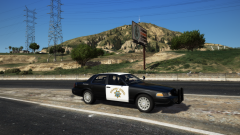 Some interesting hubcaps and an awesome department!
 -
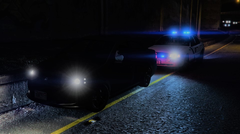
From the album: Ritchie's Journey
-
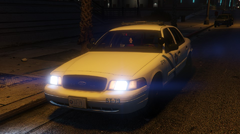
From the album: Ritchie's Journey
-
 @qfmusiq What happens when I need ELS though and I hit a button that has a blinker connected to it?
- 262 comments
- 21 reviews
-
-

- 1
-
-

