


Daunlan
Members
-
Joined
-
Last visited
Everything posted by Daunlan
-
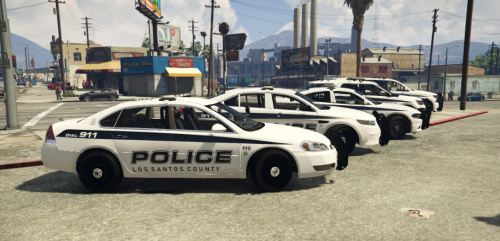 The pack now has reflective_livery so you need to add that to your textures. Otherwise the "POLICE" sign will go on top of the texture you made.
 -
Hey @gintikia, I've installed one pack before, the LAPD Mega Pack. That one had an .oiv I could drag and drop. All I had to do after was put the xmls in pack default.
-
So how are we supposed to install this?
-
Hello, I'm attempting to sign into the "LSPDFR Sync" feature in-game so I can load in my character, however, when I press the return key to get the pop-up the game immediately closes out and does not give any error message (the same animation you get when you alt-f4). Does anyone know of any fixes/workarounds for this? I've searched online for this issue and no one has given a solution yet. I uploaded my RPH Log for reference. Thank you. RagePluginHook.log
-
 The plugin used to work for me a few weeks ago. However, whenever ever I point my gun at a vehicle and initiate a pursuit, LSPDFR crashes. The second time I tested this, LSPDFR crashed then the entire game crashed as well. I bolded the "PursuitOnTheFly" in the log.
- 74 comments
- 24 reviews
-
 My antivirus detected a "Network Insight Threat" from the LSPDFR+.dll file. Is this something that's supposed to happen?
- 1,178 comments
- 137 reviews
