
Chicken Grease
Members
-
Joined
-
Last visited
Everything posted by Chicken Grease
-
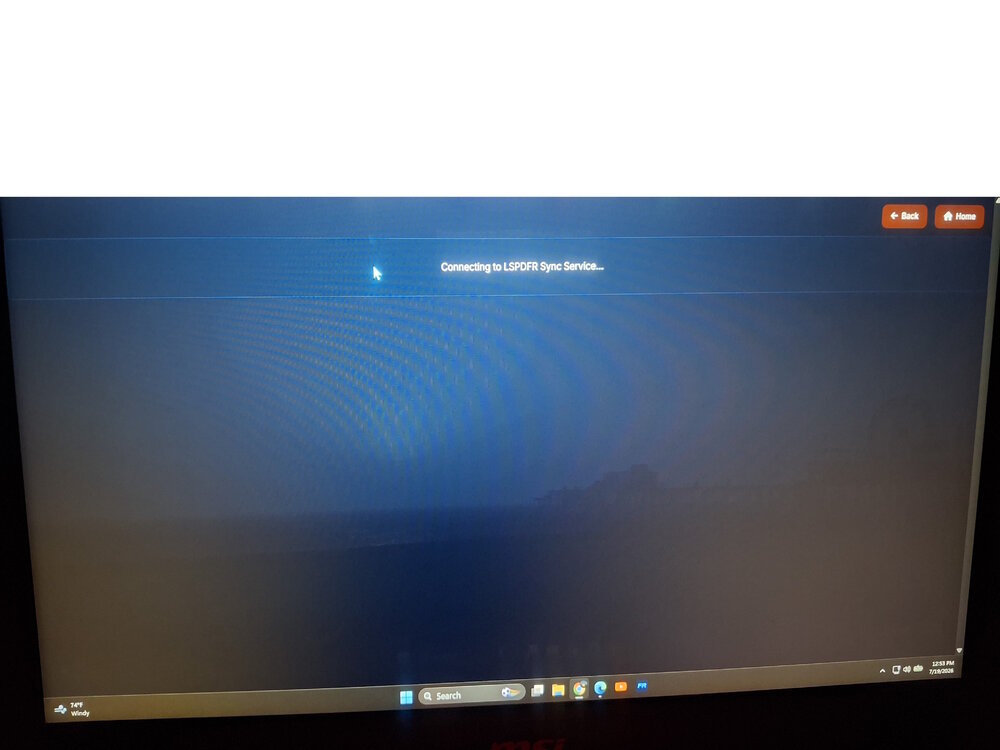
No, the companion app still does not sync for me, not on the pc im playing on or my laptop which would be ideal.
-
i just got it to link one time only on my gaming pc, the goal truly would be to have it working on my laptop. I'm assuming that wouldn't or shouldn't matter tho. seems like something blocking the connection maybe RagePluginHook.log
-
It will just stay syncing and never actually connect
-
Does it work? mine stays syncing. id love to use this feature, if someone knows a fix or what I'm missing to get it connected that be great. thanks.
-
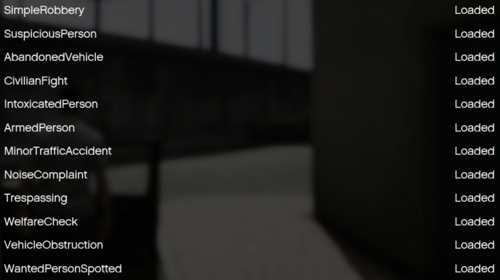 never generates an ini for me, download only comes with the language n dll files
- 42 comments
- 4 reviews
-
- it
- us
- lore
- lspdfr callout
-
Tagged with:
-
 Can never get the interiors to work, am i missing alot by not having it? as far as i know it all goes into the scripts folder the mod,lemon ui and shv3. what am i missing?
- 171 comments
- 13 reviews
-
-
 https://share.rphlogs.dev/functions/v1/r/ewrehx3guv#qeeKyaCZ2EqCRoPOLklHlcHdyZX7c-kAR5B_9YWkHC4 here it is, thank you!
- 15 comments
- 3 reviews
-
You are missing these required files 0HarmonyAffects: 0Harmony what is this oHarmony? and do i actually need it? nothing ever came with this file but its calling for it as severe
- 15 comments
- 3 reviews
-
-
good grief the amount this has helped me over the past few days is amazing lol but i gotta laugh and came here just to tell you or get clarification. Nexus MDT says you can use both they actually have a setting to use both if u wanted to. i just thought it was funny cause it was telling me i severely need STP so i went and got it then it told me that having STP was severe too lol. so yeah i just honestly thought that was funny. great tool tho man frfr ill always use it appreciate ya
- 15 comments
- 3 reviews
-
-

- 1
-
-
-
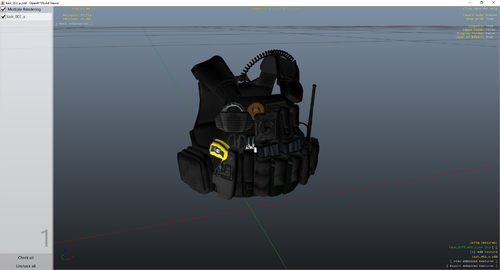 You are using the wrong vest with my textures. Confirm you are using the right vest/texture combo.
- 6 comments
- 1 review
-
-
From the album: Night Shift
-
-
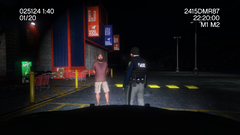
From the album: Night Shift
-
This worked for me, so I could use multiple versions of the vest and change in game with EUP. But if you just want one certain version you need to download the vest and replace it where its download path leads using open iv. HANAKO 80 Author Posted Thursday at 03:50 PM You need to change the name to task_001_u.ydd and put the file in this location. Grand Theft Auto V\mods\update\x64\dlcpacks\eup\dlc.rpf\x64\eup_componentpeds.rpf\mp_m_freemode_01_mp_m_january2016
- 6 comments
- 1 review
-
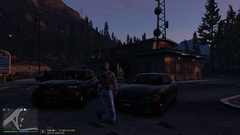
From the album: Night Shift
-
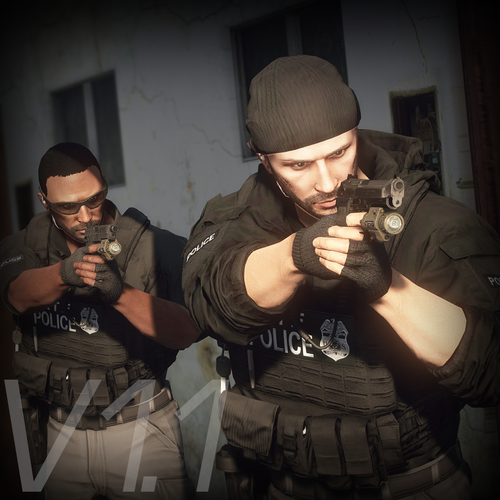 Is there any way to make the newest vest have multiple in-game textures? I can only seem to get one texture to work at a time, meaning having to do it every time with open IV.
- 554 comments
- 46 reviews
-
This is a Green/black Police texture and a Black/green sheriff texture for HANAKO's EUP VEST. Figured other people could benefit. I also included the original textures from HANAKO's EUP VEST as credits and for your convenience. Would like to say thank you to HANAKO for his kind donation to the community with his vest and ear piece beta, Available here... THANK YOU!
- 6 comments
- 1 review
-
-
-

- 4
-
-
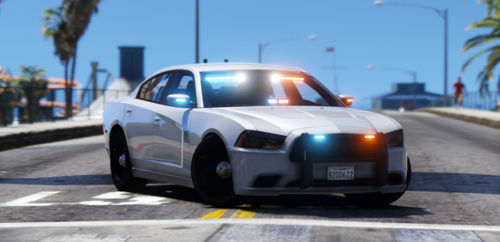 Can this be installed on Single player LSPDFR? cant seem to figure out how to properly install this into my own game not Fivem.