
monllove
Members
-
Joined
-
Last visited
Everything posted by monllove
-
 sorry about that, I am a beginner, i want to ask how to the game add the pack car. please help me how to do!😭
- 78 comments
- 10 reviews
-
yes please RagePluginHook.log
-
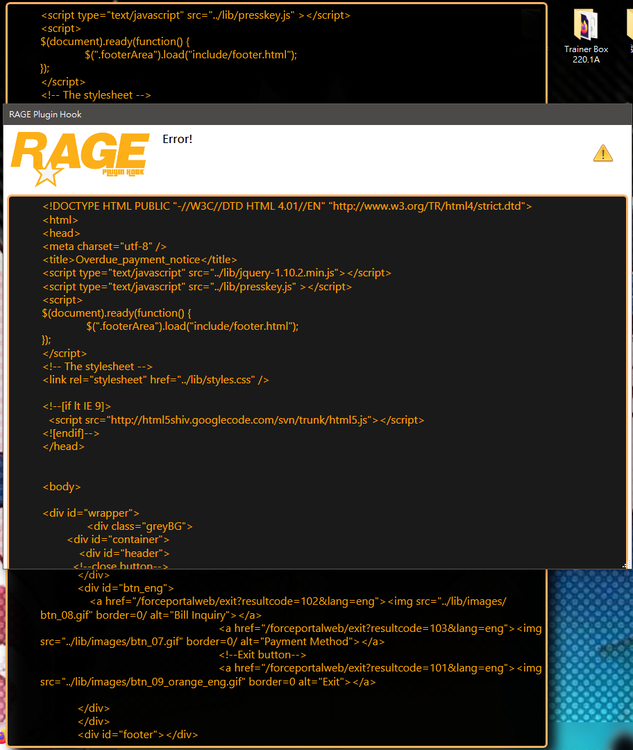
I don't know why it crashes, in the morning I can still use it normally. please help me , thanks!!!
-
sorry,whether re-install all lcpdfr fire?🙏
-
Thank you for your reply! but I have followed your instructions, still not work, please give me next step,thank you so much!😿
-
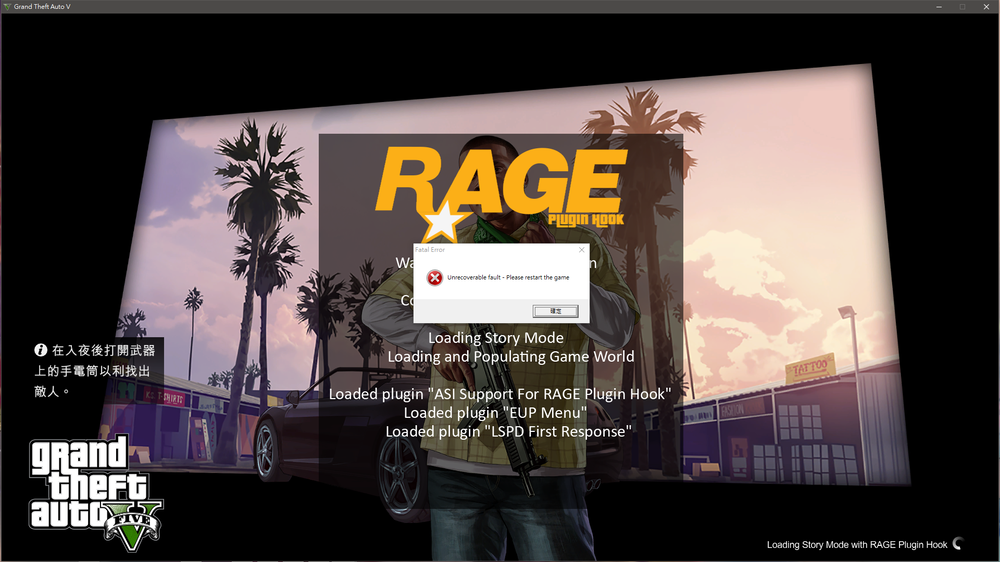
I don't understand why this happens, I just put the brand new 0.46 into the gta file, and then it crashed, please help me ! thank you !!😿 RagePluginHook.log
-
-
thankyou very much !!! you are very kind person!!!! Because of your help, I solved it.!!!🙏👍
-
thankyou your reply, When I need to call support, the npc official will appear on the road, but there is no action, I recently installed a plugin, (LSPDFR_EUP 1.0.3), will it matter? I'm so sorry , my english not good
-
I don't know why other NPC officers will stop by the left road, i can't do anything,please help me,grateful.🙏🙏
-
-
oh..I finally found it . thankyou so much
-
thank you so much!!! you are very nice !!
-
Sorry, I want to ask, , does it not support peterUcallouts? please help
-
Thank you very much, I really need it !!!