



bevarnow
-
Joined
-
Last visited
Everything posted by bevarnow
-
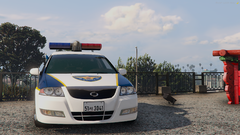
From the album: FiveM Adventures
-
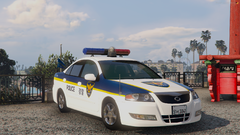
From the album: FiveM Adventures
-
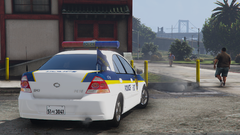
From the album: FiveM Adventures
-
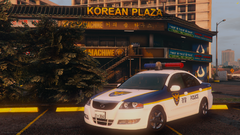
From the album: FiveM Adventures
-
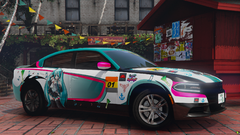 no thoughts, just miku
 -
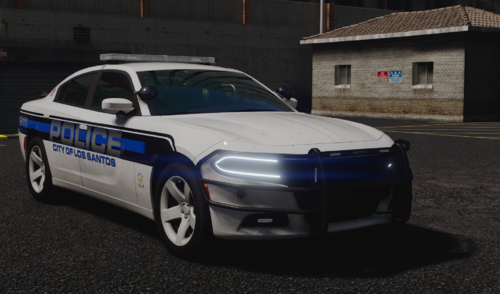 woah buddy pal
 -
From the album: FiveM Adventures
-
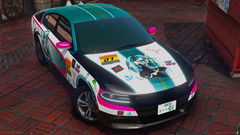
From the album: FiveM Adventures
-
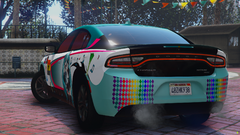
From the album: FiveM Adventures
-
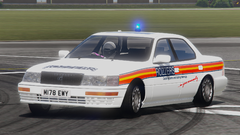
From the album: FiveM Adventures
-
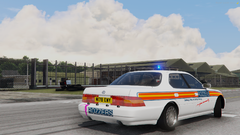
From the album: FiveM Adventures
-
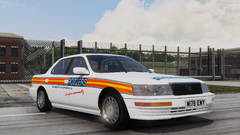
From the album: FiveM Adventures
-
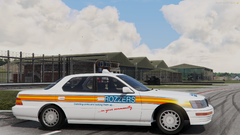
From the album: FiveM Adventures
-
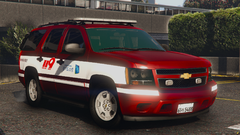
From the album: FiveM Adventures
-
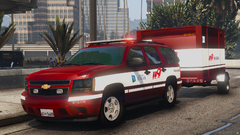
From the album: FiveM Adventures
-
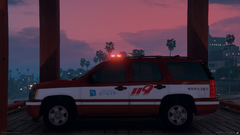
From the album: FiveM Adventures
-
From the album: FiveM Adventures
-
From the album: FiveM Adventures
-
From the album: FiveM Adventures
-
-
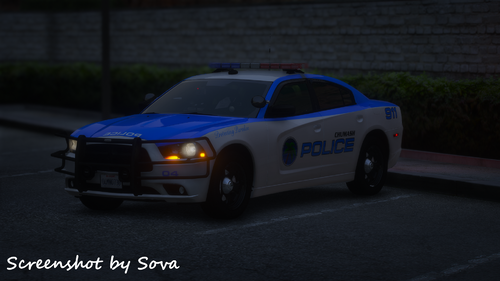
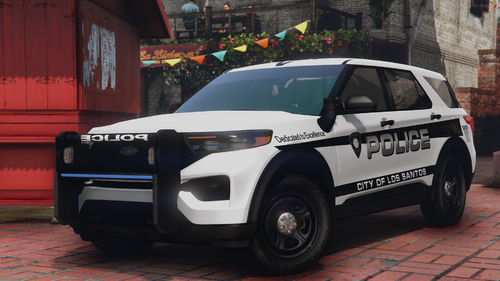 Good morning. This is actually a recent project that I pretty much only finished for this release. I put way to much work into this vehicle for it to sit onto my hard drive, so might as well. This vehicle has two special features: 1. The Arges is animated to go up and down, just hold H. It does not go up or down over twenty-five miles per hour due to game limitations; 2. Modkit unit numbers changeable via the vehicle mods menu. The Arges is animated to go up and down, hold H. As stated, it does not go up or down over twenty-five miles per hour just due to game limitations. It will stay up over twenty-five miles per hour. The actual light is controlled via Extra #9, animations do not reset with extras being toggled on and off so it is recommended to put the Arges up and then turn on the extra. Changeable unit numbers is pretty much self-explanatory. If you're making a livery, be sure to extract the original livery from the .ytd to place the numbers over the numbers on the original livery for reference. No I will not change the pushbar, no I will not make more vehicles like this. Feel Free to convert to R/B, B/B, A/P. Just don't reupload it saying you made "Major Edits" to it Fuck you Alex. Join my Discord: https://discord.gg/wTuE3p3 Visit my Website: http://www.chriscatalog.shop/
 -
 my name has a lowercase b bif 😞
 -
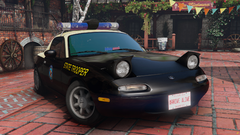
From the album: FiveM Adventures
-
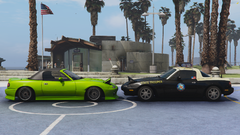
From the album: FiveM Adventures
-
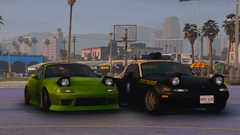
From the album: FiveM Adventures




