
bevarnow
Members
-
Joined
-
Last visited
Everything posted by bevarnow
-
 please stop calling me
 -
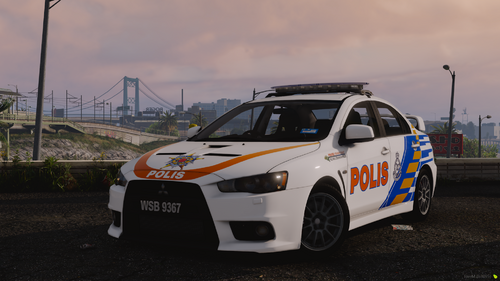
I'm prob just gonna start uploading a bunch of the foreign stuff. I know the livery is inaccurate, we both tried to find an accurate version of it. iykyk https://discord.gg/wTuE3p3 or https://discord.gg/YnnqRg9VqX https://youtu.be/m6hX4LTGjFs?si=gjMSG7ERdmJwN_-u
-
 please stop texting me bunos nachos
 -
you seem really familiar
-
no hes eup
-
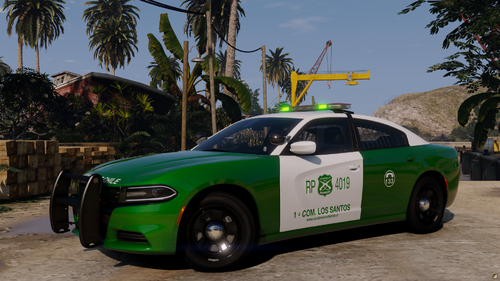
Very rare Chris remake. But featuring a friend. I will probably not make more. https://discord.gg/wTuE3p3 or https://discord.gg/YnnqRg9VqX
-
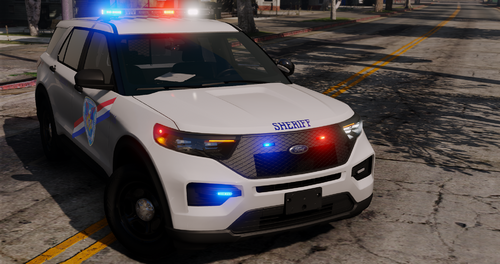 hallo bro did see my comment??🇹🇷🇹🇷🇹🇷🇹🇷🇹🇷🇹🇷🦾
 -
hello bor i wonder if can get in Türkiye (🇹🇷🇹🇷🇹🇷🇹🇷🇹🇷🇹🇷🇹🇷🇹🇷🇹🇷🇹🇷🇹🇷🇹🇷🇹🇷) skin???? @JCerb was wonder tooo thank you boor
-
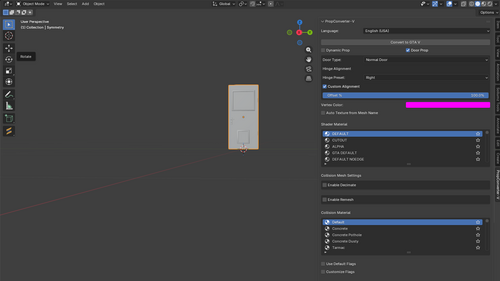 how is this difference from what sollumz can do?
 -
-
-
-
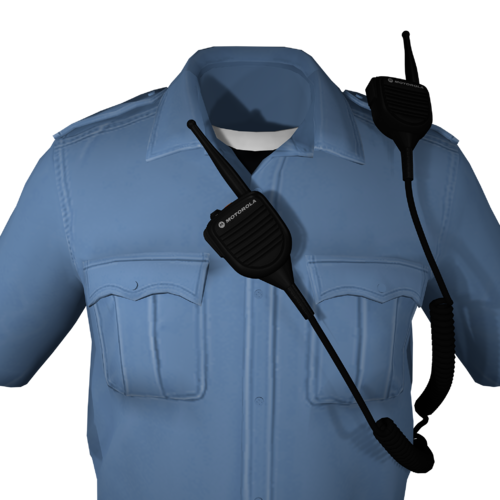 mmm radio. we can speak. can it converted to gta iv?
 -
-
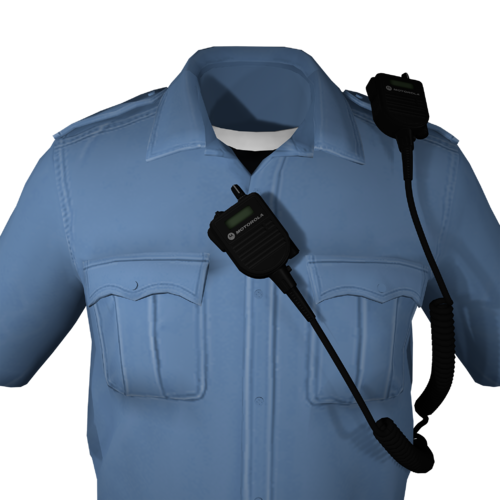 mmm radio, communicatitidon. is it 3d printable?
 -
-
-
 Only .wav are provided. These are meant to integrate with your preexisting siren files. No support is provided The EUP cannot be converted to ELS
- 12 comments
- 1 review
-
-

- 1
-
-
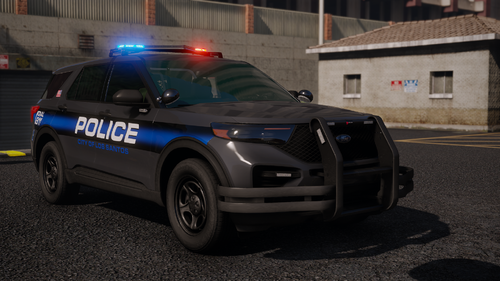 who
who -
-
-
-
Good morning, these are Whelen Digital Voice Message tones. These tones are taken from Whelen's website, edited to sound like they're coming out of a speaker, and then configured for use in GTA. There is no provided .rpf, only raw files. You will have to do those yourself. Please do not ask me. Included tones: - Active Shooter Warning - Area Restricted - Fire Warning - Hands Up - K9 Deployed - K9 Release Warning - Officer in Distress - Police Search Active - Pull over to the right - Pull over to the left - Remain in the ve-hic-le - Road closed - Step away from the ve-hic-le If interest is enough I may other tones, and maybe the Spanish tones as well. https://discord.gg/wTuE3p3
- 12 comments
- 1 review
-
-

- 1
-
-
-
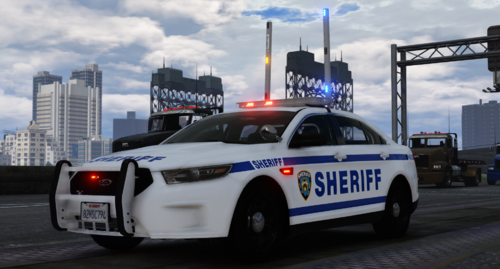 i didnt even know people still had this