
DWilkens
Members
-
Joined
-
Last visited
Everything posted by DWilkens
-
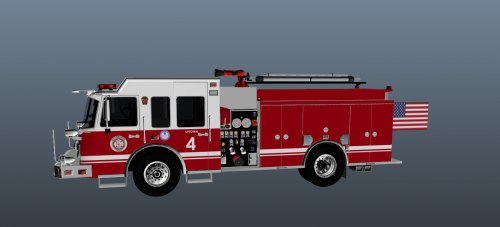 Included are skins for the following engines: Engine 4 Engine 35 Engine 37 Engine 7 Engine 10 They are meant for Medic4523's Spartan Engines on modification universe.
 -
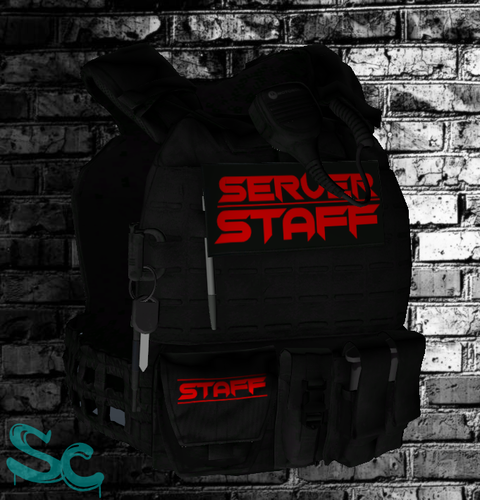 I like the overall design of the vest texture. Awesome job with the varying colors to differentiate rank. Whilst those who choose to use it may be describable with different terms, I think you did good and even though it is basic, you did put time into it.
 -
Please include a picture of what the skin is supposed to look like. OpenIV sometimes distorts the 3D preview and as a result the skin may look bad but in game it works. Likewise, if you are using the wrong slot in the .ytd file included with the car, adverse results can occur.
-
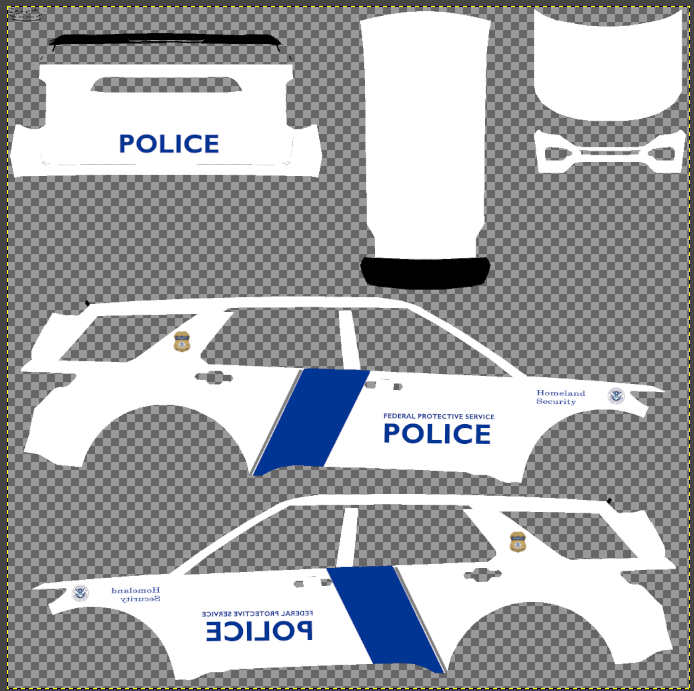
I decided to set out and design a 2020 FPIU Homeland Security texture but in doing so I came across some hurdles. For one, I don't have Photoshop so I had to use GIMP as the editing software. Two, I designed the texture essentially as an addon to user @Llama's Homeland Security pack. But now I have the issue of a weird shadow and hairline seams appearing around the car. Attached is the actual .png file as well as screenshots of what I'm talking about. Any ideas of how I can fix this, thanks. P.S any ideas of better ways to make textures would also be greatly appreciated.
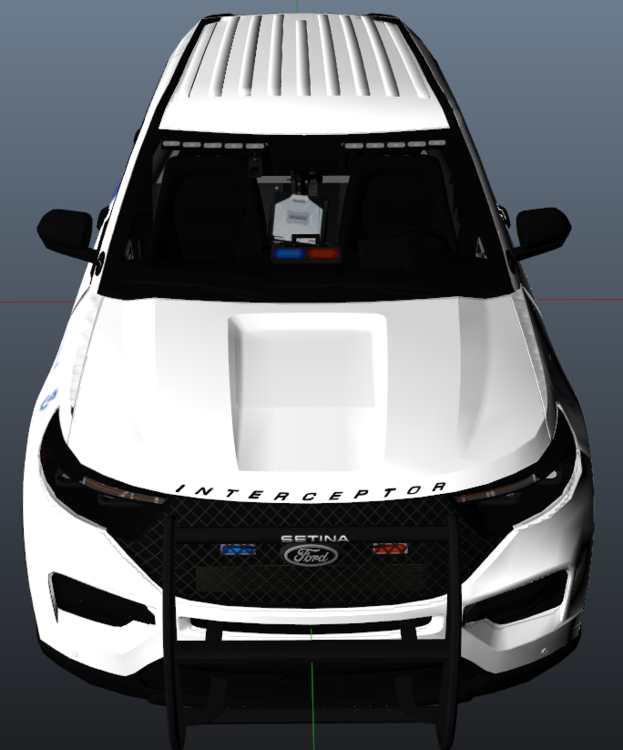
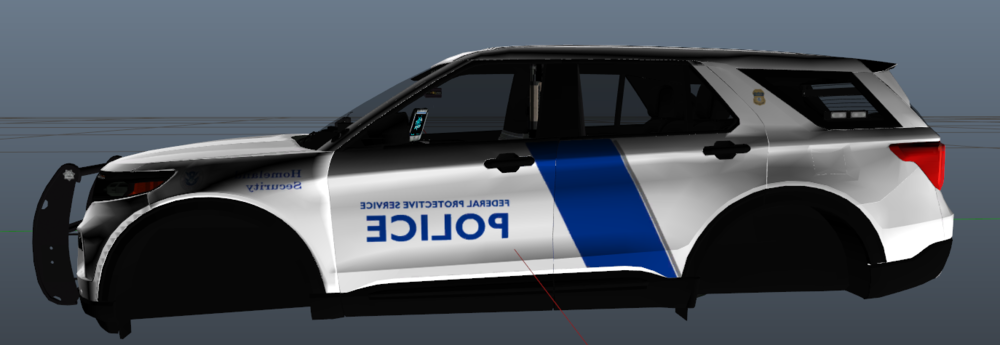
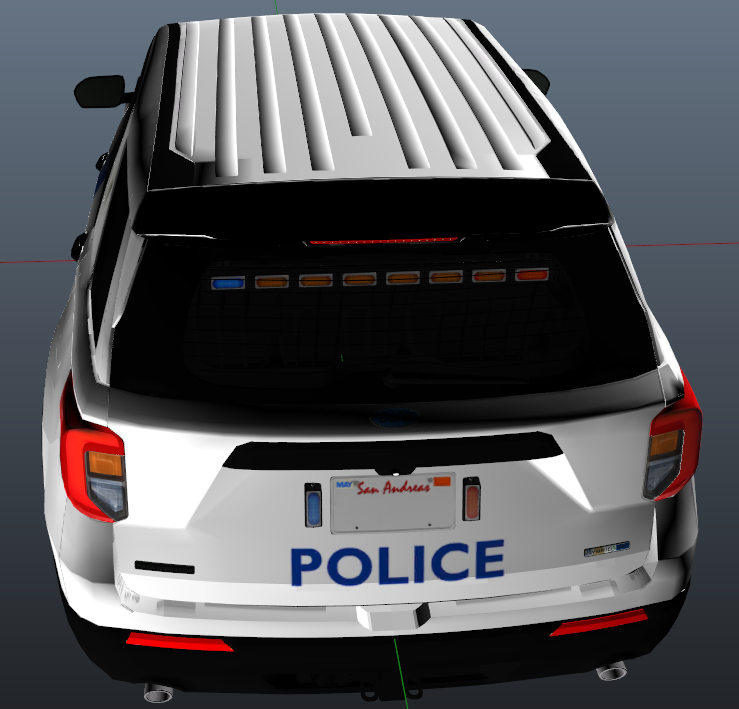
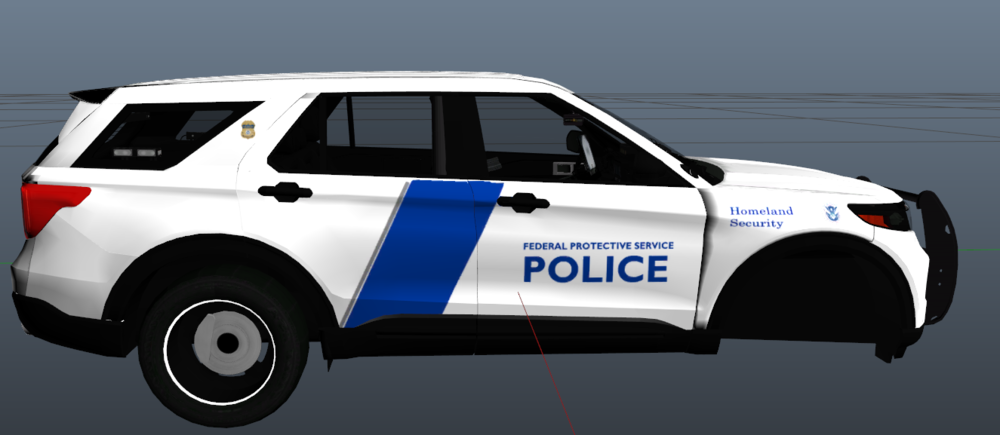
-
yeah same I only have the basics installed yet this happens to me too.