Pinyap
Members
-
Joined
-
Last visited
Everything posted by Pinyap
-
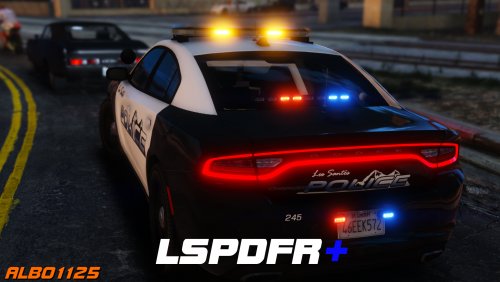 Hey Ive rececntly installed both LSPDFR+ and Traffic Policer for the first time, I can get LSPDFR+ to work just fine, but when i try to install the TP files I get an error saying that LSPDFR+ encounter errors and that my Albo.common.dll is out of date. Ive downloaded the latest versions of both files. Help would be appreciated RagePluginHook.log
- 1,178 comments
- 137 reviews
-
Recently I installed this mod for the first time and have been enjoying it pretty immensely. However today when trying to install LSPDFR+ into my LSPDFR folder, now every time I start the game I get past the first loading screen before seeing the "Activation required" window, which makes me quit the game. I already saw a post like this from all the way back in 2015 that got locked immediately because it had "already been answered" and to "use the search function" but using the search function on this forum only gives me posts that use words that are similar to "Activation required" (active, activate, etc) and no matter what I do on the filters I cannot find whatever post that mod was talking about. I use GTAV Mod Manager so that the game stays in offline mode (i.e so I dont get banned), but disabling LSPDFR and launching the game in vanilla does not do this. Its only when I try to load the game in offline mode with LSPDFR for some reason Thank you for your time