yahboi
Members
-
Joined
-
Last visited
Everything posted by yahboi
-
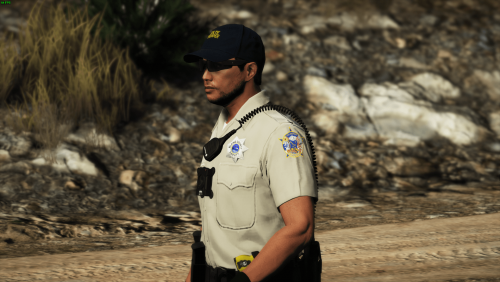 Have you considered making a regular Alaska state troopers pack? If you haven't then you should because there are no good packs rn.
 -
 Would you consider putting the hood down when the gun is unholstered? It's a small detail but it makes a big difference in realism.
- 47 comments
- 13 reviews
-
-

- 1
-
-
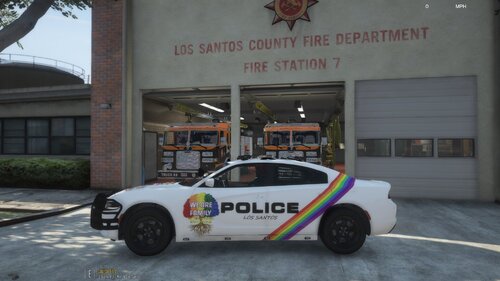 yikes
yikes -
I export it as a dds, open it through paint.net and then save it as a dds
-
It is the same as the default EUP res
-
The first image is after I added the Seattle police badge(I have not changed it in any other way, it also looks normal in paint.net), The second image is the default EUP texture. Is there a way to fix this?
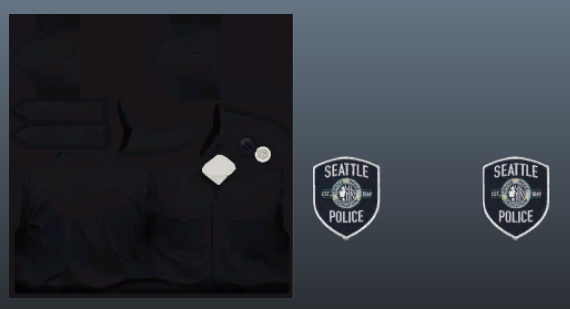
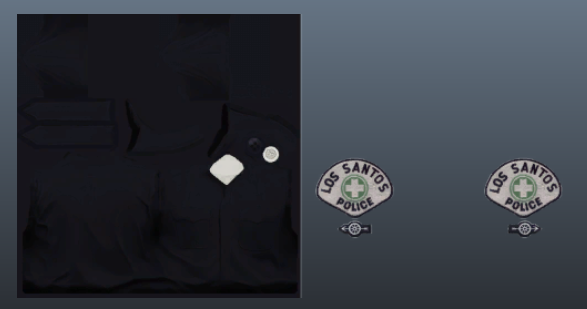
-
Can someone please use the included pic as a reference to make a completely new image of the badge in a higher res.
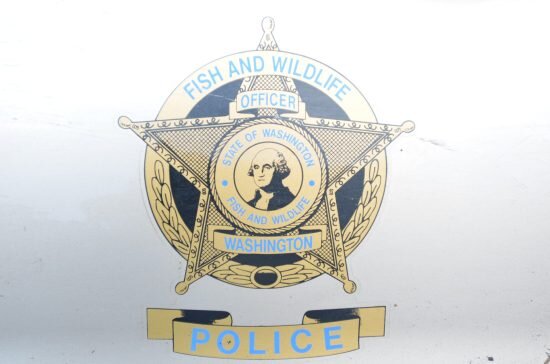
-
Whenever I export a black/grey uniform texture from paint.net, it always looks fine in paint.net but when I import it to OpenIV it looks slightly green tinted.
-
-
I live near Vancouver(Not Canada) and wanted some good skins to enhance my LSPDFR experience, I would like to use these cars with TickleMyElmo's LSPD Pack. The only thing I ask for is that they be lore friendly and accurate to IRL for all cars (2011 Cvpi, 2014 charger and 2016 explorer) Also, the fpiu has both an old b/w skin like the charger and the new black skin as seen below.
-
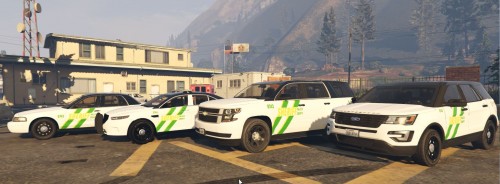 You might want to think about changing these to Blaine County because Paleto County isn't a place.
 -