InfernoCollection
Members
-
Joined
-
Last visited
Everything posted by InfernoCollection
-
 I guess I stand corrected, not sure where I got that idea from; with that in mind, I'm surprised more servers don't use custom animations 🤔 Regardless, looks like I owe you a FiveM resource haha! I'll get started shortly.
 -
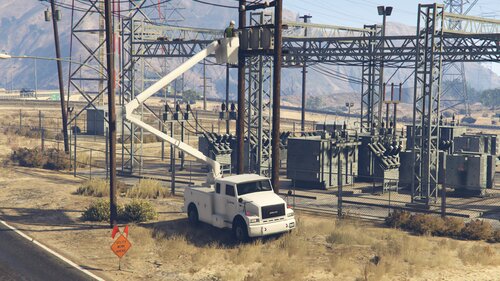
Heyo, just touching base regarding converting this to a FiveM resource; a friend asked me to take a look. Firstly, nice release, very neat. Regarding conversion, it certainly looks possible as far as swapping out the RHP references for FiveM ones, however, the major issue is your custom clipset (v_boomtruck.ycd). FiveM does not have support for streaming custom animations at the moment, but if you can find a way around that let me know, and I'll happily convert it for you myself 😄
-
Thanks for your response Cyan, That's a shame to hear, since I'm with OVH and I was under the impression they were quite a reputable company; regardless, I understand your point of view, and will just download stuff to my PC, then move it to my VPS the old fashioned way haha. Thanks!
-
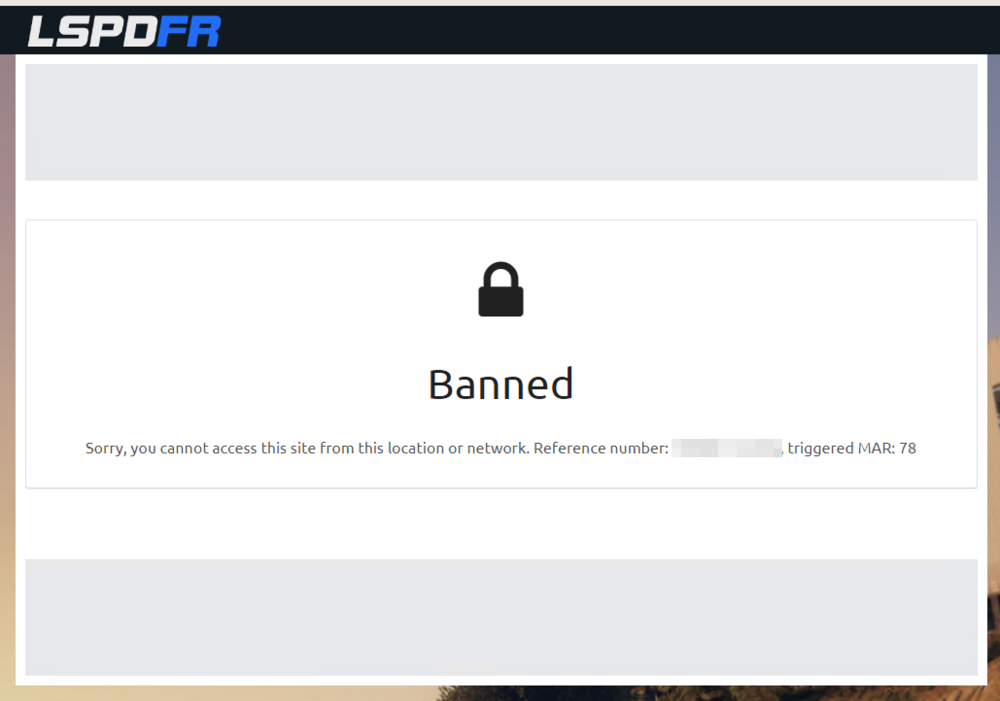
Hey there, Not sure if this is the correct section, but I tried accessing a vehicle page from my Windows VPS, clicked the "Download this file" button, then go a bag fat "Banned", as seen below: I've removed the reference since it was my VPS' IP, but I'm happy to provide it in private to whoever needs it. My account does not appear to be banned since I am able to post this thread, but not being able to download stuff from my VPS is a bit of pain lol, anyone able to provide some guidance? Thanks