Mrpoliceems
Members
-
Joined
-
Last visited
Everything posted by Mrpoliceems
-
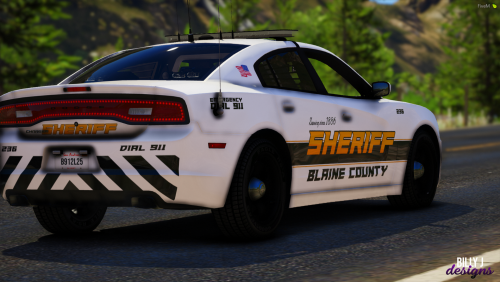
 PULL THE **** OVER!
 -
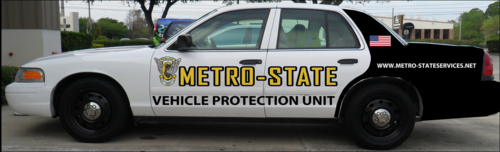
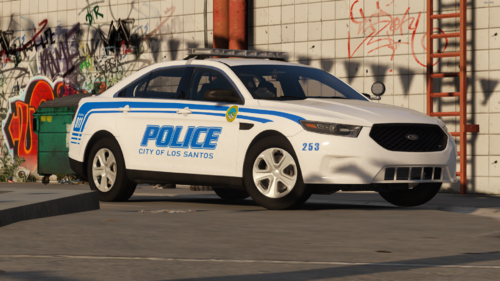 For a second, I thought it was Greer PD or Greenville, then I realized it wasn't.
 -
.png.f86a26e3e80e113b06d3d6739f68da28.png) Spartanburg County=Murderburg County.
Spartanburg County=Murderburg County. -
-
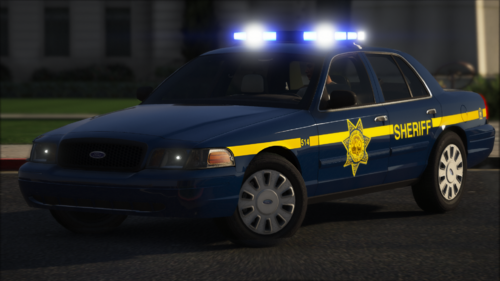
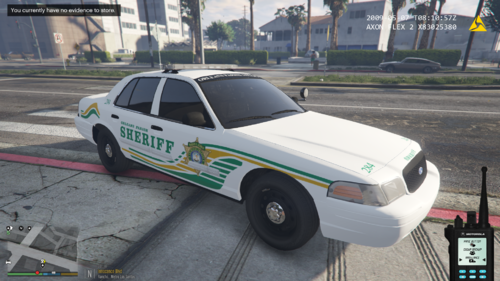 Florida called... They said they wanted their livery back.
 -
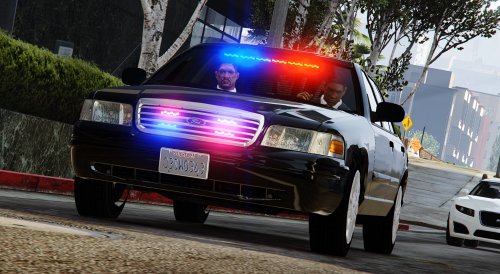 3.0 has a few major issues with the window tints on the front and back windshield.
- 208 comments
- 59 reviews
-
.thumb.png.74516e0f2ede93291e06e4acb7f4722b.png) Bit of an issue, I seem to not have a x64.rpf file in my openiv and gta v directory mods folder.
Bit of an issue, I seem to not have a x64.rpf file in my openiv and gta v directory mods folder.- 9 comments
- 1 review
-
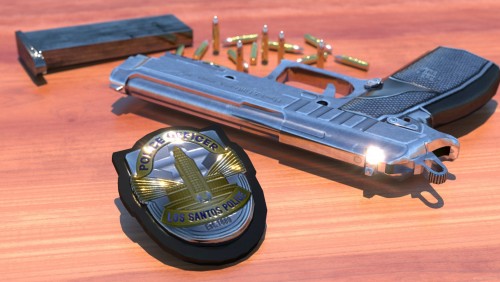 I got a bit of an issue. When I click install into mods folder using OpenIV it says there was a fatal issue and the installation has failed. Also if I were to get this to work, how would I deploy the badge using the default key?
- 31 comments
- 2 reviews
-
-
A major thing I dislike is the fact in 0.41 is that you cannot arrest soldiers in Fort Zancudo. While patrolling the highways you might be dispatched to a call near the air base and the suspects will spawn as soldiers, due to this you cannot arrest them if they are actively in pursuit. The only way around this is by installing arrest manager and then that only works if they are not actively evading from you. This also makes it almost impossible to do a military police roleplay. Which when you look into it, there is a lot of cool things in Fort Zancudo. Anyways, hopefully this can get changed and or updated in the future.

.png.f86a26e3e80e113b06d3d6739f68da28.png)
.thumb.png.74516e0f2ede93291e06e4acb7f4722b.png)