


Bienie2304
Members
-
Joined
-
Last visited
Everything posted by Bienie2304
-
Hello, after the update of the days, I no longer come into play. The error message amounts to error code: 7002.1 Can someone help me there?
-
Hallo, momentan habe ich ein problem. Jedesmal wenn ich um die Kurve fahre, überschlägt sich das Fahrzeug. Wer kann mir da helfen? Danke
-
Hello I installed LSPDFR + RPH + ScriptHookV + ScriptHookVDotNet + ELS 1.05, game went well. Then I installed Traffic Policer "Albo1125" and UltimateBackup, since then the game always hangs when starting. Can someone help me there please? Thank you
-
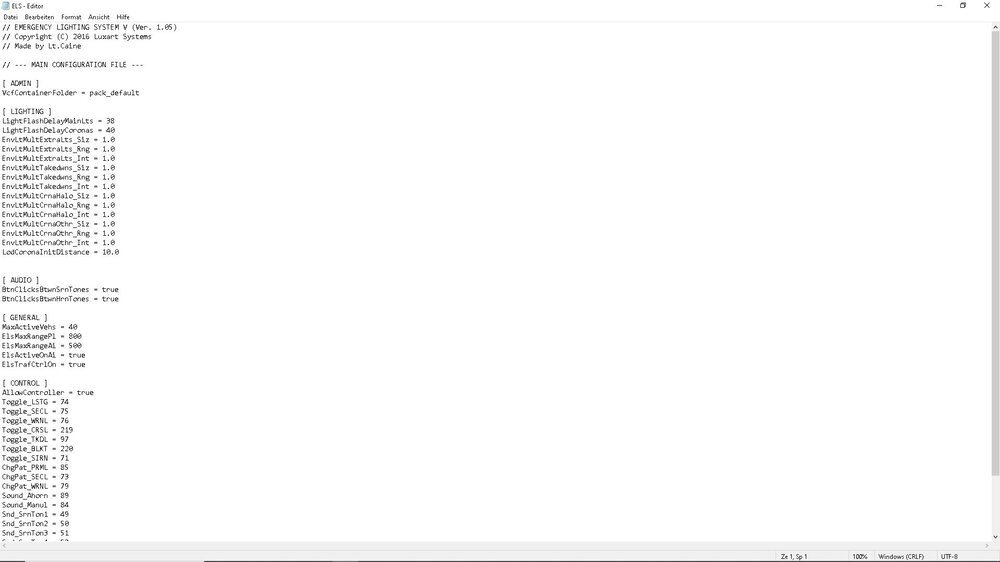
Hallo, ich habe folgendes Problem das bei einigen Fahrzeugen das Blaulicht nicht funktioniert, der Rest allerdings schon. Habe diese Fahrzeuge laut Beschreibung installiert und den beigefügten ELS Ordner ebenfalls nach Beschreibung kopiert, nur funktioniert die ELS auch nicht wenn man sie aufruft.
-
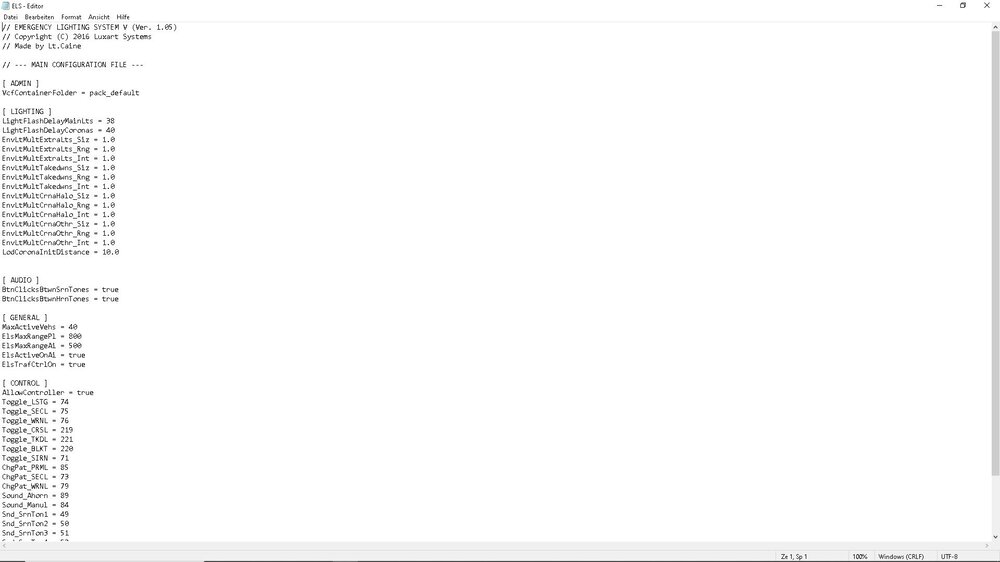
Hallo, ich habe 2 Fahrzeuge installiert. Bei einem funktioniert alles perfekt, bei dem anderen geht das Blaulicht nicht. Habe versucht die ELS mit Strg + P aufzurufen aber nichts funktioniert. Kann mir einer helfen bitte?
-
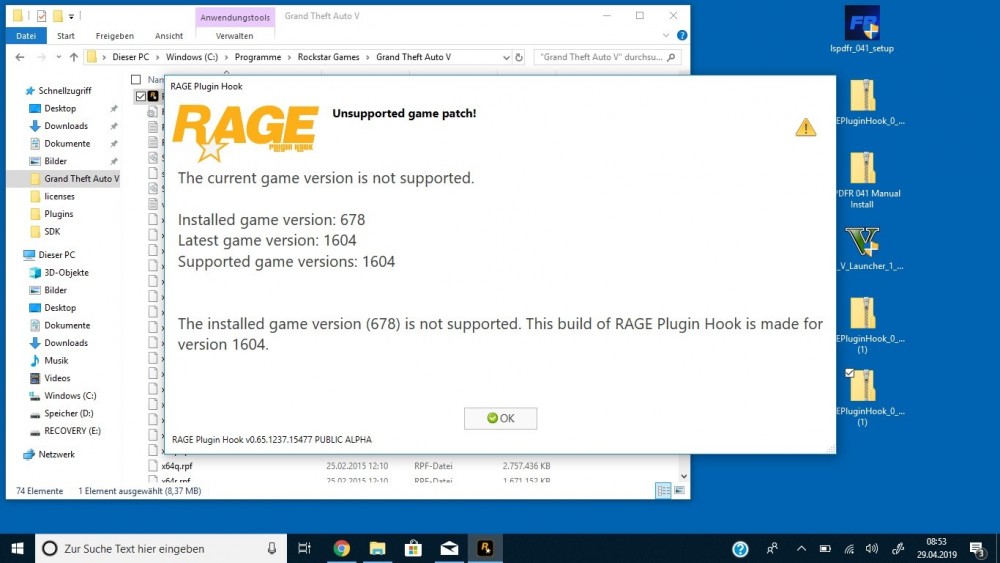
Hello - GTA 5 installed - Update with Launcher - Rage Plugin Hook downloaded and copied to the directory - LSPDFR 0.4 downloaded and copied to the directory Start as Admin Rage Plugin Hook and this error message will follow. What can I do against it? Everything went great days ago, but I had to completely rebuild my PC.
-



