


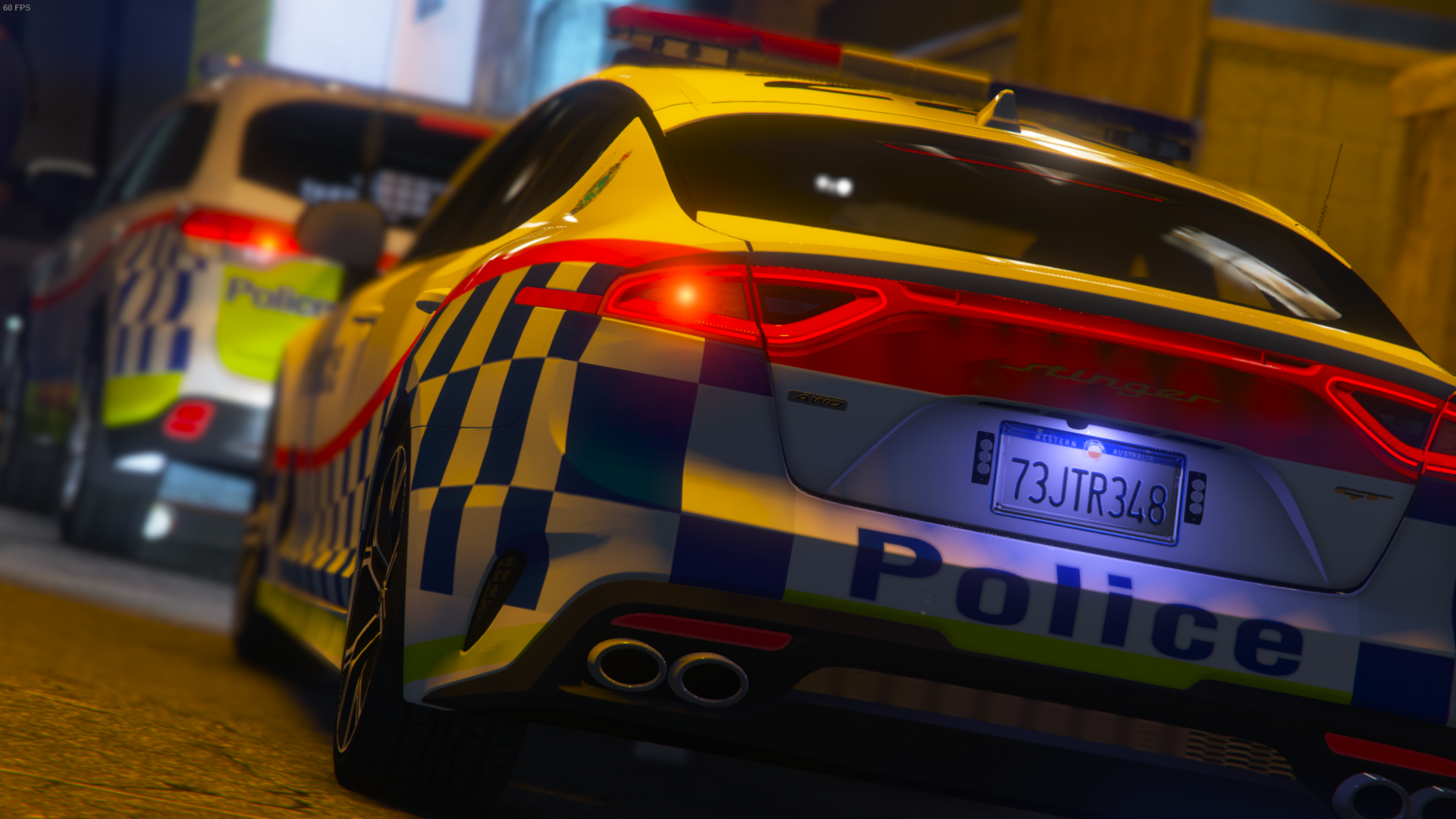

Hellcat007
-
Joined
-
Last visited
Everything posted by Hellcat007
-
From the album: WAPOL LSPDFR - Hellcat007
© Hellcat007
-
The gameconfig or RageNativeUI, since you quoted my Rage fix and mentioned gameconfig being the fix? Glad I could be of assistance!
-
You can keep the profile picture 🙂 Was just curious as to why you had my photo (Personally, I'd have used the low down from behind the stinger) If you can load into GTA fine without RAGE, then your problem is not associated with the gameconfig. Your crash shows that LSPDFR is trying to access protected memory. I had this crash happening last week and I found the issue was that my RageNativeUI is protected. The fix is to just swap it out with this one https://github.com/alexguirre/RAGENativeUI/releases
-
Alright, I think I know who this is. First off, curious as to why you're using one of my photos as your profile picture. Second, if this is Paris from Discord, the fix for this issue was that the gameconfig was not swapped out and caused a STATUS_ACCESS_VIOLATION in the launcher.log in the Rockstar Games folder.
-
From the album: WAPOL LSPDFR - Hellcat007
© Hellcat007
-
From the album: WAPOL LSPDFR - Hellcat007
© Hellcat007
-
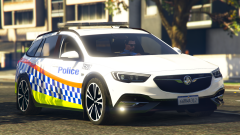
From the album: WAPOL LSPDFR - Hellcat007
© Hellcat007
-
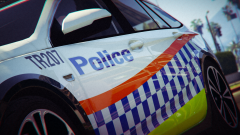
From the album: WAPOL LSPDFR - Hellcat007
© Hellcat007
-
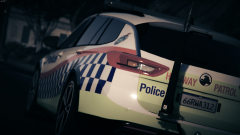
From the album: WAPOL LSPDFR - Hellcat007
© Hellcat007
-
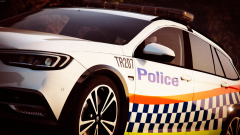
From the album: WAPOL LSPDFR - Hellcat007
© Hellcat007
-
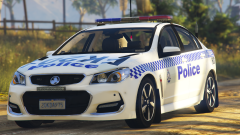
From the album: WAPOL LSPDFR - Hellcat007
© Hellcat007
-
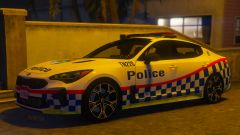
From the album: WAPOL LSPDFR - Hellcat007
© Hellcat007
-
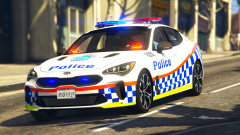
From the album: WAPOL LSPDFR - Hellcat007
© Hellcat007
-
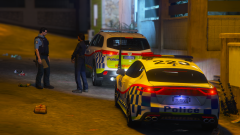
From the album: WAPOL LSPDFR - Hellcat007
© Hellcat007
-
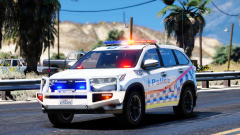 oooh, yikes, I didn't see how bad quality this was...
 -
From the album: WAPOL LSPDFR - Hellcat007
© Hellcat007
-
.png.d9e91f99d418a4c5b1c498f7362da932.png)
From the album: WAPOL LSPDFR - Hellcat007
© Hellcat007
-
.png.65666f8b222471500258f29a04483f01.png)
From the album: WAPOL LSPDFR - Hellcat007
© Hellcat007
-
.png.8a77c4475260f99407fadfd007afef0c.png)
From the album: WAPOL LSPDFR - Hellcat007
© Hellcat007
-
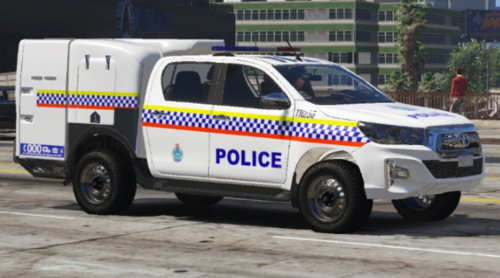 Love seeing a paddy with a traffic callsign 😂 Gotta hope that thing has VTEC if you plan on getting into pursuits!
 -
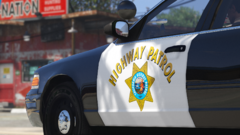
From the album: LA LSPDFR - Hellcat007
© Hellcat007
-
My take on LSPDFR in a LA based set up. All pictures are my own.
-
CHP rolling through Sandy Shores
-
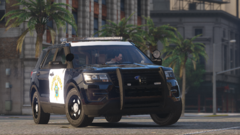 CHP lurking around Legion Square
-
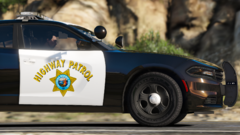 CHP charger in the hills
-
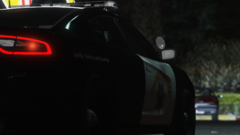 CHP charger at a restaurant patrolling the parking lot
-
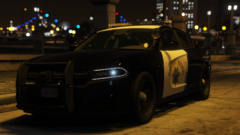 CHP charger chilling in the night
-
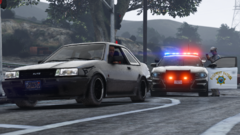 Code 5 traffic stop
-
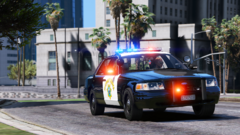 CHP Crown Vic responding to a road rage incident on hwy
-
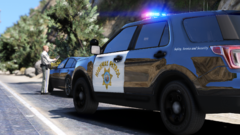 Traffic stop on the highway with a CHP explorer
-
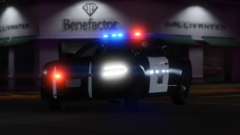 CHP charger 2
-
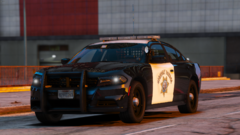 CHP Charger
-
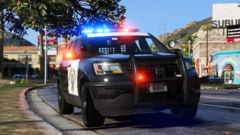 CHP Explorer
-
-
From the album: LA LSPDFR - Hellcat007
© Hellcat007
-
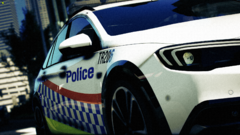
From the album: DFESRP
© Hellcat007
-
DFESRP is a Western Australia based FiveM server. We have active emergency services and we're always looking for more members! Join here: https://discord.com/invite/vEk7mbj
-
TR206 wallpaper 2
-
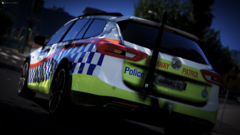 TR206 wallpaper
-
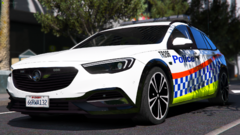 TR206 spotted on food break
-
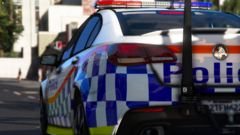 Traffic VF commodore on the Blvd
-
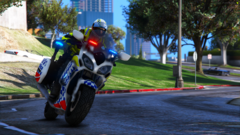 Snr Sgt Josh Brown on a bike responding to speeding tip off
-
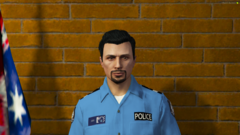 Snr Sgt Josh Brown's promotion photo
-
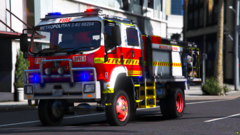 Metropolitan 3.4 responding to a traffic crash
-
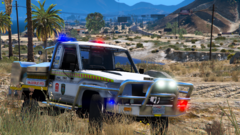 Kalgoorlie VFES Light tanker at a scrub fire
-
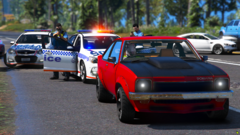 High Risk traffic stop training
-
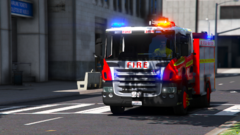 Armadale spotted responding to a structure fire 3
-
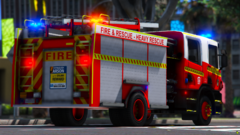 Armadale spotted responding to a structure fire 2
-
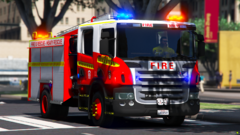 Armadale spotted responding to a structure fire
-
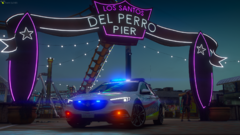 TR209 at the Del Perro Pier for the long weekend
-
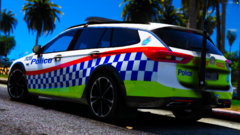 TR209 in Mirror Park 2
-
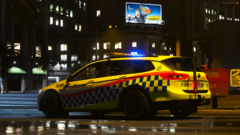 TR209 in Legion Square 2
-
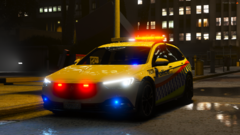 TR209 in Legion Square
-
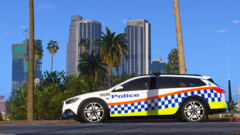 TR209 in Mirror Park
-
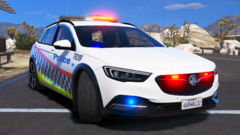 TR209, the beautiful traffic commodore
-
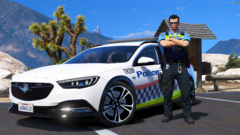 TR209 and then Sergeant Josh Brown
-
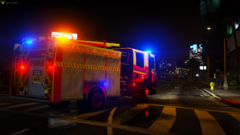 Armadale 1st responding to DBA 3
-


.png.d9e91f99d418a4c5b1c498f7362da932.png)
.png.65666f8b222471500258f29a04483f01.png)
.png.8a77c4475260f99407fadfd007afef0c.png)
