IndianaisMyState
Members
-
Joined
-
Last visited
Everything posted by IndianaisMyState
-
Ok, Let me send you a screen grab and you tell me if it looks ok? https://gyazo.com/3050a808fe8ebd80c867bf8e932f5faf
-
Hey Unit, Yes I know reply to an old topic but, do you still need this done?
-
-
-
-
I was thinking of doing blue/red but wanted to know some peoples thoughts, thanks guys!
-
So, I've recently started working on this 2008 Chevy Tahoe. What all should I add to this? I am adding interior stuff in due time, but any idea? Pictures in the Spoiler.
-
Ok, any ideas on how to explain to my dad, building my own computer would be okay? LOL just wondering.
-
Can I see it please? EDIT: I would like to support dual monitors, and maybe even triple later in the time, FYI.
-
Ok, Ill look into that. EDIT: I think I can change it, all the other parts I have changed, I will try that later today.
-
Hey all, I'm looking to get a new Desktop (Right now I have a laptop), but I want to know if this will be able to play games on Medium to High (Like GTA V and IV (IV with ENB?), and be able to Encode/Edit Videos at good rates, and not slow down! Can you guys let me know what I should change and keep? I also want to know if it is good for the price? Thanks!
-
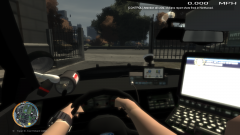 No, I dont, what one?
 -
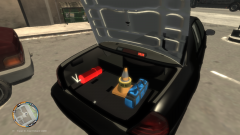 Car Assembly Credit to me! Part credit to respective owners.
 -
Car Assembly Credit to me! Part credit to respective owners.
-
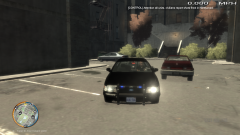 Car Assembly Credit to me! Part credit to respective owners.
 -
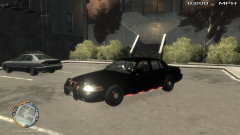 Car Assembly Credit to me! Part credit to respective owners.
 -
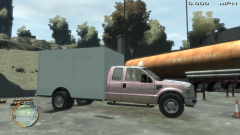 Nah, Unless, you can find some, I like the ones I have on, but if you find some you think would be good, be sure to send it to me, and I will see if I like it. I am open.
 -
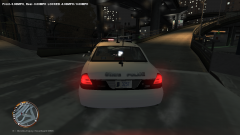 Still after many shotgun blasts, and pistol bullets, it is still standing. Car was not made by me!
 -
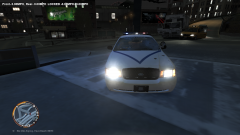 Yep, Imma get a new car, this one was already done for anyway! Car was not made by me!
 -
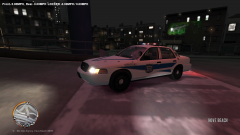 This is after a shootout, looks like im getting a new car The car was not made by me!
 -
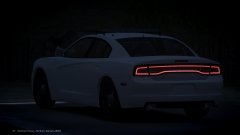 Lookin Good!
 -
That would be nice too, im just having issues setting up these Quadraflare's they are made weirdly.
-
I do like this, I'll have to see what I can do if I can get these Quadraflare's to work.
-
yea, I jsut had a slow news day so posted it, I like that CP posted lol
-
All Around, none around me have Light Bars, but none around are F350's, I just don't like the lightbar on a Ambo look.