Z3RY4B
Members
-
Joined
-
Last visited
Everything posted by Z3RY4B
-
-
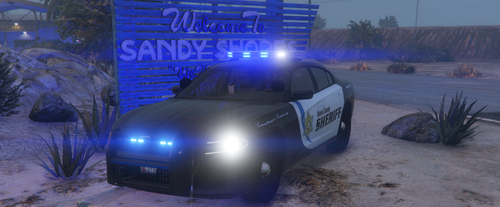 I downloaded that pack once again, yet I do not see the option of all blues.
- 380 comments
- 31 reviews
-
-
-
 Oh cool! Another awesome new callout added. Thanks a lot Abel! You can consider these extra ideas: -Officer pressed his panic button -Officer down -Officer requiring medical assistance -Civilian requiring medical assistance -Civilian reports dead body to 911 -Civilian reports stolen vehicle to 911 -Abandoned vehicle on road -Motor Vehicle Accident -Officer requiring transport -Officer requesting prisoner transport -Active Shooter -Pursuit of Armed Suspects -Homicide Investigation -Rollover Accident Investigation -Felony Stop Assistance -Rescue Civilian from Gang Shootouts -Gang Shootouts -Exploded Vehicle Some of these callouts might already be added but you can add different outcomes of your choice Basically just add new investigation callouts.
- 200 comments
- 27 reviews
-
-

- 2
-
-
After Abel has rewritten his program from scratch, Variety Callouts is a really must-have plugin in your game. Really unique and amazing callouts. Each and every callout is carefully placed and planned. Love it!
- 200 comments
- 27 reviews
-
-
- 1
-
-
-
-
Hey can you confirm if the texture loss is fixed? If so I'll go ahead and download some vehicle packs. If not, I'll stick to the default one.
-
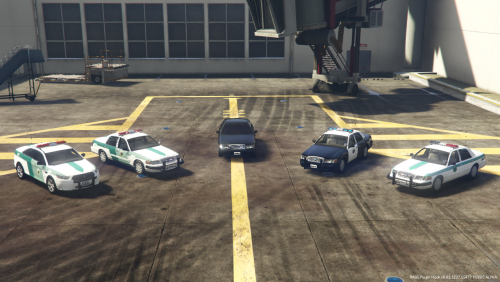 I wanted a pack based on Abu Dhabi police, but your pack is amazing nonetheless
- 12 comments
- 4 reviews
-
-
- 1
-