


LaWizarD
Members
-
Joined
-
Last visited
Everything posted by LaWizarD
-
I've been playing fine without problems for a while now. I was even playing a few hours ago with no problems whatsoever. Now lspdfr keeps crashing every time I go on duty. RagePluginHook.log Nevermind, it just started working again lol
-
Might just be me but LSPDFR+ and Interaction+ are crashing my game now.
-
Dang, that sucks. So I guess we just have to wait now?
-
Still crashed. New log:
-
My bad, here you go
-
LSPDFR keeps crashing when I go on duty/ForceDuty. Not entirely sure what the problem is, any help is appreciated.
-
go to GTA > plugins > LSPDFR and find Traffic policer.ini click edit and change CreateBlipsForAmbientEvents=true to false
-
update: removed the mods folder from GTA directory, seems to work fine now
-
Did that, still no dice.
-
Okay, I appreciate the help! 🙂
-
Still crashing. Every time the game starts it asks me to adjust the brightness which it never used to do, and it immediately crashes when I press enter. Would it have something to do with that you think?
-
Still crashed.Sorry about thatI've been playing LSPDFR fine for a few months now, haven't played in a couple of weeks and thought I would hop back on for the new .4 update. Now every time my game would start loading it would crash, even when loading in with no plugins. This only happens when I launch with rage hook, starting the game up normally through steam works fine. Any help would be appreciated.
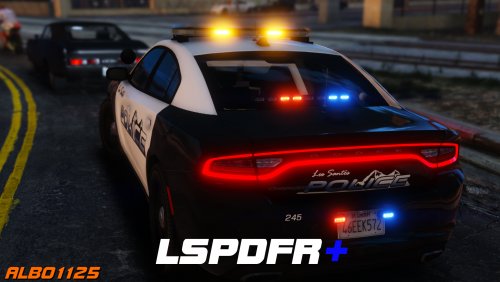 Great mod, but ever since a few days ago my game will completely crash when using the lspdfr+ computer. It will work maybe 1 or 2 times but then it will just completely crash.
- 1,178 comments
- 137 reviews
