


ImaTr1plet
Members
-
Joined
-
Last visited
Everything posted by ImaTr1plet
-
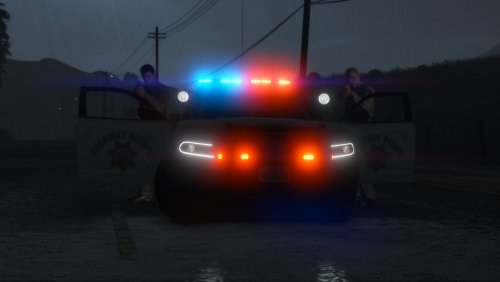 Oh my.... this is INCREDIBLE. And I thought the CHP Hurk Pack had the most realistic CHP cars out there. I know you’re very against it...but it seems a lot of people including myself would drool over a CHP Ford utility pack from you. 🤤
- 325 comments
- 53 reviews
-
-

- 1
-
-
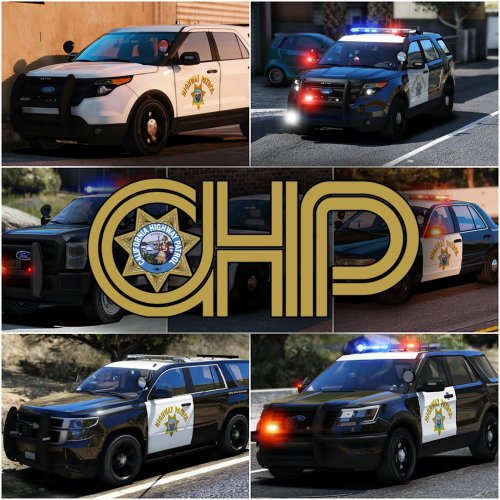 This is such an outstanding accurate pack. I've been involved with the CHP in the past and this is by far, the most accurate pack out there if you're looking to get the highways on. However, there are a tad miss conceptions and some minor improvements that could be done to make this pack even that much better! Firstly, the headlights and taillights do not flash while in code 3 mode. Secondly, when switching sirens from the wail to the yelp while in code 3, all the forward and rear lights (except the steady burn) flash on/off at the same pace altogether. Thirdly, when operating in code 1 mode the red steady burn light doesn't appear on the front of the vehicle. That's only in code 3 and code 2 mode. Code 1 mode is only existent on the rear of the vehicle. And lastly, when operating in code 2 mode, all emergency lights are activated including the red steady burn, however in code 2 mode the blue lights on the front of the light bar stay off. Also it'd be super awesome if we could operate the directionals on the traffic adviser while in code 3, I noticed I can only operate them while in code 2. Anyways. like I mentioned, this is an outstanding pack and far more superior than any others out there that I know of. These are just my inputs encase you may have not realized 🙂
- 956 comments
- 158 reviews
-
-
- 1
-
